
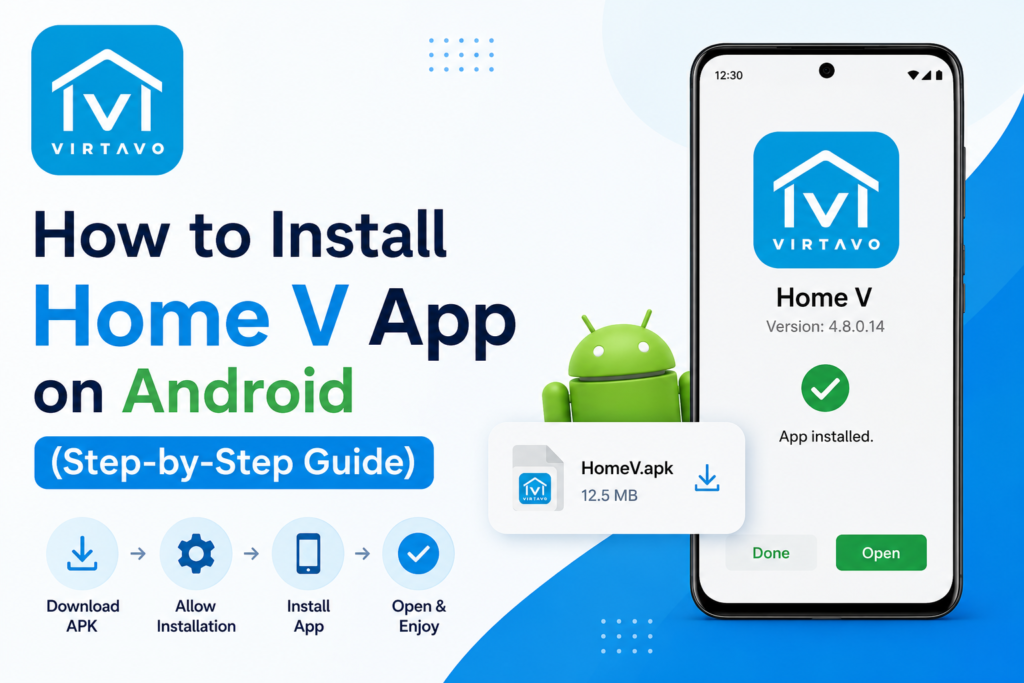
Here is the full guide on how to install Home V app on Android. In this guide, we’ll walk through how to download, install, and set up the app on your phone. But before we dive in, let’s go over a few quick things you need to know about the app so you can get a better handle on how it works and avoid any mistakes.
What is Home V App?
While I’ve already covered this in detail in my previous posts, to put it simply, this is a home security app designed to link your security cameras directly to your Android phone or tablet. One important thing to keep in mind: the cameras you want to use must specifically recommend this app. You won’t be able to connect cameras from other brands or companies if they aren’t compatible.
As for what it can do, this app is absolutely packed with features. Beyond the essentials like live monitoring and playback recording, it also comes loaded with advanced tech, including Alexa support, instant motion detection, a Pet Call feature on supported devices, and even Barking Detection on select camera models.
Requirements Before Installing Home V
“Before installing it on your Android phone, let’s quickly look at a few requirements, so you don’t run into any issues:
- 200MB of Free Space: Make sure your phone has at least 200MB of available storage.
- The APK File: You’ll need to have the app’s APK file downloaded beforehand. If you haven’t grabbed it yet, go ahead and do that now.
- An Active Internet Connection: Ensure your phone is connected to a stable internet connection.
- ‘Unknown Sources’ Permission: You’ll need to allow installations from unknown sources (for the specific browser or file manager you are using to open the APK).
How to Install Home V on Android
Now that you’ve got all the prerequisites squared away, let’s dive right into the installation and setup steps.
Step 1: Download the Home V APK File
First things first, you need to make sure you have the right APK file, and it absolutely needs to come from a trusted source. Don’t just grab a random file from any sketchy site out there. The download link we’ve provided for this app has already been thoroughly vetted and passed multiple security checks, so you can safely download it right here. You can also take it directly from the Play Store.
Step 2: Open the Downloaded APK File
Next, open up the folder on your phone where the file was saved. Tap on the APK file, and the installation will kick off. From here, just kick back and wait for it to finish.
Step 3: Open Home V and Configure on Android
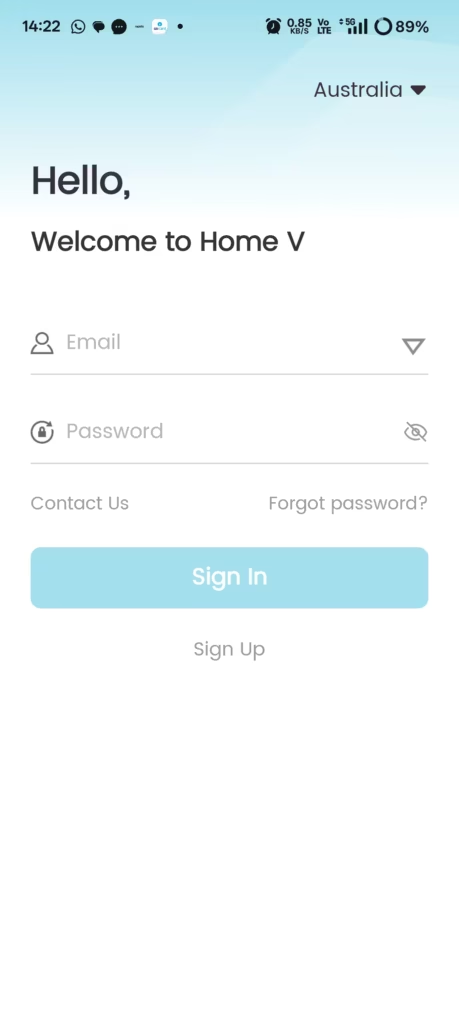
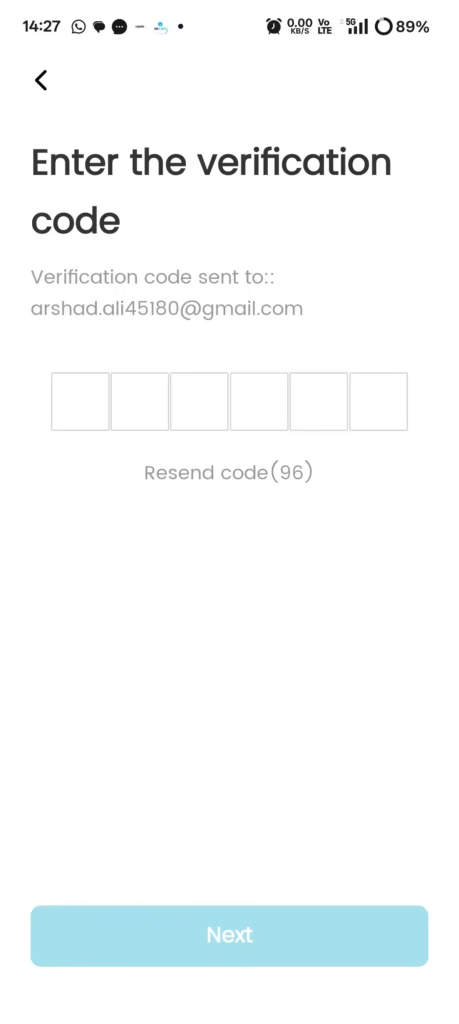
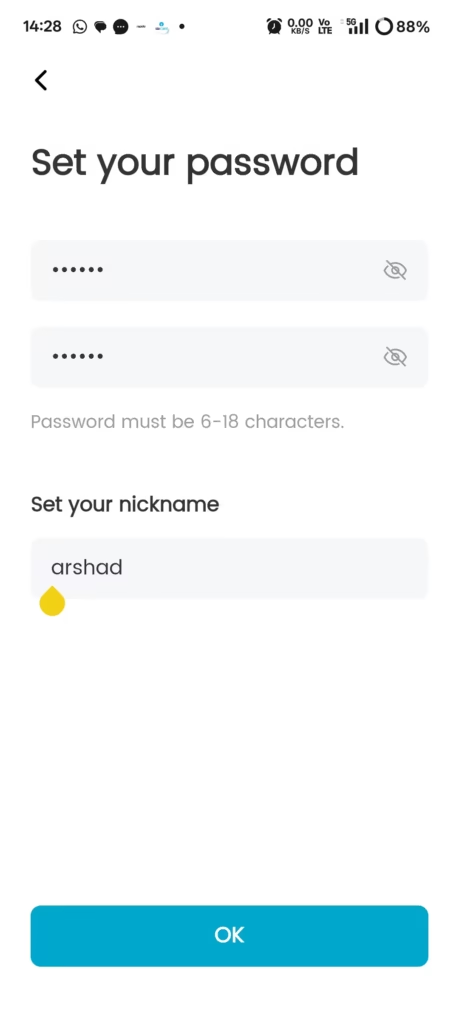
As soon as you open the app, you’ll hit the login screen. If you already have an account, just go ahead and log right in. Otherwise, you’ll see a ‘Sign Up’ option at the bottom. Tap on that to create an account using your mobile number. Just keep in mind that the signup process requires an OTP to complete.
Step 4: Adding your Device to the App
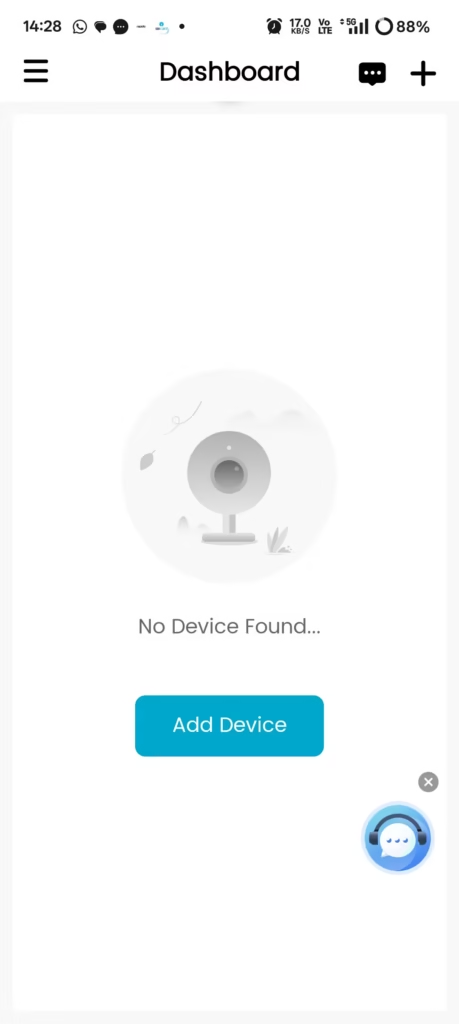
“Once you’ve got the signup process out of the way, all that’s left to do is add your device. Just tap on ‘Add Device’ and select the specific model you want to connect.
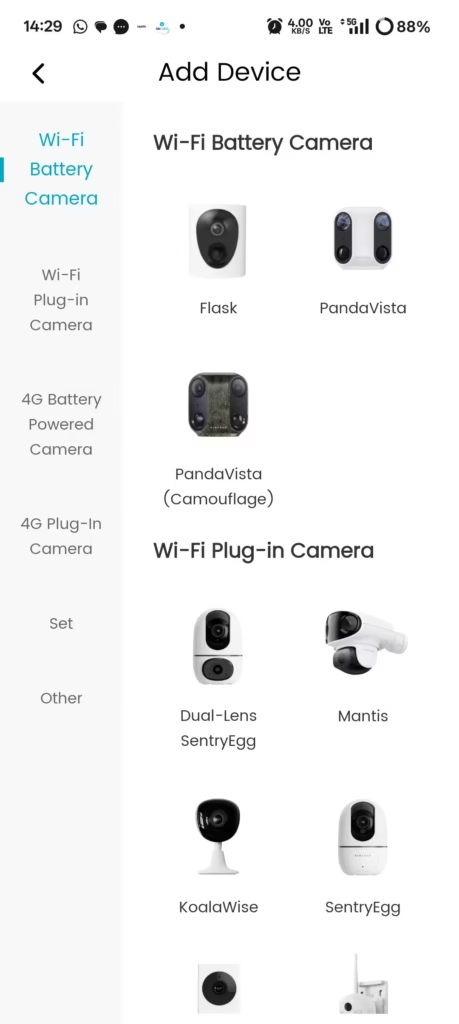
Step 5: Configure the Camera for the App
After you select your camera, the app will ask whether you want to connect it via Bluetooth or Wi-Fi. Go ahead and choose Wi-Fi. The moment you select it, the app will start scanning for your device.
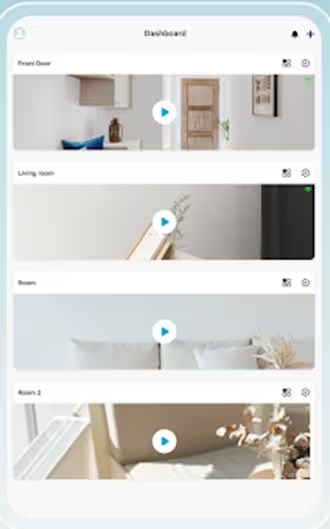
Just a quick tip: keep your phone right next to the camera during this step—ideally within one foot. Once the scan finds your camera, it will prompt you to select the Wi-Fi network you want to link it to. Just choose your home router from the list and enter your Wi-Fi password. And that’s it! Your camera’s live feed will pop up right on your phone screen.
By the way, if you have multiple cameras to set up, you’ll just need to repeat this exact same process for each one.
Common Mistakes in the Installation Process
Now, let’s go over a few common troubleshooting steps. If you happen to get stuck anywhere along the way, just double-check these points to get your cameras up and running on your screen in no time.
- App Not Installing: The most common issue right off the bat is the app failing to install altogether. If you run into this, first check your phone’s storage space to make sure it isn’t full. Next, double-check that the APK file has actually downloaded completely without getting corrupted. Finally, look into version compatibility—if you’re using an older smartphone, the latest app might not play nice with your operating system, so try downloading an older version of the app instead.
- App Installed But Crashing: Sometimes the app installs just fine, but then it either freezes your phone or crashes the second you try to open it. If this happens, make sure your phone isn’t maxed out on storage and that your ‘Android System WebView’ is fully updated. You could also try stepping back to the previous version of the app. Just a heads-up: before you try a different version, make sure to completely uninstall the current app and give your phone a quick restart first.
- Not Connecting to Wi-fi: If you’re trying to add a device and the camera isn’t showing up in the scan, double-check that you selected the exact same model in the app that you’re trying to configure. Misclicking a similar-looking model is an easy mistake to make. Second, make sure that the Wi-Fi router you’re connecting to doesn’t have any IP or MAC address filtering active that might be blocking new devices. As long as the router isn’t blocking it and you’ve entered the correct Wi-Fi username and password, it should connect without a hitch.
Testing Notes
✔ Tested on: Android 10, Android 11, Android 12, Android 13, Android 14
✔ Verified on: Samsung, Xiaomi, Realme, Vivo, Oppo, Motorola devices
✔ Installation Method: Direct APK Installation
FAQs
Final Words
We’ve done our best to walk you through exactly how to install the Home V app and get your cameras linked up step-by-step. That said, if you’re still running into any trouble or something isn’t working quite right, don’t hesitate to reach out. We’ll do everything we can to help you get it sorted.
Thanks so much for stopping by, and have a great day!