
Home V App Not Working? We’ve put together a straightforward guide to help you out. We’re tackling the actual issues you guys ask about most often, no fluff, just fixes.
If you’re stuck trying to install the app or having a hard time getting your cameras to connect to your phone, don’t sweat it. Just follow these steps one by one, and you should be back up and running in no time:
1. Home V App not installing
If you’re stuck right at the very first step and the app won’t even install, take a close look at the points below. Give them a try, and you should be good to go:
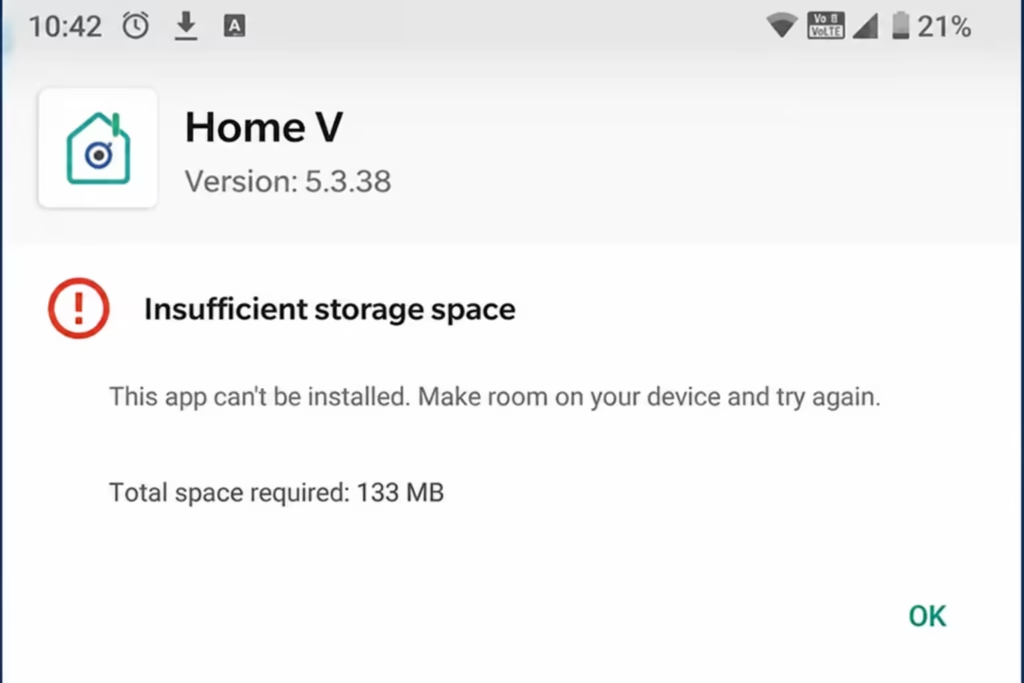
- Insufficient Storage Space: First things first, check your phone’s storage to make sure it isn’t completely full. Keep in mind that you need to have at least 200 to 500 MB of free space on your mobile for apps to install properly.
- Android Version Not Supported: Also, make sure to check for any Android version compatibility issues. This part can be a bit tricky because it isn’t always clear which version your phone supports. If your phone isn’t ancient, try downloading the version just before the latest one. There’s a very good chance that’ll do the trick.
- Corrupted APK File: Always make sure you’re downloading the APK file from a trusted source. Even then, downloads can sometimes get corrupted midway through. If that happens, just delete the old file completely, download it again from scratch, and then try the installation. That should fix it!
- Existing App Conflict: Sometimes, the issue is just that you already have an older version of the Home V app sitting on your phone, and the new installation is clashing with it. If that’s the case, just uninstall the old one completely, restart your phone, and then try installing the new version fresh.
- Package Parsing Error: This is a super common error that tons of people have reached out to us about. Honestly, it usually just means one thing: the specific APK you downloaded isn’t compatible with your hardware. Your best bet is to just delete it and try downloading a different version.
2. Home V App Login Problem
This isn’t a massive issue, and you can easily fix it by just following a few simple steps.
1. Incorrect Email or Password
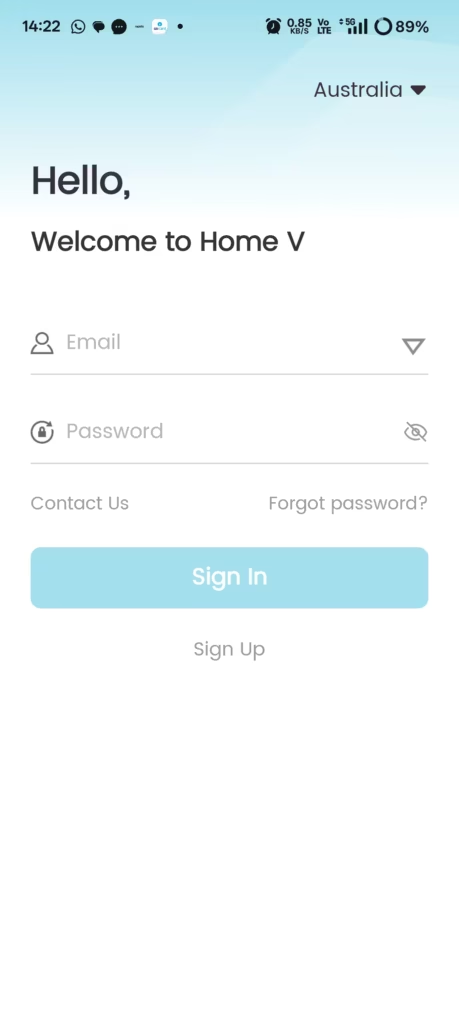
If you already have a Home V account, make sure you are entering the correct email address and password.
Fix:
- Check for typing mistakes.
- Verify that Caps Lock is turned off.
- Use the “Forgot Password” option if you cannot remember your password.
2. OTP Not Received During Registration
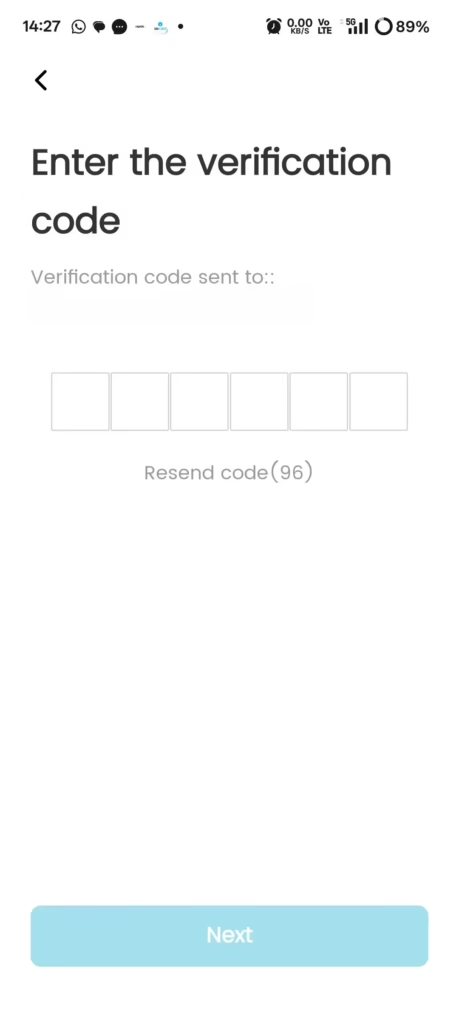
New users need to register using their email and OTP verification. Sometimes the OTP may not arrive.
Fix:
- Check that the mobile number is entered correctly.
- Wait a few minutes and request a new OTP.
- Ensure your phone has a stable network connection.
- Try switching between Wi-Fi and mobile data.
3. Invalid OTP Error
The app may show an invalid OTP message if the code has expired or was entered incorrectly.
Fix:
- Enter the latest OTP received.
- Request a new OTP if the previous one has expired.
- Copy and paste the code carefully if possible.
4. Unable to Complete Registration
Some users may get stuck during the account creation process.
Fix:
- Restart the Home V app.
- Update the app to the latest version.
- Verify that your internet connection is working properly.
- Try registering again after a few minutes.
5. Login Button Not Working
Sometimes the login button does not respond after entering account details.
Fix:
- Close and reopen the app.
- Clear the app cache.
- Restart your phone.
- Reinstall the Home V app if necessary.
3. Cameras not Connecting to App (Configuration Problem)
While we’ve already put together a complete guide on how to configure the Home V app on your mobile, here are a few specific things that usually trip people up. Take a close look at these points so you know exactly what to watch out for and how to handle it if things go wrong:
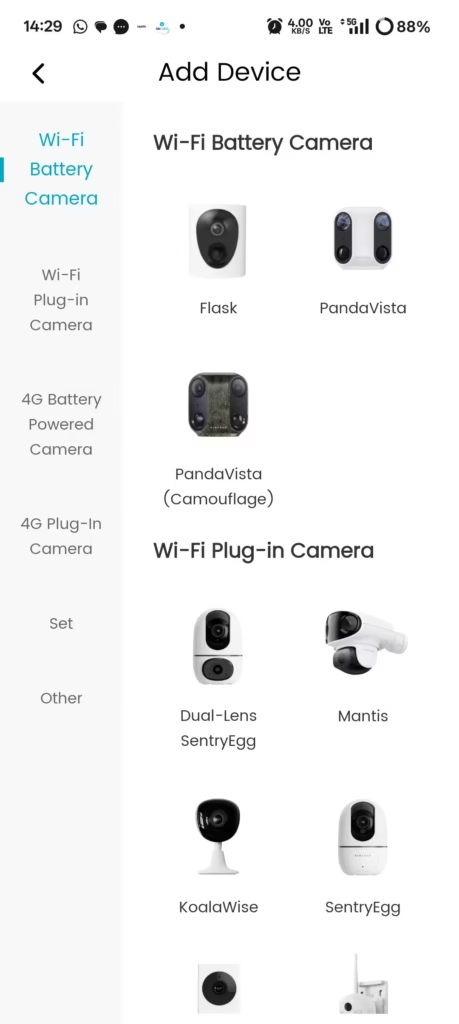
- Camera Was Not Added Correctly: When you’re adding a camera in the Home V app, it will actually show you images and ask you to select your specific camera model. If you pick the wrong one here, the app won’t be able to find or show your camera during the scanning process. So, just make sure you double-check and select the exact right model when adding it.
- Camera Is Too Far Away During Setup: During the configuration process, make sure to keep the camera close to your mobile phone so the scanning goes smoothly. If you try to set it up while it’s too far away, you’re bound to run into connection issues.
- Wrong Wi-Fi Password Entered: If you enter the wrong password during configuration, the camera is just going to keep showing up as offline. If you’ve already made this mistake, your best bet is to delete the camera you just added, start the whole process over from scratch, and make sure you enter the correct password this time.
FAQs
Conclusion
So, we’ve covered pretty much most of the common problems and solutions for the Home V app here. Hopefully, this saved you some time and got things working for you.
If you’re still running into any issues, just let us know in the comments or reach out to us. We’ll do our absolute best to help you sort it out.
Thanks for stopping by, and have a great day!