
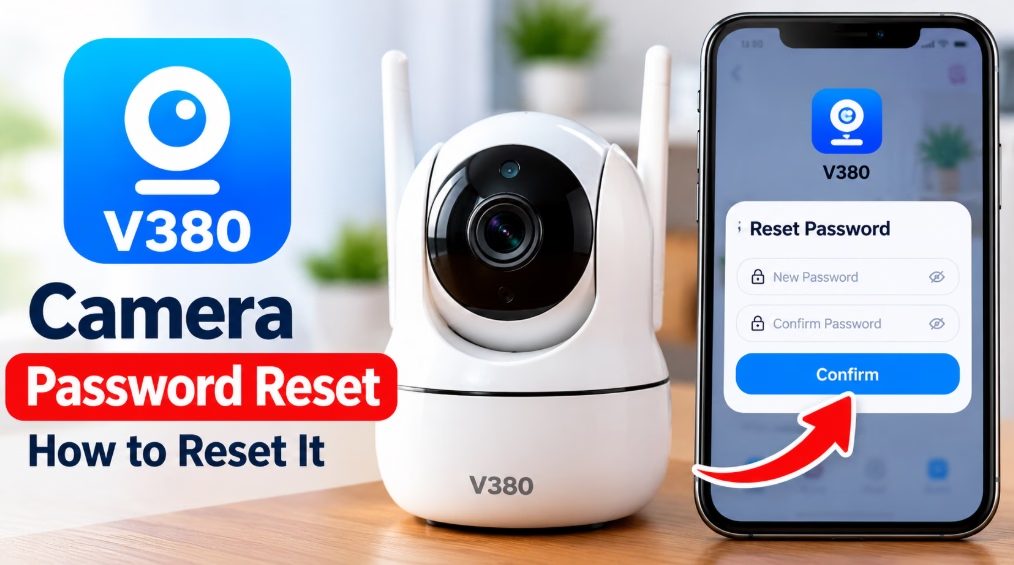
Forgot your V380 camera password and cannot access the camera in the V380 app? You can reset the device password by using the camera’s physical reset button and following the password setup instructions in the app.
In this guide, you’ll learn how to perform a V380 Camera Password Reset step by step. The process involves opening the V380 app, selecting the Forgot Password option, resetting the camera, confirming the reset in the app, and setting a new PIN or password.
Important: Resetting the camera to its factory settings may erase its saved Wi-Fi configuration and other device settings. You may need to reconnect the camera to your network afterward. The exact screens and reset behavior can vary by camera model and app version.
How to Reset a V380 Camera Password
Follow these steps to reset your forgotten camera password.
Step 1: Open the V380 App
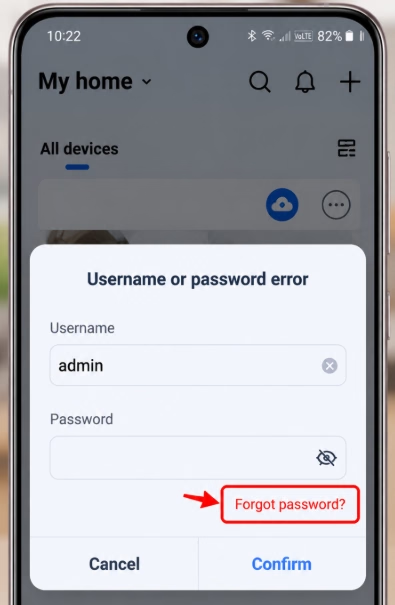
Open the V380 app on your mobile phone. Locate the camera or password screen and look for the Forgot Password option.
Tap Forgot Password to begin the reset process.
Step 2: Open the Password Reset Screen
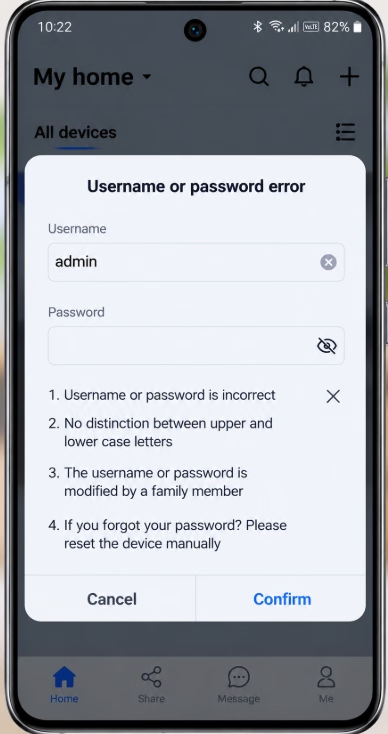
After tapping Forgot Password, the app should display the next screen in the reset process.
Review the instructions shown on your phone. Keep this screen open because you will need to return to it after resetting the camera.
Step 3: Press and Hold the Camera’s Reset Button
Locate the physical RESET button on your V380 camera. Depending on the model, the button may be exposed or located inside a small reset hole.
With the camera powered on, press and hold the reset button for approximately 6–7 seconds, following the documented procedure for compatible V380 models.
Release the button and allow the camera to respond. Some models provide a voice prompt confirming that the factory reset has started.
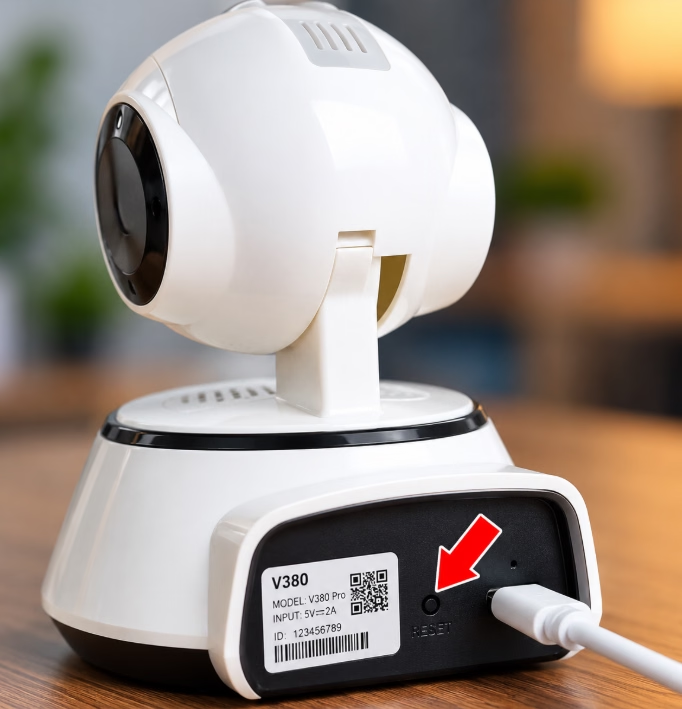
Note: Do not assume every V380 camera has the same reset-button location or timing. Follow your camera’s instructions if they differ.
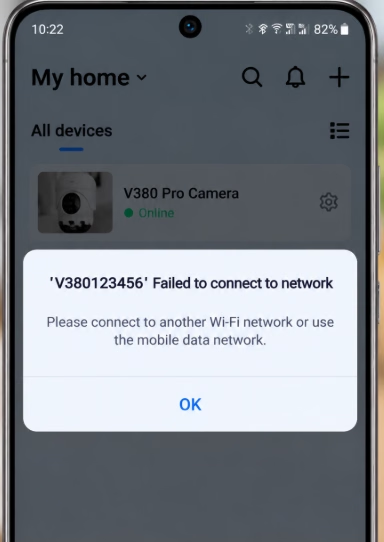
Step 4: Tap OK When the Wi-Fi Connection Fails
After resetting the camera, you may see a camera Wi-Fi connection failure message on your mobile screen.
If this is the expected message in your reset process, tap OK to dismiss it.
The connection failure can occur because the reset has cleared the camera’s previous network settings. It does not necessarily mean the camera is damaged.
Step 5: Return to the Previous Screen and Tap Confirm
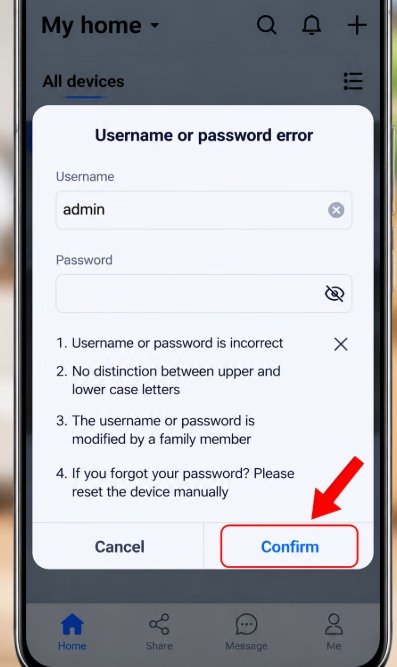
After dismissing the message, return to the password reset screen you saw earlier.
Tap Confirm to continue.
Follow the instructions shown by your version of the V380 app. If the screen does not return as expected, do not repeatedly reset the camera; check the camera’s reset status and the instructions for your model first.
Step 6: Select Set PIN and Create a New Password
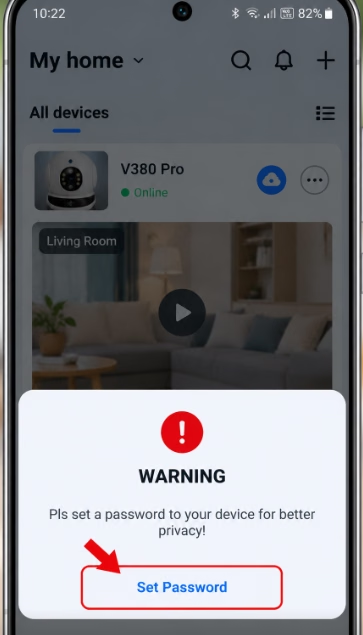
After confirmation, look for the Set PIN option.
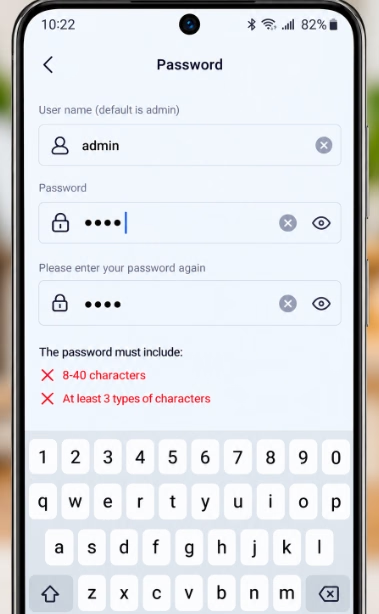
Tap Set PIN and create a new password or PIN as requested by the app. Enter the new credentials carefully and complete any confirmation step displayed on the screen.
Choose a strong, unique password rather than reusing a password from another account. If the app specifies particular length or character requirements, follow those requirements.
Keep your new credentials somewhere secure so you can access the camera later.
Step 7: Forget the Camera’s Saved Wi-Fi Network on Your Phone
Open your mobile phone’s Wi-Fi settings, where the available wireless networks are listed.
If your phone has saved the V380 camera’s Wi-Fi hotspot, locate that network and choose Forget or Forget This Network.
The exact label depends on whether you use Android or iPhone.
This step removes the saved Wi-Fi connection from your phone. It is separate from changing the camera’s device password.
Step 8: Connect to the Camera’s Wi-Fi Again
Return to the phone’s Wi-Fi settings and select the camera’s wireless network again.
Enter the appropriate password if the phone requests one. Make sure you use the credentials required for that Wi-Fi connection; the camera’s device password and its Wi-Fi hotspot password may be different.
Once connected, return to the V380 app and follow any remaining prompts to complete the setup.
Your V380 camera password reset is complete when the app accepts the new credentials, and you can access the camera. If the camera does not reconnect, follow the network setup instructions for your specific model.
If you have an XMEye camera and want to reset its password, read this XMEye Password Reset.
What If the V380 Camera Password Reset Does Not Work?
If you cannot reset the password, try these checks.
The Reset Button Does Not Respond
- Confirm that the camera is powered on.
- Check that you are pressing the correct RESET button.
- Follow the reset timing specified for your camera model.
- Wait for any voice prompt or indicator response before continuing.
If the camera remains unresponsive, the reset button or another part of the device may require inspection.
The Camera Wi-Fi Network Does Not Appear
A factory reset can change the camera’s network state. Wait for the camera to finish restarting, then check your phone’s available Wi-Fi networks.
If the hotspot is still missing, consult the model-specific instructions for entering Wi-Fi configuration or AP hotspot mode.
For further guidance, see the official V380 network setting guide.
The V380 App Still Rejects the New Password
Check that you are entering the new camera credentials rather than your V380 account password or the password for the camera’s Wi-Fi hotspot.
If the app continues to reject the credentials, review the reset procedure and confirm that the new password was saved successfully.
The Camera Is Offline After Resetting
A factory reset can clear the previous Wi-Fi settings. You may therefore need to configure the camera’s network again before remote viewing works.
Check the camera’s connection status and follow the appropriate setup instructions. You can also read our guide to V380 camera problems and fixes for additional troubleshooting.
Frequently Asked Questions
How long should I press the V380 camera reset button?
V380’s published instructions specify approximately 6–7 seconds for the reset procedure covered by its guide. The exact behavior may vary by camera model, so check your device’s documentation.
Will resetting my V380 camera delete its password?
A factory reset can clear the camera’s stored username and password, along with network settings. You may need to configure the camera again and set new credentials.
Is the V380 account password the same as the camera password?
Not necessarily. The V380 account password is used to sign in to your app account, while the camera device password controls access to the camera. A camera reset is not the same as recovering a forgotten account password.
Why does the V380 app show a Wi-Fi connection failure after resetting?
The camera may have lost its previous Wi-Fi configuration during the reset. If the message appears during the expected reset procedure, dismiss it and follow the app’s next instructions. If the camera remains disconnected, complete the required network setup.
Do I need to reconnect the camera after resetting its password?
You may need to. A factory reset can erase saved network information, so follow the camera’s setup procedure if it no longer connects to your router or phone.
Final Thoughts
Resetting a forgotten V380 camera password involves following the reset instructions in the app, pressing the camera’s physical reset button, confirming the process, and setting new credentials.
Remember that a factory reset can also remove network settings. If your camera does not reconnect afterward, complete its Wi-Fi configuration before troubleshooting other problems.