
In this guide, we will cover XMEye Password Reset, XMEye DVR password reset, forgotten passwords, default passwords, admin passwords, password changes, login problems, and verification codes.
If you have forgotten your XMEye password, cannot log in to your account, or are unable to access your XMEye DVR or NVR, there are several ways to troubleshoot the problem. The correct solution depends on which password you are trying to reset.
XMEye can involve two different types of credentials: your XMEye account password used to sign in to the app, and the admin/device password used to access a DVR or NVR. These passwords are not necessarily the same.
XMEye Password Reset: First, Identify Your Password
Before trying to reset anything, determine which password you have forgotten.
| Password Type | Used For |
|---|---|
| XMEye Account Password | Signing in to your XMEye account |
| DVR/NVR Admin Password | Accessing the recorder’s settings and menus |
| Device Password | Connecting or managing a specific CCTV device |
| Verification Code | Recovering or verifying an XMEye account |
If you can open the XMEye app but cannot log in to your account, you probably need to reset your XMEye account password.
If you can log in to XMEye but cannot access your DVR/NVR because the device asks for an admin password, you need to recover or change the DVR/NVR password instead.
How to Reset XMEye DVR Password
The easiest way to reset your XMEye password is if you know the answers to the security questions you set up when you first configured the device. As long as you remember those answers, resetting it is super easy.
Method 1: Reset XMeye DVR password via technical support
Keep in mind, this method mostly applies to older XMEye versions—the ones where you send a key to tech support, and they send back a reset code for you to enter on your DVR.
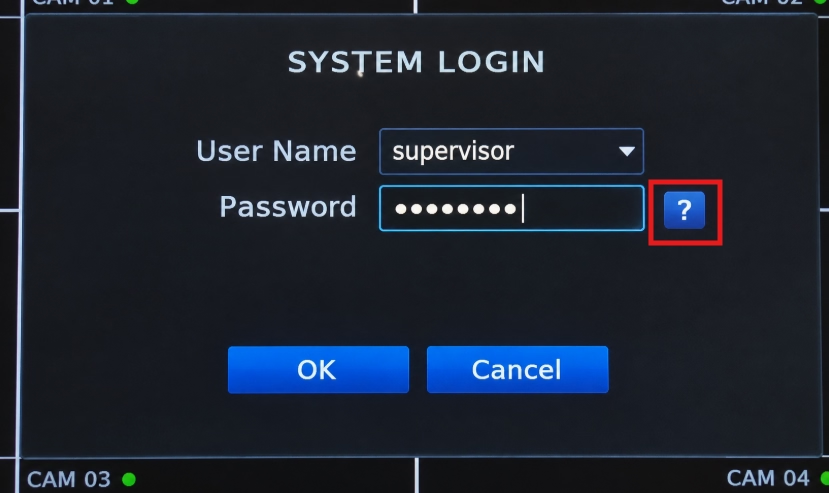
To do this, just go to your XMEye DVR’s login screen. Right next to the password field, you’ll see a question mark icon—just like in the image. On some XMEye firmware versions, it might say ‘Forgot Password’ instead, so click whichever option you see. That’ll pull up your security questions. Enter the correct answers (if you remember them), and you’ll be taken straight to the password reset screen.
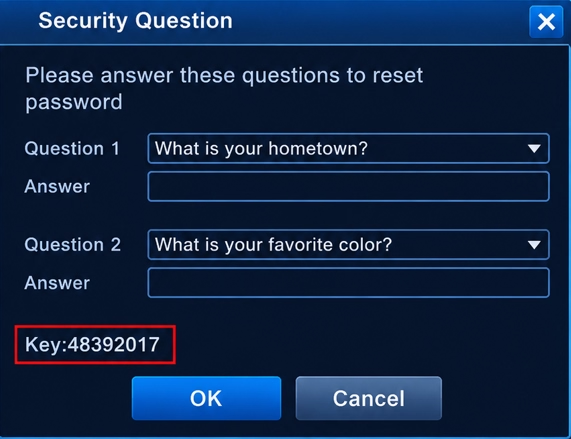
Now, what if you don’t remember the answers to those security questions? No worries. As shown in the image above, you’ll see a unique ‘Key’ displayed on your screen. Send this key to your XMEye vendor or tech support team. They’ll use it to give you a master code, which you can type right into the password box on your DVR screen to reset your password.
Method 2: Reset XMeye DVR password via mobile app
With this method, you’ll see a ‘Forgot Password’ option right on your DVR screen, as shown in the image.
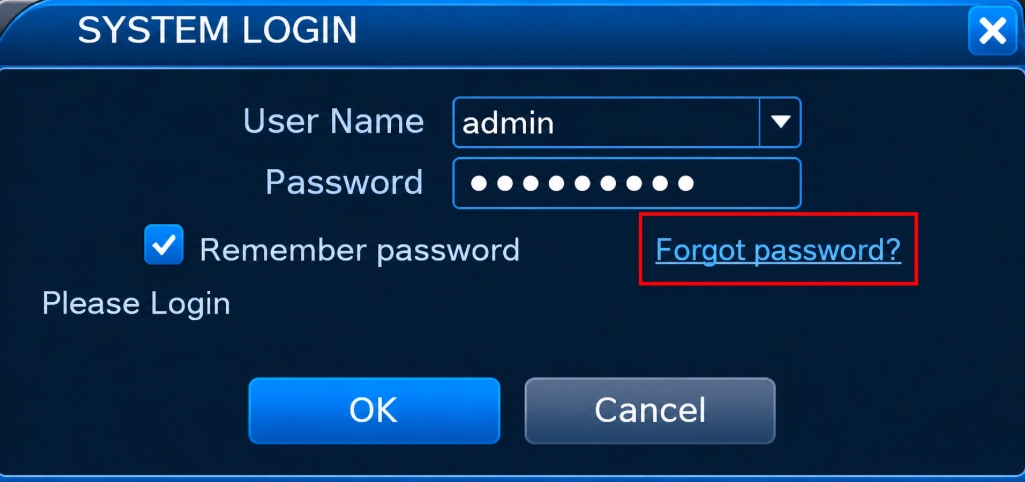
As soon as you click ‘Forgot Password,’ your security questions will pop up. If you remember the answers, go ahead and enter them. If not, just click on ‘Forgot Answer‘.
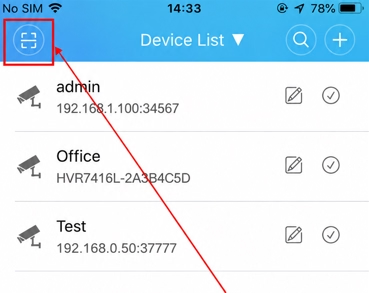
Clicking ‘Forgot Answer’ will bring up a screen with QR codes. Just open your XMEye app and scan the first QR code using the app’s built-in scanner.
If you are using XMEye Pro on Android, you can also see our XMEye Pro APK Download for Android guide for information about the app and installation.
If you need to install XMEye manually on an Android device, follow our guide on How to Install XMEye APK on Android
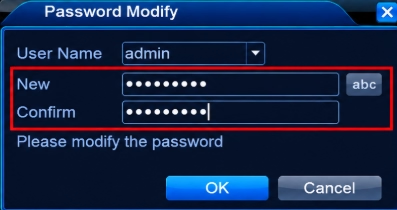
After scanning, a code will pop up in your XMEye app. Just enter this code into the CAPTCHA box on your DVR screen, and you’ll be prompted to set a new password. Type in your new password, and you’re all set!
Avoid unofficial password generators
You may find websites or videos claiming to generate a “master password” for CCTV DVRs.
Be careful with these methods.
Using an unofficial password generator can create security and compatibility problems, and some methods may not work with your firmware.
Whenever possible, use the official recovery process provided for your device.
XMEye Forgot Password: How to Recover Your Account
Now, if you’ve forgotten your XMEye account password (the cloud password), the reset process works a little differently.
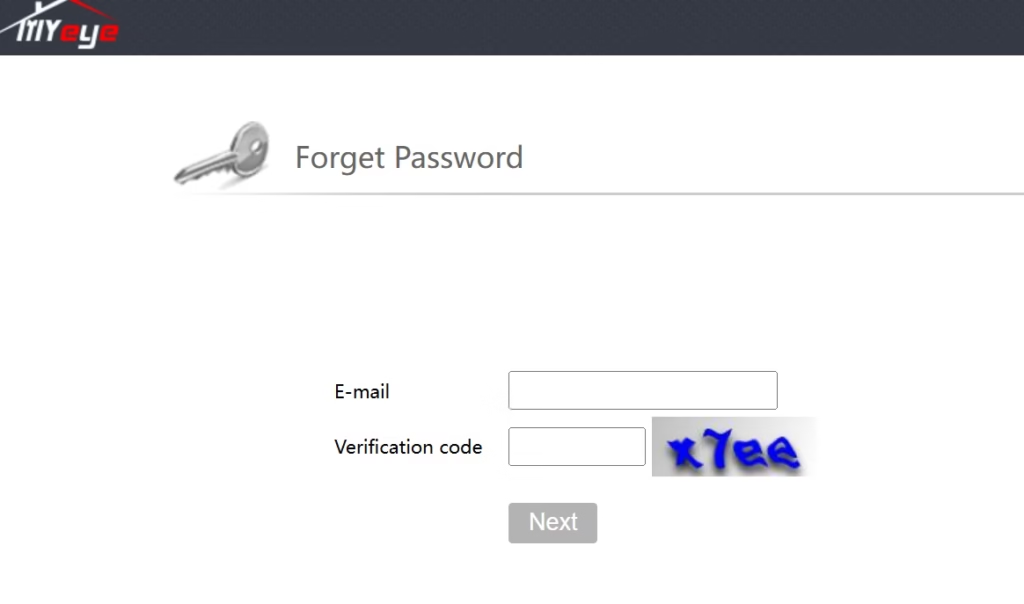
If you have an XMEye forgot password problem and cannot sign in to your account, start with the password recovery option on the login screen.
Step 1: Open XMEye
Launch the XMEye app and go to the account login screen, or open the official XMEye website.
Step 2: Select the Password Recovery Option
Look for an option such as Forgot Password, Reset Password, or a similar recovery option.
The exact wording can vary between app versions.
Step 3: Enter Your Account Information
Enter the email address, phone number, username, or other information requested by the application.
Make sure you use the same information associated with your XMEye account.
Step 4: Complete Verification
XMEye may require a verification code before allowing you to create a new password.
Enter the valid code when you receive it.
Step 5: Create a New Password
Choose a strong password that you have not previously used.
After completing the reset, return to the login screen and sign in with the new password.
XMEye Admin Password
The XMEye admin password can refer to the administrator password of the connected DVR/NVR rather than the password for your XMEye account.
This distinction is important.
For example, you might be able to log in to your XMEye account successfully but still receive a password error when trying to access a DVR.
In that situation, resetting your XMEye account password will not necessarily change the DVR’s administrator password.
If you manage your XMEye-connected DVR or NVR from a computer, see our XMEye for PC guide to learn more about using XMEye on Windows and PC.
If you forgot the DVR admin password
Try the following:
- Access the DVR/NVR directly using a monitor and mouse.
- Open the login screen.
- Look for Forgot Password, Password Reset, or a recovery option.
- Follow the verification instructions provided by the recorder, or you can simply follow the steps we covered above.
- Create a new administrator password.
- Save the new password somewhere secure.
- Update the device credentials in XMEye if necessary.
The available recovery method depends on the DVR/NVR model and firmware.
How to Change XMEye Password
If you still know your current password, changing it is usually easier than performing a full password reset.
There are two different passwords you may want to change.
Change XMEye Account Password
If the app provides account security settings, open your account/profile section and look for Change Password or Password Settings.
Enter your current password and create a new one.
Change DVR/NVR Admin Password
To change the recorder’s administrator password, access the DVR/NVR directly or through the device management interface if your model supports it.
Look under sections such as:
Settings → System → Users → Password
The exact menu names can vary depending on the firmware.
Create a strong password and save it securely.
XMEye Password Reset Not Working
If the password recovery process itself is not working, check the following:
Reset code has expired
Verification codes are generally time-sensitive. Request a new code and use the latest one.
Wrong account information
Confirm that you are recovering the correct XMEye account.
Verification code is incorrect
Copy the newest code carefully and make sure there are no extra characters or spaces.
Password does not meet requirements
If the application rejects the new password, create a stronger password using a combination of uppercase letters, lowercase letters, numbers, and symbols where supported.
DVR password recovery is different
If you are trying to recover the administrator password of a DVR/NVR, the XMEye account recovery process may not reset the recorder’s password.
In that case, use the DVR/NVR’s own recovery procedure.
If you need the latest version of the app, see our XMEye APK Download Latest Version guide.
XMEye Password Reset vs DVR Password Reset
These two processes are often confused.
| Problem | Correct Solution |
|---|---|
| Cannot sign in to XMEye account | Reset XMEye account password |
| Forgot XMEye account password | Use account recovery |
| Forgot DVR admin password | Use DVR/NVR password recovery |
| DVR rejects password | Check/reset device credentials |
| Verification code not received | Troubleshoot account verification |
| XMEye app cannot connect to DVR | Check device/network configuration |
Resetting your XMEye account password does not automatically mean that the DVR/NVR administrator password has been changed.
What If XMEye Is Logged In but the DVR Is Offline?
If you can log in to XMEye but the device appears offline, the problem may not be related to your password.
Check:
- DVR/NVR power and network connection.
- Ethernet cable or network configuration.
- Whether the recorder has internet access.
- Device ID or Cloud ID.
- Whether the device is correctly added to your XMEye account.
- Router or firewall settings.
- Whether the DVR shows an online status locally.
If the device is online but XMEye still shows it as offline, remove and re-add the device only after confirming its credentials and device information.
Tips for Creating a Secure XMEye Password
After completing an XMEye password reset, don’t use an easy password such as:
- 123456
- admin123
- password
- your phone number
- your name
Instead, use a unique password with multiple character types.
For a DVR/NVR administrator account, a strong, unique password is particularly important because the device may provide remote access to CCTV cameras.
Never share your DVR administrator password or verification codes with unknown people.
Frequently Asked Questions
What is the XMEye default password?
There is no single universal default password that works with every DVR/NVR using XMEye. The credentials depend on the specific device and firmware. Most common passwords are ‘1234’, ‘admin’, ‘12345 ‘, and black password.
How do I reset my XMEye password?
Open the XMEye login screen, select the password recovery option, verify your account using the requested method, and create a new password.
I forgot my XMEye DVR password. What should I do?
Access the DVR/NVR directly and look for its password recovery option. If no suitable recovery method is available, contact the device manufacturer, supplier, or installer.
Is the XMEye account password the same as the DVR password?
Not necessarily. The XMEye account password is used for your app/account, while the DVR/NVR administrator password controls access to the recorder.
How do I change my XMEye password?
If you know your current password, use the account’s password settings to change it. For a DVR/NVR, change the administrator password through the recorder’s system/user settings if supported.
Why am I not receiving my XMEye verification code?
Check your email’s spam/junk folders or your phone’s network connection, verify that you entered the correct account information, and request a new code if necessary.
Can I reset an XMEye DVR without the admin password?
Some DVR/NVR models provide a built-in password recovery method, while others require manufacturer or supplier assistance. The available method depends on the specific model and firmware.
Final Words
XMEye password problems can involve several different credentials, so the first step is to identify whether you have forgotten your XMEye account password or your DVR/NVR administrator password.
For an account login problem, use the account recovery process and verification code. For a DVR password problem, use the recorder’s supported password recovery method. If your device does not provide a recovery option, contact the manufacturer, supplier, or installer.
Most importantly, avoid relying on random “master passwords” or unofficial password generators. Use the recovery method designed for your specific DVR/NVR model and firmware.