
The 3xLOGIC View Lite II Installation Guide is available here for anyone facing difficulties with the installation or configuration of this app. This guide explains step-by-step how to install the app, as well as how to connect your cameras or DVR/NVR to it.
What is 3xLOGIC View Lite II?
Before moving forward, let’s learn a little bit about this application so you can get complete guidance and fulfill the purpose for which you are installing it. It shouldn’t happen that you install the app only to find out it isn’t even compatible with your cameras. So first of all, 3xLOGIC View Lite II is a mobile surveillance app.
It helps you with live monitoring by connecting your mobile to V-Series cameras and VIGIL VMS servers. Along with this, it gives you control to customize the basic settings of your camera or server directly from your mobile.
Requirements Before Installing 3xLOGIC View Lite II APK
Before starting the installation process, make sure you have:
- Android smartphone or tablet
- Stable internet connection
- Downloaded 3xLOGIC View Lite II APK file. (From a trusted source)
- At least 180 MB of free storage
- Permission to install apps from unknown sources
How to Install 3xLOGIC View Lite II APK
Before starting the installation, make sure to download the correct APK file on your mobile. You can download it from any trusted source, or you can get the app directly from the Play Store. Once downloaded, follow the steps given below.
Step 1: Download the 3xLOGIC View Lite II APK File
Download the correct APK file according to your mobile’s compatibility. Make sure that the APK file is virus-free. The APK files we provide are fully scanned to ensure your security remains intact. You can get the correct APK file from the link provided; these are official and virus-free APKs provided directly by the company itself.
Step 2: Open the Downloaded APK File
Open the folder where the file has been downloaded. Now, tap on that file. The installation has now started, so please wait a few moments. Once the installation is complete, move on to the next step.
Step 3: Open 3xLOGIC View Lite II and Set Up Your Device
Once the installation is complete, you will see an ‘Open’ button enabled on your screen. Tap on it, and the app will open. Now, you will need to add your DVR/NVR or server to it. The steps for this are given below.
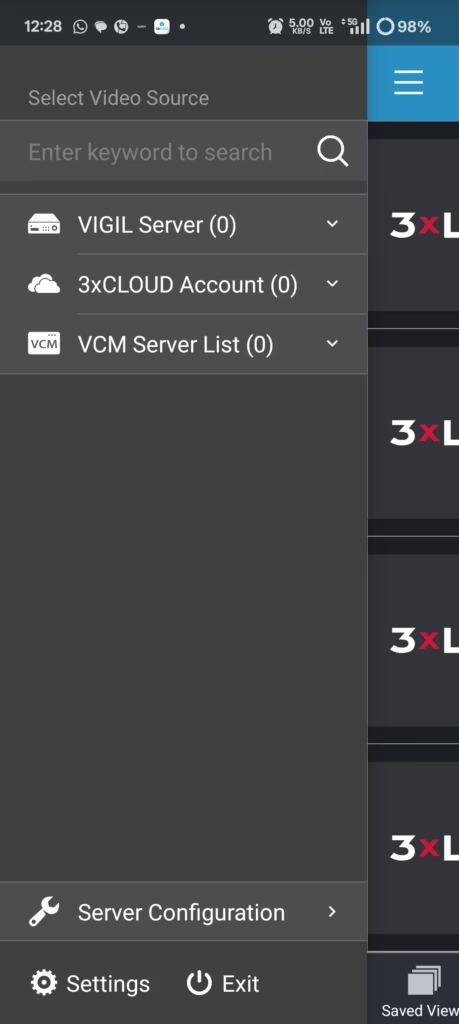
Open Server Configuration
Upon opening the app, you will see a ‘Server configuration’ option next to the button on the left side. Open it.
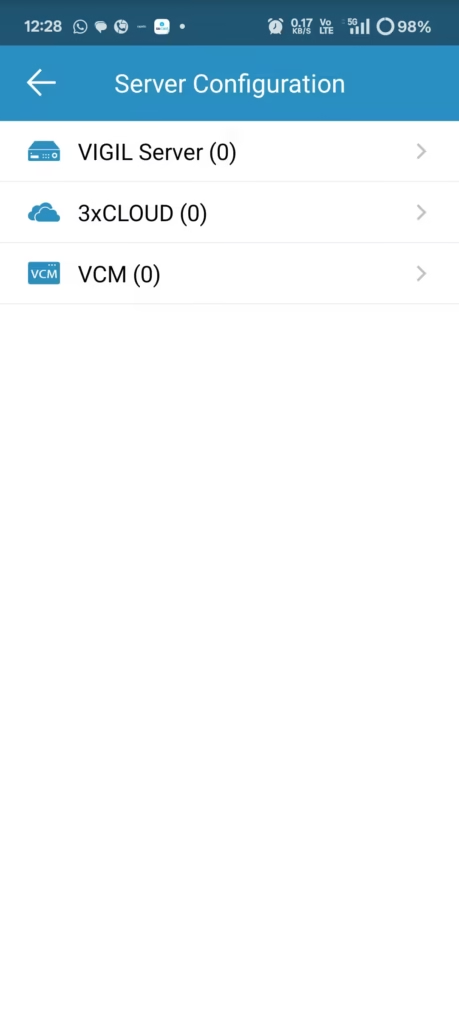
Select Correct Device Type
“Select from here what kind of device you want to connect to this app. There are three options available: ‘VIGIL Server’, ‘3xCloud’, and ‘VCM’. Select according to your requirement.
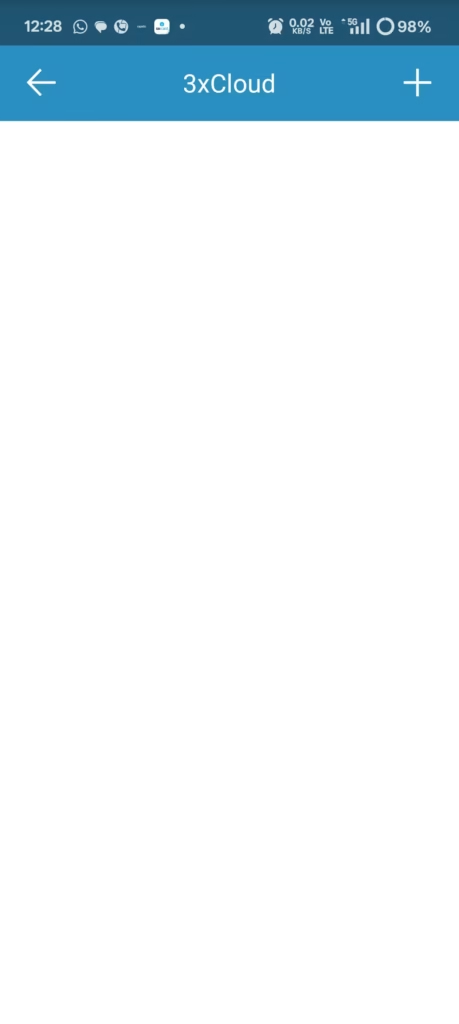
Adding the Device
On this screen, you will see a ‘+’ option in the upper right corner. Tap on it to open it.
Log in or Register in the App
Enter your email and password here, the same ones you use for your DVR/NVR. Enter these details and save them. If a login error occurs, double-check to make sure you have entered them correctly.
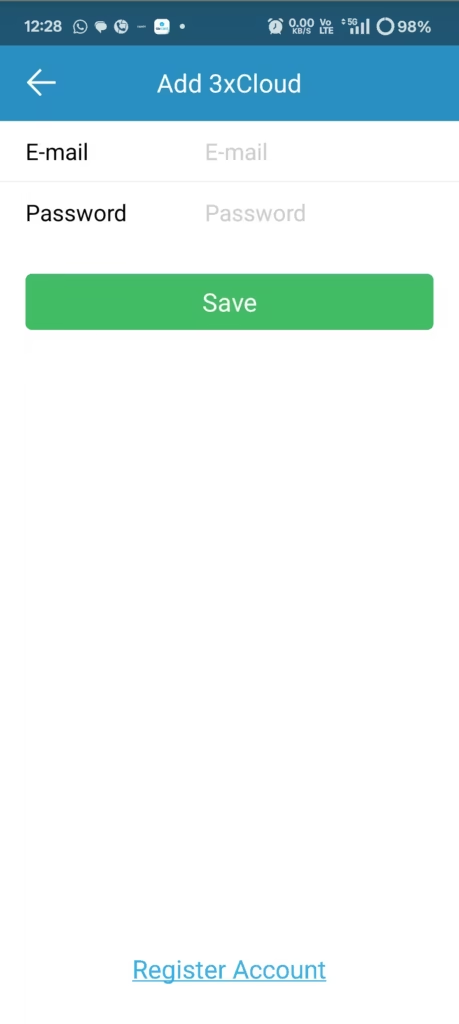
“If you don’t have an email ID and password, you will need to register first. For this, you will see a ‘Register User’ option at the bottom; you need to tap on it to open it. Once opened, you have to fill in your details as shown on the screen below.
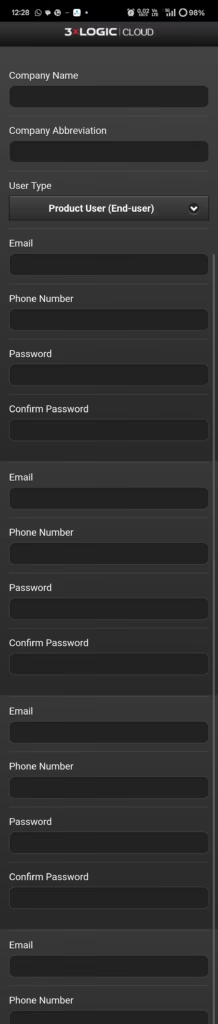
Congratulations! After following all these steps, you will see your cameras live on the screen.
Common 3xLOGIC View Lite II APK Installation Problems and Fixes
If you are unable to install the app, if it crashes after installation, or if you cannot add your device to the app, we have discussed some very common mistakes here that people often make.
- App Version: It is possible that you haven’t downloaded the correct version, which is why the app isn’t working. If your phone is a bit older, try using an older version of the app.
- Storage Problem: Sometimes there is no space or very little space left on our phone. So, make sure to check your storage once.
- Partial Download: It also happens that the file you downloaded didn’t download completely. To fix this, uninstall the app that was installed, restart your phone, then download it properly and try again.
- Login Failed: If you are getting a ‘login failed’ error while adding the device to the app, make sure to check your email ID and password once to see if you have mistyped them.
If the problem is still not resolved, we have created a complete troubleshooting guide for 3xLOGIC View Lite II issues, which you can read and use to find a solution to your problem.
Is 3xLOGIC View Lite II APK Safe?
“Yes, this is a completely safe application if you download it from a trusted resource. The application provided for download on CCTVBit is the official app, which has no modifications of any kind. Before providing the APK, we scan it with VirusTotal and then thoroughly scan it internally with our own virus protection. So, the app is absolutely safe.
Testing Notes
✔ Tested on: Android 12 & Android 14
✔ Verified Installation: APK + Play Store Method
✔ App Version Tested: Latest Available Version
✔ Device Used: Samsung, Xiaomi Smartphones & OnePlus
FAQs
Final Words
So, here we learned about the 3xLOGIC View Lite II installation. If you are still facing any kind of issue or if you want to give us any suggestions, feel free to write to us in the comment box.