
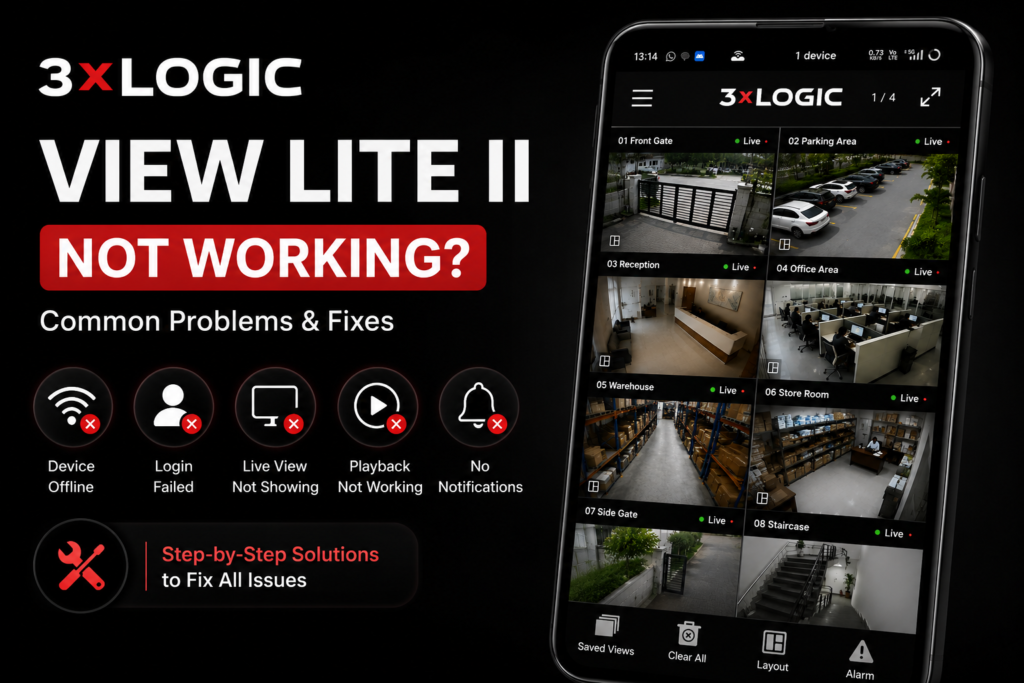
If your 3xLOGIC View Lite II app not working properly, you are having login issues, the camera isn’t showing online, or the live view won’t open, this guide provides common problems and their working solutions. These fixes are helpful for both Android and iPhone users.
This is a complete guide that covers almost all types of problems you might face with this app. I have tried to explain the solutions in a very simple way so you can easily understand how to fix them. I request you to go through it carefully and follow the steps provided so you can properly resolve your issue.
Before getting started, let’s look at the problems you might face while installing the 3xLOGIC View Lite II app or connecting it to your cameras.
Common Problems in the 3xLOGIC View Lite II App
So, let’s look at the problems you might face. I recommend that you first check the 3xLOGIC View Lite II app installation guide to make sure you have installed and configured everything correctly, or if you missed a step. If everything looks good and you are still facing issues, you can find the fix for your problem right here.
3xLOGIC View Lite II App Not Opening
If the app crashes as soon as you open it, check these 2-3 things. First, try restarting your phone. Next, go to your phone’s settings, find the 3xLOGIC View Lite II app, and clear the cache before trying again.
Settings → Apps → 3xLOGIC View Lite II → Storage → Clear Cache.
If the app is not updated, update it. If it is already updated, you can also try installing an older, stable version.
The camera or device is not connecting to the App
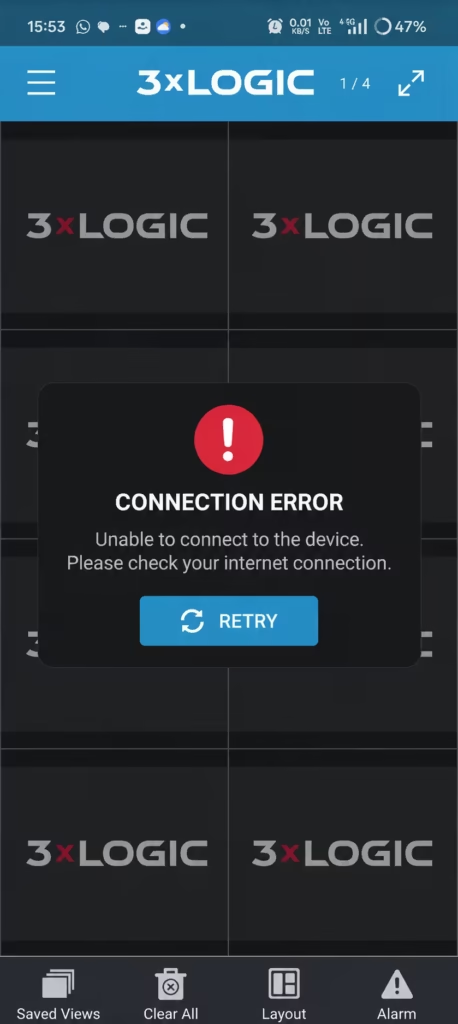
This is the most common problem. The app installs successfully, but when you connect the cameras, they don’t show up online. To be honest, this can be a very frustrating issue, but there is a solution for it. First, completely uninstall the app, restart your phone, try again, and check the following points one by one:
- Log in with the correct username: If you have logged in with the wrong username, the cameras won’t show up.
- Add the device by scanning the QR code: Avoid adding the device using the serial number, as it is easy to make a mistake. Instead, add it by scanning the device’s QR code through the app.
- DVR/NVR internet not connected: Make sure that the device you are adding to the app is actually receiving a proper internet connection. If it is a cloud-enabled device, ensure the Wi-Fi password is correct. If the device uses a network cable, definitely double-check that cable.
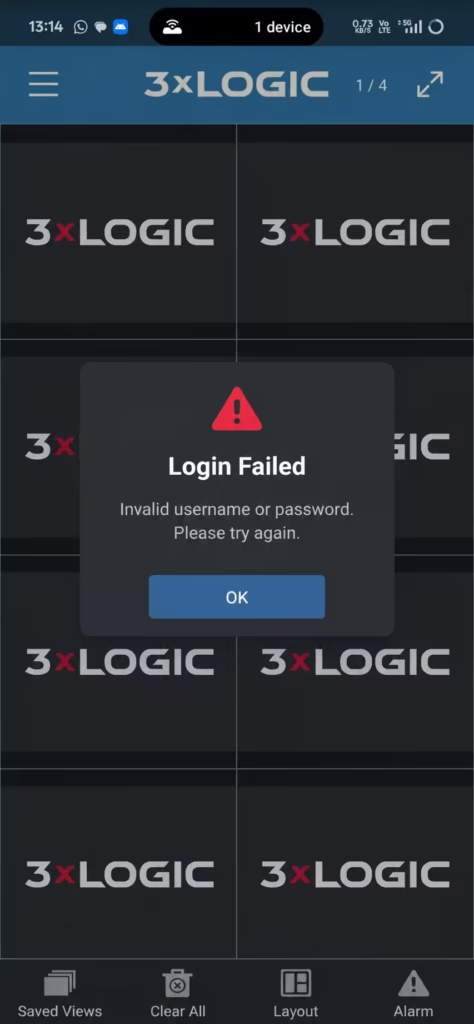
- Device username and password: If you have entered the wrong username or password for the device in the app, it will show a login error. Fix this, and your cameras will come online.
Live View Black Screen Problem
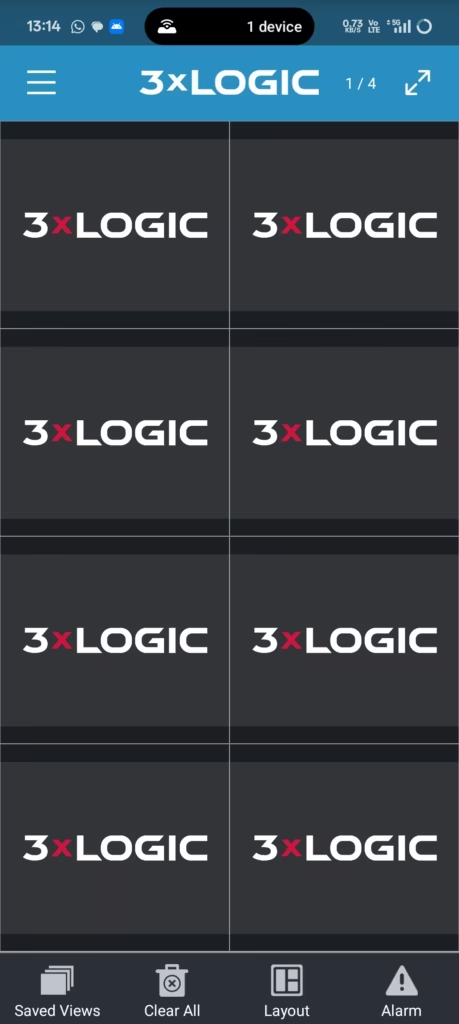
If the camera has been added but the video is not playing, first make sure you have followed the steps mentioned above. If you are still getting a blank screen, then:
Try These Fixes:
- Allow app permissions: Make sure the app has all the necessary permissions enabled.
- Select a different stream quality: Try switching between mainstream and substream (or HD and SD quality).
- Try Wi-Fi instead of mobile data: Switch from your mobile internet to a Wi-Fi connection to check if it’s a network issue.
- Use the correct version of the app: Ensure you are using the right, official version compatible with your device.
- Update Android System WebView: If you are on an Android device, update the WebView component from the Play Store.
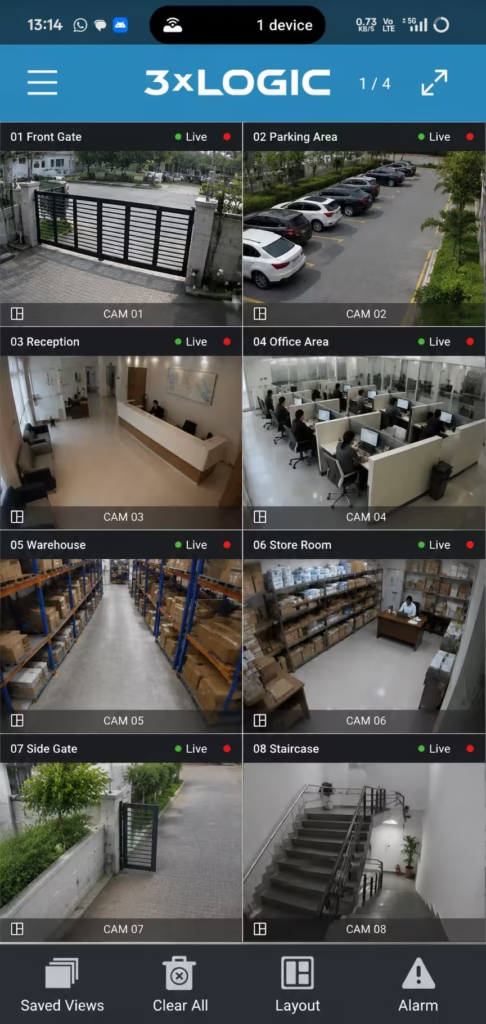
Best Working Fix (For Most Users)
- Uninstall the app
- Restart your phone
- Install the latest version of the app
- Check the DVR’s internet connection
- Add the device again.”
When Nothing Works
If you have tried everything and the problem is still not solved:
- The DVR firmware might be outdated
- There could be an internet blocking issue from your ISP (Internet Service Provider)
- A device hardware issue is also possible
In this case, contact your installer or the support team.
FAQs
Final Words
We hope your problem has been solved. However, if you are still facing difficulties while using the 3xLOGIC View Lite II app, feel free to write to us. We will do our best to provide you with a solution.