
Is your V380 camera not working, showing offline in the app, or refusing to load the live video? The problem may be related to the camera’s Wi-Fi connection, router settings, phone permissions, or the V380 app itself.
Before resetting your camera, identify what is actually failing. A camera that cannot connect to Wi-Fi needs a different fix from one that appears online but shows a black screen.
In this guide, you’ll learn how to troubleshoot V380 camera connection problems, fix failed Wi-Fi setup, resolve Live View loading issues, and reconnect a camera after changing your router or Wi-Fi password.
Quick Fixes for a V380 Camera Not Working
Start with these checks before changing advanced settings:
- Check that the camera has power and has completed its startup process.
- Confirm that your Wi-Fi router and internet connection are working.
- Check whether the camera supports your Wi-Fi frequency; V380’s official network guidance specifies 2.4 GHz for the wireless cameras it documents.
- Restart the camera and reopen the V380 app.
- Move the camera closer to the router temporarily.
- Check the camera’s network status in the app.
- If the camera cannot reconnect after a router or password change, configure its network again.
If these steps don’t help, follow the section that matches your specific problem.
If you have an XMEye camera, then you can try the XMEye Problem and Fix Guide
1. Check Whether the V380 Camera Has Power
If the camera is not responding at all, start with its power supply rather than its app settings.
What to do:
- Check that the camera’s power adapter is firmly connected.
- Inspect the power cable and connector for visible damage.
- If possible, check the power outlet using another suitable device.
- Disconnect the camera from power, wait briefly, and reconnect it.
- Allow the camera to complete its startup process before opening Live View.
If your camera has a status indicator or speaker, check whether its behavior changes during startup. The exact indicators and voice prompts can vary by camera model.
What if the camera remains completely unresponsive?
If there is no startup response after checking the power source and connections, the issue may involve the adapter, cable, or camera hardware. Contact the seller or a qualified technician if you cannot establish that the camera is receiving power.
Do not repeatedly reset the camera when it shows no signs of starting.
2. V380 Camera Not Connecting to Wi-Fi
A failed Wi-Fi connection is one of the first things to investigate when the camera cannot come online.
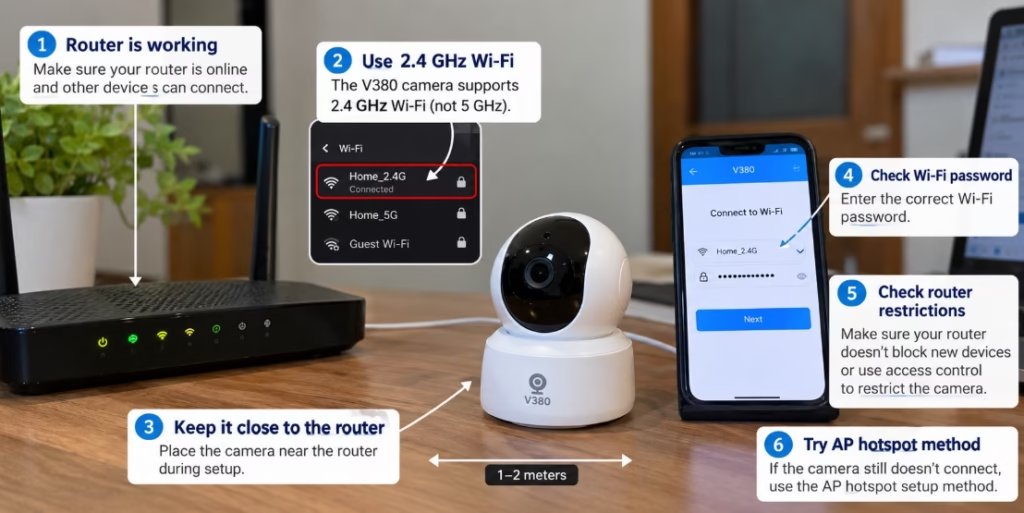
According to the official V380 network guidance, the wireless cameras covered by that documentation support 2.4 GHz Wi-Fi rather than 5 GHz Wi-Fi. It also warns about certain mixed-band configurations, hidden network names, guest networks, and router access restrictions.
Check your Wi-Fi settings
- Confirm that your router is working and other devices can connect.
- Check that a compatible 2.4 GHz network is available.
- Temporarily place the camera close to the router.
- Verify the Wi-Fi password carefully.
- Check whether your router blocks new devices or restricts access.
- If the camera still fails to connect, try the AP hotspot configuration method described below.
If your router combines its 2.4 GHz and 5 GHz bands under one network name, consult the router manufacturer’s instructions about configuring a compatible network. Avoid changing unrelated router settings unnecessarily.
Also check whether your router uses a guest network or access-control feature that prevents the camera from connecting properly.
Important: The camera’s supported Wi-Fi bands depend on the product’s hardware. Check the documentation for your particular model if it differs from the wireless cameras described in the V380 guidance.
3. Reconnect the Camera Using AP Hotspot Mode
If normal Wi-Fi configuration repeatedly fails, AP hotspot mode is an alternative documented by V380.
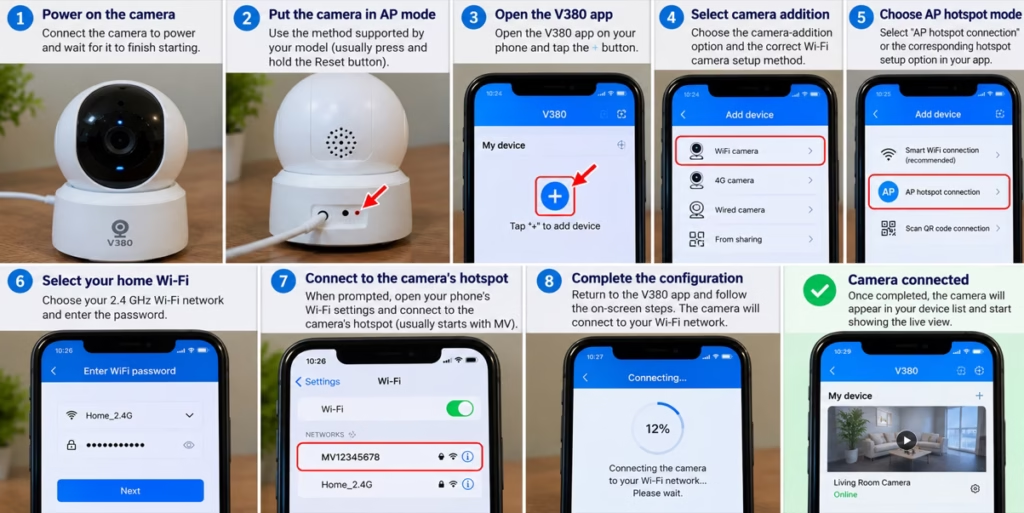
In this method, the camera creates its own temporary Wi-Fi hotspot. Your phone connects to that hotspot so the app can configure the camera’s connection to your router.
Steps to try
- Power on the camera and wait for it to finish starting.
- Put the camera into AP hotspot mode using the method supported by your model.
- Open the V380 app and tap the + button.
- Select the camera-addition option and the appropriate Wi-Fi camera setup method.
- Choose AP hotspot connection or the corresponding hotspot setup option shown in your app.
- Follow the prompts to select your home Wi-Fi network and enter its password.
- If prompted, open your phone’s Wi-Fi settings and connect to the camera’s hotspot. V380 documentation describes hotspot names beginning with
MVfollowed by an identifier. - Return to the app and complete the configuration.
The exact labels and sequence can differ between app versions and camera models.
What if the camera’s hotspot does not appear?
Check that the camera has actually entered hotspot mode. If your model has an external antenna, make sure it is fitted correctly. If an Ethernet cable is connected, disconnect it temporarily when testing wireless setup, because V380 documentation states that a wired connection takes priority on supported models.
On iPhone, check the app’s Local Network permission if applicable. On Android, follow the app and operating-system prompts needed to connect to the camera’s hotspot.
For the model-specific instructions, see the official V380 network setting guide.
4. V380 Camera Shows Offline in the App
If the camera appears in the device list but shows offline, check whether the problem affects the camera’s local network connection or its internet connection.
V380’s official network documentation distinguishes between statuses such as LAN online, Internet online, and Internet offline. These statuses can help narrow down the problem.
Check the camera’s network status
- Open the V380 app.
- Find the affected camera in the device list.
- Open its device information or network status, if available.
- Check whether it is online locally or connected to the internet.
- Restart the camera and check its status again.
If the camera is offline locally and on the internet
Check the camera’s power, Wi-Fi connection, router distance, and network configuration. The camera may not have connected successfully to your router.
If the camera is online locally but offline on the internet
Check whether the router itself has internet access. Also check whether the router blocks the camera through access controls or other network restrictions.
If the camera is online on the internet
Move on to the Live View troubleshooting steps below. An online status does not necessarily mean that the video stream will load successfully.
Avoid disabling your router’s firewall as a first step. Check the camera’s status and router restrictions before changing security settings.
5. V380 Live View Keeps Loading
Does the camera appear in the app, but the video keeps loading or never starts?
This can indicate an unstable network connection, a temporary app issue, or a problem with the camera’s video stream.
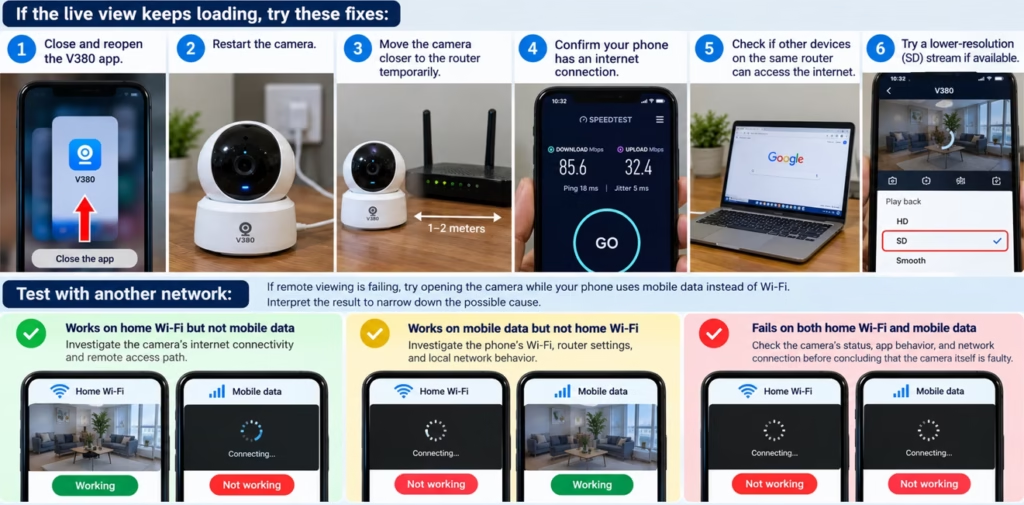
Try these fixes
- Close the V380 app completely and reopen it.
- Restart the camera.
- Move the camera closer to the router temporarily.
- Confirm that your phone has a working internet connection.
- Check whether other devices connected to the same router can access the internet.
- If the app offers a lower-resolution or SD stream option, try it to see whether the video loads more reliably.
V380’s network guidance recommends restarting the app and camera, checking the connection distance, and looking for router restrictions when the image keeps loading.
Test with another network
If remote viewing is failing, try opening the camera while your phone uses mobile data instead of Wi-Fi.
Interpret the result carefully:
- Works on home Wi-Fi but not mobile data: Investigate the camera’s internet connectivity and remote access path.
- Works on mobile data but not home Wi-Fi: Investigate the phone’s Wi-Fi, router settings, and local network behavior.
- Fails on both: Check the camera’s status, app behavior, and network connection before concluding that the camera itself is faulty.
These tests help narrow down the cause; they do not prove a specific fault on their own.
6. V380 Camera Shows a Black Screen
A black screen can occur even when a camera has already been added to the app.
First, determine whether the problem affects one camera or every camera in your device list.
If only one camera has a black screen
- Check that the camera has power and has completed startup.
- Check its network status in the app.
- Close and reopen Live View.
- Restart the camera.
- If the camera is far from the router, test it closer to the router.
- If available, try the SD stream option.
If other cameras work normally, focus on the affected camera and its connection rather than changing the entire router configuration.
If every camera has a black screen
Check whether the phone’s internet connection is working and whether the app itself is responding normally.
Close and reopen the app, then try again. If the problem continues, check for an available app update and review the camera network status.
Do not assume that a black screen means the camera’s image sensor has failed. Confirm the network and app behavior first.
7. V380 Camera Not Working After Changing the Router or Wi-Fi Password
A camera may stop connecting after you replace your router, change the Wi-Fi name, or update the network password.
This happens because the camera may still have its previous network configuration.
Reconfigure the camera
- Confirm that the new Wi-Fi network is working.
- Check that the network meets the camera’s Wi-Fi requirements.
- Open the V380 app and look for a supported network-change or reconfiguration option.
- Follow the prompts to connect the camera to the new network.
- If the camera cannot enter configuration mode normally, consult its manual for the correct reset and setup procedure.
V380’s official network documentation recommends restoring the wireless camera to factory defaults and configuring the network again when a router or Wi-Fi password change prevents reconnection.
Before performing a factory reset: Be aware that a reset can erase network settings and other device configuration. You may need to add the camera again and set a new device password. Use the reset procedure for your specific model rather than assuming every V380 camera has the same button location or reset timing.
8. V380 Camera Is Not Showing Up in the Device List
If the camera is powered on but missing from the V380 app, it may not have completed setup or been added to the device list.
Try adding it again
- Confirm that the camera has completed startup.
- Check whether it is connected to your router or currently in AP hotspot mode.
- Open the V380 app and tap +.
- Choose the appropriate camera-addition method.
- If the camera is already connected to your network, use the supported device-ID or QR-code option.
- If the app supports local network discovery, try it while your phone and camera are on the same local network.
- Follow the prompts to finish adding the device.
If the app reports that the device already exists but you cannot find it in the list, close and reopen the app. V380’s network guidance also suggests reinstalling the app if this particular issue persists.
Before reinstalling, make sure you know the login details you need and can access the device information required to add the camera again.
9. V380 Camera Still Not Working? Check the App and Router
If none of the previous fixes resolves the problem, narrow it down with a few final checks.
Update the app
Check the official app source or your device’s app store for an available update. If the issue began immediately after an app update, record the version and the exact error before trying other changes.
Avoid installing an APK from an unknown website simply to troubleshoot a camera connection problem.
Check router restrictions
Review whether the router has settings that restrict the camera’s access, such as device blocking or access-control rules. Change only settings that are relevant to the camera’s connection.
Check whether the problem is local or remote
Try the camera on the same local network and, separately, test remote viewing using mobile data. Record whether the camera is online in either situation.
Contact the seller if necessary
If the camera cannot complete startup, its hotspot never appears despite following the correct model-specific procedure, or the device remains unresponsive after power and network checks, contact the seller or a qualified technician.
Provide the camera model, the app version, the exact error message, and the steps you have already tried. This makes it easier to distinguish a configuration issue from a possible hardware fault.
Frequently Asked Questions
Why is my V380 camera not connecting to Wi-Fi?
Check that the camera supports the selected Wi-Fi frequency, that the password is correct, and that the camera is close enough to the router. V380’s documented wireless cameras use 2.4 GHz Wi-Fi. If standard setup fails, try the supported AP hotspot configuration method.
Why does my V380 camera keep going offline?
Possible causes include a lost Wi-Fi connection, weak signal, router restrictions, or an internet connection problem. Check the camera’s network status in the app before resetting it.
Why does my V380 camera keep loading but never show video?
The camera may have an unstable connection, or the app may be having trouble opening the video stream. Restart the app and camera, check the network, and try the SD stream option if available.
Can I use a 5 GHz Wi-Fi network with a V380 camera?
The official V380 network guide states that the wireless cameras covered by its instructions support 2.4 GHz Wi-Fi and do not support 5 GHz Wi-Fi for configuration. Confirm the requirements for your specific model.
Do I need to reset my V380 camera?
Not always. Check power, Wi-Fi compatibility, network status, and the app first. A factory reset may be necessary when the camera cannot reconnect after network settings change, but it can erase existing configuration.
Why is my V380 camera not showing in the app?
The camera may not have completed network setup or may not have been added successfully. Confirm its startup status, then add it using the appropriate device ID, QR code, or local discovery method supported by your model.
Final Checklist
Before assuming the camera is faulty, confirm the following:
- The camera receives power and completes startup.
- The Wi-Fi network meets the camera’s requirements.
- The camera is close enough to the router for a reliable connection.
- The app shows the camera’s current network status.
- AP hotspot setup has been tried if normal configuration fails.
- The app and camera have been restarted.
- Router restrictions have been checked.
- The camera has been reconfigured if the Wi-Fi password or router changed.
- A factory reset has been used only when necessary and according to the model’s instructions.
If the V380 camera is still not working, note the exact error message and whether the camera is offline, missing from the app, or online without video. That information will help identify the next troubleshooting step.