
Seeing XMEye error code 11307 when trying to access your CCTV camera? This error is commonly described as “Device does not exist or is offline.” It can appear when adding a DVR/NVR to XMEye or trying to connect to a device that previously worked.
Start by checking the device serial number or Cloud ID. If the information is correct, check whether the recorder is connected to the internet and whether its NAT/P2P service is online. These checks help identify the problem without changing unnecessary settings. You can also read this complete XMEye troubleshooting guide.
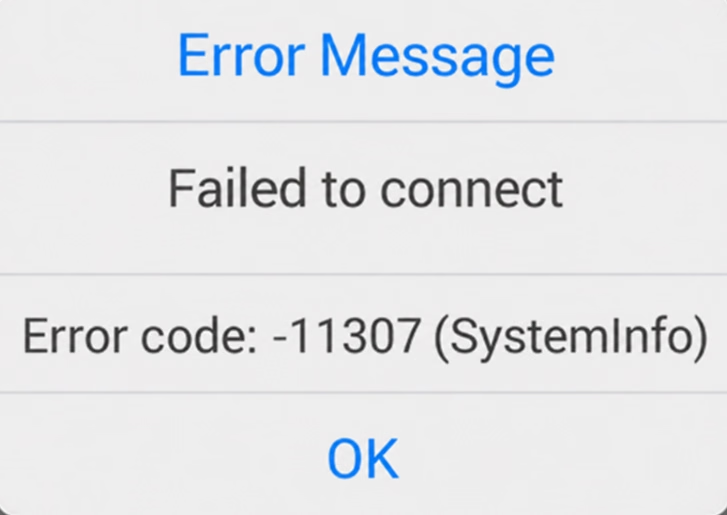
What Does XMEye Error Code 11307 Mean?
XMEye error code 11307 is commonly associated with a device that the app cannot locate online. However, the exact error description can vary between XMEye-compatible software and device implementations.
The error may appear in these situations:
- Adding a new device: The serial number or Cloud ID may be incorrect.
- Accessing an existing device: The DVR/NVR may have lost its network or remote connection.
- Viewing cameras remotely: The recorder may work locally but fail to connect through its cloud/P2P service.
Some technical documentation also lists the internal code -11307 as a failure to retrieve configuration or establish a connection. Therefore, check the exact message and the operation that triggered it rather than assuming every device uses an identical error mapping.
How to Fix XMEye Error Code 11307
Follow these steps in order. Test the connection after each relevant change so you can identify what resolves the problem.
1. Check the Device Serial Number or Cloud ID
If you are adding the recorder for the first time, verify its identifier before troubleshooting the network.
- Connect a monitor and mouse to your DVR/NVR.
- Open the main menu and look for System, Info, or Version.
- Find the serial number or scan the device QR code if available.
- Open the device settings in XMEye.
- Compare the saved serial number or Cloud ID with the information displayed by the recorder.
- Correct any mismatch and try connecting again.
The menu location varies by firmware. Some recorders show the serial number in the startup wizard.
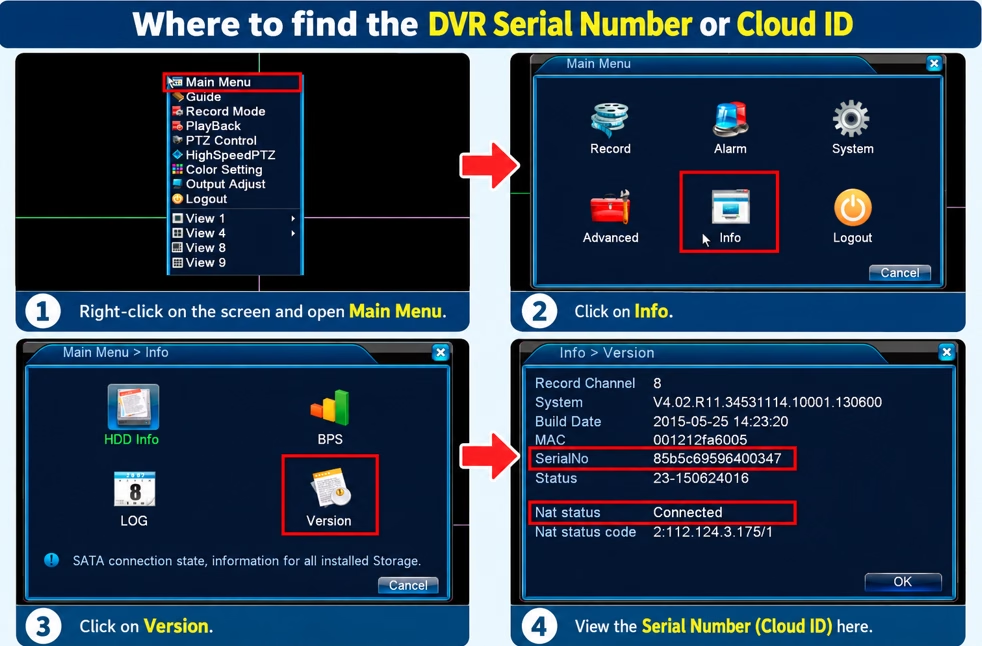
Why this matters: XMEye cannot connect to the intended recorder if the saved identifier is incorrect. If the identifier already matches, move to the next step instead of repeatedly adding the same device.
2. Check Whether the DVR/NVR Is Connected to the Internet
If the device worked before but now appears offline, check its physical network connection.
- Make sure the recorder is powered on.
- Check the Ethernet cable between the DVR/NVR and the router or network switch.
- Confirm that both cable ends are firmly connected.
- Check whether other devices on the same router can access the internet.
- Open the recorder’s network status page and check its connection information.
If the recorder has lost its network connection, restore it and test XMEye again.
A camera feed that appears on the local monitor does not necessarily mean remote access is working. Local viewing and internet-based access are different connection paths.
3. Check the DVR/NVR Network Settings
If the Ethernet connection appears normal, inspect the recorder’s network configuration.
Look for settings such as:
- IP address
- Subnet mask
- Gateway
- DNS
- Network connection status
The exact options depend on the recorder’s firmware.
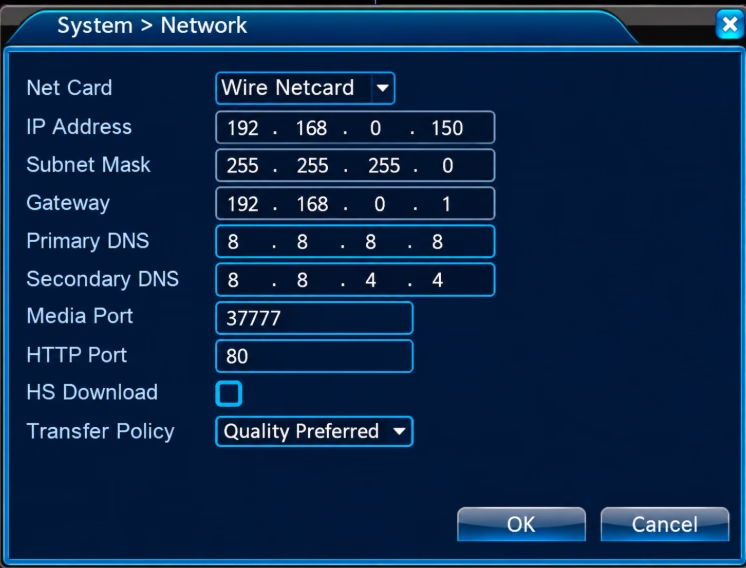
Confirm that the recorder has a valid network configuration for your router. If you find an incorrect gateway, DNS value, or IP configuration, correct the specific problem using the device manufacturer’s instructions.
Do not randomly assign a static IP address or change DNS settings. Incorrect values can make the recorder inaccessible.
4. Check NAT or P2P Status
If the DVR/NVR works locally but XMEye cannot access it remotely, check the recorder’s remote-access status.
- Open the recorder’s network menu.
- Look for NAT, P2P, Cloud, or Platform Access.
- Check whether the status reports a successful or connected state.
- If the service is offline, confirm that the recorder has internet access.
- Recheck the status after the connection is restored.
Menu names and status labels vary across XMEye-compatible recorders.
The official XMEye cloud FAQ explains that a device can fail to connect to the cloud service because of incorrect network configuration, DNS problems, or restrictions in the network. It also describes cases where a device registers successfully but cannot be accessed normally.
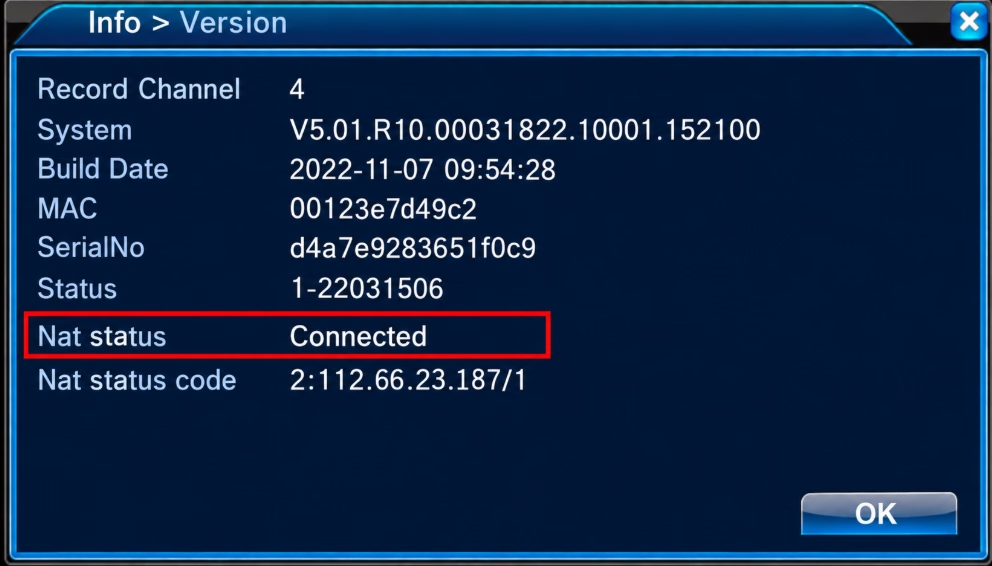
If the NAT/P2P service remains offline despite a working internet connection, consult the recorder’s manufacturer or installer before changing advanced network settings.
5. Test XMEye Using Wi-Fi and Mobile Data
This test helps determine whether the problem may be related to the phone’s network.
- Open XMEye while your phone is connected to Wi-Fi.
- Try accessing the affected DVR/NVR.
- Switch off Wi-Fi and use mobile data.
- Open XMEye again and test the same device.
Compare the results:
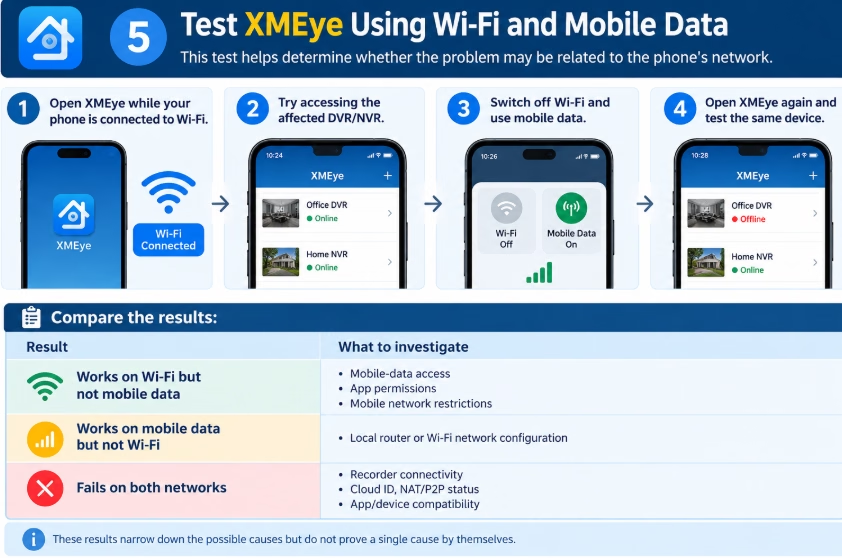
| Result | What to investigate |
|---|---|
| Works on Wi-Fi but not mobile data | Mobile data access, app permissions, or mobile network restrictions |
| Works on mobile data but not Wi-Fi | Local router or Wi-Fi network configuration |
| Fails on both networks | Recorder connectivity, Cloud ID, NAT/P2P status, or app/device compatibility |
These results narrow down the possible causes but do not prove a single cause by themselves.
6. Review the Saved Device Entry
If the recorder appears online but XMEye still reports error 11307, review the saved device information.
- Open the XMEye device list.
- Select the affected recorder and open its edit settings.
- Compare the saved serial number or Cloud ID with the actual recorder information.
- Correct any confirmed mismatch.
- Save the change and test the connection again.
If you need to remove and add the device again, first record its identifier and make sure you have the required login credentials.
Removing a device from the app is different from resetting the DVR/NVR. Avoid a factory reset unless there is a specific reason and you have the information needed to restore the configuration.
7. Restart the Recorder and Check App Compatibility
If the identifier and network settings are correct, a restart may help resolve a temporary connection problem.
- Close XMEye on your phone.
- Restart the router if there is evidence of a router or internet connection problem.
- Restart the DVR/NVR when it is safe to interrupt recording.
- Allow the recorder time to reconnect.
- Open XMEye and test the device again.
If the error began after an app or firmware update, check whether a compatible version is available for your recorder. Avoid installing unverified APK files or downgrading firmware without manufacturer guidance.
An update is not a guaranteed fix for error 11307; it is worth investigating only when the timing or compatibility information supports it.
What If XMEye Error 11307 Still Appears?
Use the following checklist to decide what to investigate next.
| Observation | Next step |
|---|---|
| The device cannot be added for the first time | Verify the serial number or Cloud ID |
| The recorder was working but is now offline | Check its internet connection and network status |
| Local camera viewing works but remote viewing fails | Check NAT/P2P or cloud connection status |
| XMEye works on one network but not another | Investigate the network where it fails |
| All basic checks look correct | Record the exact error, device model, firmware, and app version for technical support |
If the issue continues, capture the error message and note when it occurs. This information is more useful to technical support than changing several settings without recording the results.
Frequently Asked Questions
What is the main cause of XMEye error code 11307?
The error is commonly associated with a device that XMEye cannot find online. An incorrect serial number or Cloud ID, an unavailable recorder, or a remote-connection problem may be responsible.
Can XMEye error 11307 occur when the DVR is working locally?
Yes. A recorder may display camera feeds on its local monitor while its internet or cloud/P2P connection is unavailable. Check the recorder’s remote-access status.
Does error 11307 mean the camera is damaged?
Not necessarily. Check the identifier, network connection, and remote-access status before assuming the camera or recorder has failed.
Should I enable port forwarding to fix error 11307?
Not as a first step. Check the recorder’s intended remote-access method and NAT/P2P status first. Only change router settings when the manufacturer’s instructions or a confirmed network diagnosis calls for it.
Will reinstalling XMEye fix error 11307?
Reinstalling the app is not a guaranteed solution. First determine whether the recorder is online and whether its saved device information is correct. Consider app compatibility if the problem began after an update or the app has other issues.
Final Thoughts
XMEye error code 11307 is commonly associated with a device that cannot be found online. Start with the serial number or Cloud ID, then check the recorder’s internet connection and NAT/P2P status. If local viewing works but remote access fails, focus on the remote connection rather than resetting the recorder.
Work through one check at a time and record the result. This approach helps narrow down the cause without introducing unnecessary configuration changes.
Testing note: The troubleshooting guidance in this article is based on published documentation. It has not been independently tested on a physical DVR/NVR for this article, so no device-specific fix is claimed as personally verified.