
If you are facing XMEye problems, such as an offline device, camera connection failure, app crashes, login errors, a black screen, or playback issues, there are several things you can check before resetting your DVR/NVR. Most XMEye problems are related to the network connection, DVR/NVR settings, P2P status, app configuration, or an outdated app version.
This post dives deep into XMEye Problems and Fixes, covering solutions for pretty much every issue you might face. If you’ve installed the XMEye app on your phone but it just won’t work, don’t panic. You just need to break down what’s actually going wrong and follow the right steps to fix it. Sometimes the issue is minor, but we miss it because we don’t know where to look. So, let’s figure out exactly why your XMEye app isn’t working.
If you have an Arlo camera, then here is a complete guide for Arlo camera problems
XMEye Connection Failed Fix
Before doing anything, I recommend that you please read this guide on XMeye installation. You’ve installed the app, registered your user account, and even added your DVR/NVR—but the moment you go for live view, it says ‘Device Offline.’ You keep hitting refresh, but the app just refuses to connect to your DVR. If this is the exact issue you’re facing, here are a few critical things you need to check right away.
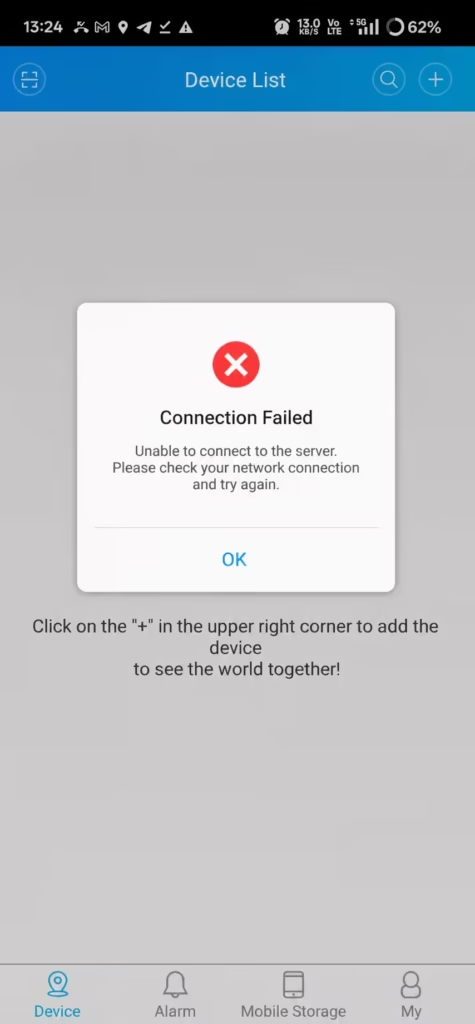
- Check the network connection on your mobile. First, check if your phone’s internet connection is actually working. Open an app like YouTube or Instagram—if videos are loading fine, your phone’s network is good to go. Move on to the next step.
- Check the network cable of the DVR/NVR: If your phone’s internet is fine, you need to ensure that data is actually reaching your DVR/NVR. To test this, unplug the Ethernet cable from the back of your DVR/NVR and plug it into a laptop. Try browsing the web—if the internet works on your laptop, the cable is good and fetching data. Plug it back into the DVR/NVR, making sure it clicks firmly into place.
- Check DVR/NVR settings: Now, we need to check a few settings on the DVR/NVR itself. First, log in to your device, head over to Settings, and select Network. Look for the NAT option and check if it’s enabled. If it’s off, turn it on. At the same time, make sure your Cloud ID/P2P status is also enabled.
- Check Mobile app Settings: Go back to your mobile app and double-check if the DVR/NVR serial number was entered correctly. Tap the + (plus) icon in the top-right corner of the app, open your device details, and match that serial number with the one printed on your actual DVR/NVR. If both are identical, everything is set correctly here.
If you’ve checked off all the points mentioned above, your cameras should definitely be up and running on live view. However, if they’re still not working, it’s best to call a local expert to inspect the setup physically—or you can drop us a comment or message right here. We’ll do our best to help you troubleshoot and get the issue sorted out.
XMEye Login Failed Error
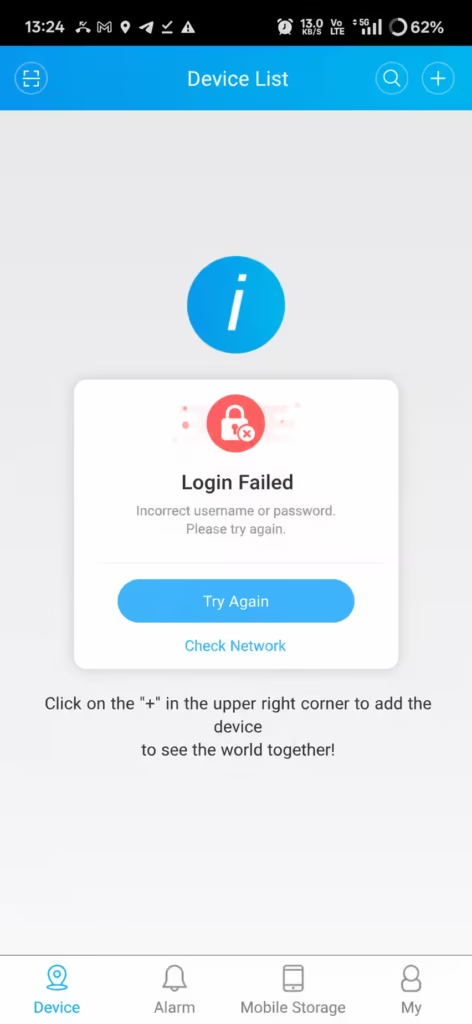
This is a problem that almost everyone runs into at some point. Sometimes, it’s just a minor user mistake, while other times, the system itself is acting up and refusing to work properly.
- Re-enter Login Details: Make sure you are logging in with the exact username you registered. Pay close attention to uppercase and lowercase letters. Re-enter your password carefully, and you should be able to log in without any issues.
- Reset Password: If you’re still locked out, the easiest workaround is to simply reset your password. It’s a huge time-saver and will get you back into the system in no time.
- Reinstall Application: If you’re unable to reset the password for some reason, the cleanest fix is to completely uninstall the app from your phone. Redownload a fresh copy from the Play Store or App Store and try logging in again. Alternatively, you can manually download and install the official XMEye APK build if you prefer.
XMEye Keeps Stopping or Crashing
If the app crashes immediately upon opening or freezes up right after you launch it, check out the specific troubleshooting points listed below.
- 1. Update Android System WebView: An outdated WebView breaks many CCTV apps. Update your Android System WebView immediately. If you have the Google Chrome browser installed on your phone, make sure to update it as well. Once done, the app should start working perfectly.
- 2. Free Device Storage: Check if your mobile storage is completely full. If you’re running out of space, delete any unused apps and clear up at least 2–3 GB of storage to keep things running smoothly.
- 3. Disable Battery Optimization: Most Android phones use aggressive battery optimization by default, which kills the XMEye app in the background. To stop this from happening, make sure to disable battery optimization specifically for XMEye.
- 4. Correct the XMeye version of your mobile: You always need to make sure you are running the right app version for your phone. If you’ve installed the latest version of XMEye but your device isn’t fully compatible, the app will refuse to open. You can find all the different versions of XMEye right here on our site. Try downloading a slightly older version of XMeye, a stable build, restarting your phone, and launching it again—it should work flawlessly.
XMEye Device Offline – How to Fix
One of the most common XMEye problems is an offline device. You may add your DVR/NVR successfully, but when you open live view, XMEye shows Device Offline or fails to connect.
If the DVR/NVR works normally when viewed locally but appears offline in XMEye, follow these troubleshooting steps.
1. Check Your Mobile Internet Connection
Start with your phone. Make sure the device has a stable Wi-Fi or mobile data connection.
Open another website or app to confirm that the internet is working. If other apps cannot access the internet, fix your phone’s connection before troubleshooting XMEye.
If possible, switch between Wi-Fi and mobile data and test XMEye again.
2. Check the DVR/NVR Network Cable
The DVR/NVR must have a working network connection for remote viewing.
Check the Ethernet cable connected to the back of your DVR/NVR and router or network switch. Make sure both ends are firmly connected.
If the DVR/NVR has network indicator lights, check whether they are active.
You can also test the Ethernet cable with another device to determine whether the cable or network connection is causing the problem.
3. Check DVR/NVR Network Settings
Log in to the DVR/NVR and open its Network Settings.
Depending on the firmware, you may see options such as:
- Network
- TCP/IP
- Ethernet
- NAT
- P2P
- Cloud
- Platform Access
Make sure the DVR/NVR has a valid IP address, gateway, and DNS configuration and that the network connection is active.
The exact menu names can vary between XMEye-compatible DVR/NVR models.
4. Check P2P or Cloud Status
Remote access through XMEye commonly depends on the DVR/NVR’s P2P or cloud connection.
Open the P2P or Cloud section on your DVR/NVR and check the status. If the status is Online, the device has established the remote connection. You can use XMEye for PC for this setting enabled.
If it shows Offline, restart the DVR/NVR and router and check the network settings again.
If the P2P service remains offline, the issue may be related to the network, DNS configuration, router, firmware, or the particular DVR/NVR service.
5. Verify the Device ID or Serial Number
If the DVR/NVR is online but XMEye still cannot connect, check the device information stored in the app.
Open XMEye and select your device details. Compare the serial number or device ID with the information shown on your DVR/NVR.
A wrong device ID can prevent XMEye from connecting to the correct recorder.
6. Restart the DVR/NVR, Router, and XMEye App
A simple restart can resolve temporary connection problems.
Restart:
- Router
- DVR/NVR
- Mobile phone
- XMEye app
After restarting everything, wait a few minutes for the DVR/NVR to reconnect to the network and P2P service.
Then open XMEye and check the device status again.
XMEye Says “The Device May Not Be Online”
If XMEye displays a message such as “The device may not be online”, it generally means that the app cannot establish a connection with the DVR/NVR.
First check whether the DVR/NVR itself has internet access. Then check its network and P2P/Cloud status.
Try the following:
- Check the Ethernet cable.
- Confirm that the DVR/NVR has a valid IP address.
- Check the gateway and DNS settings.
- Check P2P/Cloud status.
- Restart the router and DVR/NVR.
- Verify the device ID in XMEye.
- Test XMEye using another internet connection.
For example, if XMEye does not work on your home Wi-Fi, test it using mobile data. If it works on mobile data but not Wi-Fi, the problem may be related to the local router or network configuration.
XMEye App Not Working – How to Fix
If the XMEye app is not working, the problem may be with the application, your phone, the internet connection, or the DVR/NVR.
Try the following fixes.
1. Check Your Internet Connection
Make sure your phone is connected to the internet.
Try both Wi-Fi and mobile data if possible. If XMEye works on one connection but not the other, the network itself may be responsible.
2. Update XMEye
An outdated XMEye version can cause compatibility, login, playback, or connection problems.
Check whether a newer version is available and update the app.
If you have installed XMEye from an APK file, make sure you are using a legitimate and compatible version.
You can also check our guide on XMEye APK download.
3. Clear XMEye Cache
If the app opens but behaves incorrectly, clearing its cache can help.
On Android, open:
Settings → Apps → XMEye → Storage → Clear Cache
The exact menu may be different depending on your Android phone.
Avoid clearing app data unless necessary because doing so may remove locally stored app settings or require you to sign in again.
4. Update Android System WebView and Chrome
On Android devices, an outdated Android System WebView or Chrome component can cause problems in some applications.
Open the Play Store and check for updates to:
- Android System WebView
- Google Chrome
- XMEye
Restart the phone after updating them and test XMEye again.
5. Check App Permissions
Make sure XMEye has the permissions it needs to function correctly.
Open your phone’s app permissions and check whether required permissions have been denied.
Permission names and available options vary depending on the Android version and phone manufacturer.
6. Disable Battery Optimization for XMEye
Some Android phones aggressively restrict background applications.
If XMEye stops working in the background or push notifications are delayed, check the battery settings for XMEye.
Set the app to allow background activity where your phone provides such an option.
7. Reinstall XMEye
If XMEye continues to crash or does not open properly, uninstall the application and install a fresh copy.
Before uninstalling, make sure you know your login information and have the information required to add your DVR/NVR again.
You can also read our XMEye installation guide.
XMEye Error Codes and How to Fix Them
XMEye-compatible devices can display different error codes depending on the application version, DVR/NVR firmware, network configuration, and the operation being performed.
If you encounter an error code, note the exact number before trying random fixes.
XMEye Error Code 60400
If you are seeing XMEye error code 60400, first determine when the error appears.
Check whether it happens:
- During login
- When adding a device
- When opening live view
- During playback
- When connecting remotely
Then check the XMEye app version, internet connection, device information, and DVR/NVR network status.
If the error appeared after an app update, testing a compatible version may also help determine whether the issue is version-related.
Do not change multiple DVR/NVR settings at once. Make one change and test the connection again so you can identify the actual cause.
XMEye Error Code 11307
If you encounter XMEye error code 11307, note the exact screen or operation where it appears.
Try these basic troubleshooting steps:
- Check the phone’s internet connection.
- Restart XMEye.
- Restart the DVR/NVR.
- Verify the device ID.
- Check the DVR/NVR’s P2P/Cloud status.
- Update XMEye.
- Test the device using another network.
If the error continues, check whether the same error appears on another phone or XMEye-compatible application. This can help determine whether the problem is with the phone/app or the DVR/NVR connection.
Final Fix Checklist
Before assuming the app is broken, verify these in XMEye Problems and Fixes:
- DVR is online.The
- Internet is stable.
- The router is working.
- App is updated.
- Battery optimization is disabled.
- Camera permissions are allowed.
- DVR date and time are correct.
Most XMEye problems get fixed within 10 minutes once you isolate the actual cause.