
Ring Camera Not Working? Whether it’s gone offline, won’t connect to Wi-Fi, gets stuck loading Live View, or has stopped recording motion, most issues are surprisingly easy to fix on your own.
This guide covers quick, straightforward fixes for the most common Ring camera and video doorbell problems—including Wi-Fi connection drops, Live View glitches, delayed notifications, setup and QR scan errors, weird flashing lights, and night vision bugs. Just find your specific issue below and follow the steps to get your device back up and running.
Ring Camera Not Connecting to WiFi – Ring Camera Not Working
If your Ring camera won’t connect to Wi-Fi, the issue usually boils down to your home network, router settings, weak signal, or the camera itself. You might notice the setup failing in the app, constant connection drops, or the device just sitting offline.
First, make sure your Wi-Fi is actually working and that the camera is close enough to your router. If everything looks fine on that end but it’s still refusing to connect, follow the steps below to track down the problem and get your Ring camera back online.
How to Fix Ring Camera Not Connecting to WiFi
Try these fixes one by one, checking the Ring app after each step to see if your camera comes back online.
Note: Ring devices support both 2.4 GHz and 5 GHz Wi-Fi. In Canada, Europe, the UK, Australia, New Zealand, and Japan, some 5 GHz channels (36–64) are restricted for Ring devices due to regional Wi-Fi regulations. If your router uses a restricted channel, your Ring device may not detect the 5 GHz network during setup. For better 5 GHz compatibility, Ring recommends using channels 100–165 where applicable. You can change the Wi-Fi channel from your router’s admin page or app.
1. Check Your Wi-Fi Connection
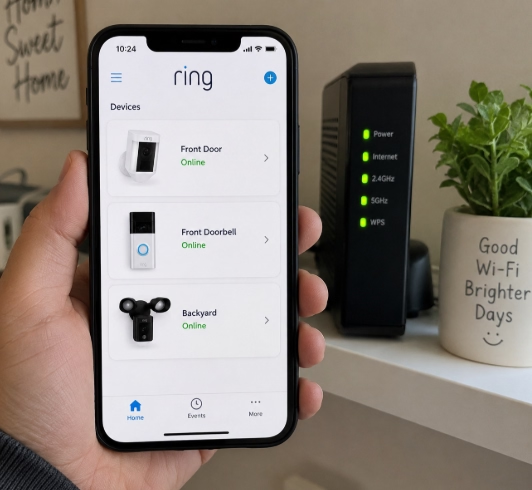
First, double-check that your home Wi-Fi is actually working. Grab your phone or another device, connect to the same network, and try loading a website or streaming a video to confirm your internet is active.
If your other devices are struggling to connect too, restart your router before diving into troubleshooting the Ring camera.
2. Check the Wi-Fi Password in the Ring App
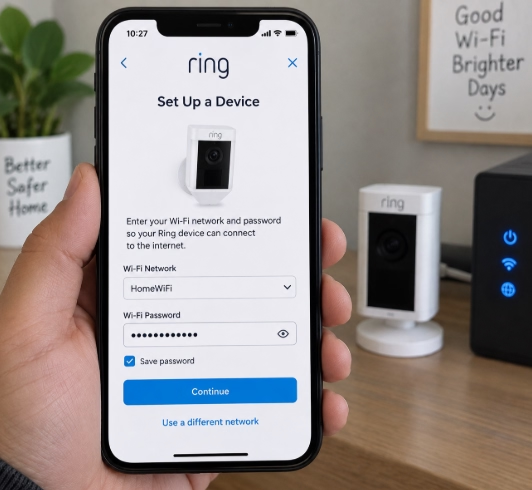
Double-check that you’re typing the right Wi-Fi password during setup—even a tiny typo will keep your Ring camera from connecting.
If you recently changed your Wi-Fi password, you’ll also need to update it in the app and reconnect the camera using your new network details. You can find Ring Wi-Fi guidelines here.
3. Move the Ring Camera Closer to the Router
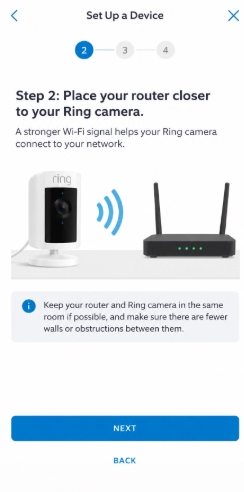
A weak Wi-Fi signal can easily keep your Ring camera from connecting or finishing setup. If you can, temporarily move the camera closer to your router and try connecting again.
If it connects without any issues nearby, poor Wi-Fi coverage at the original spot is almost certainly your culprit.
4. Check the Ring App
Make sure your Ring app is updated to the latest version and that you’re signed into the right account.
Try force-closing the app and opening it back up to see if the camera shows as online. If the app itself is acting glitchy, restarting your phone can help clear up any temporary bugs.
5. Reconnect the Ring Camera to Wi-Fi
If your camera was working fine before but went offline, you can reconnect or update your Wi-Fi right in the Ring app’s device settings.
Just follow the on-screen prompts, and make sure the camera stays close enough to your router while you get it set back up.
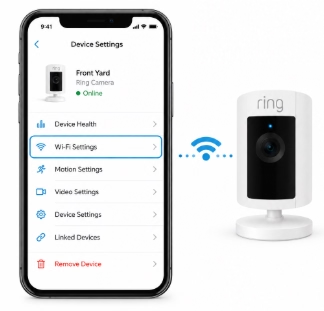
6. Check Your Router Settings
If your Ring camera still won’t connect, check if you’ve recently swapped out your router or tweaked its security settings.
A new router, an updated Wi-Fi password, a hidden network, or strict firewall settings can all keep a previously working camera from getting back online.
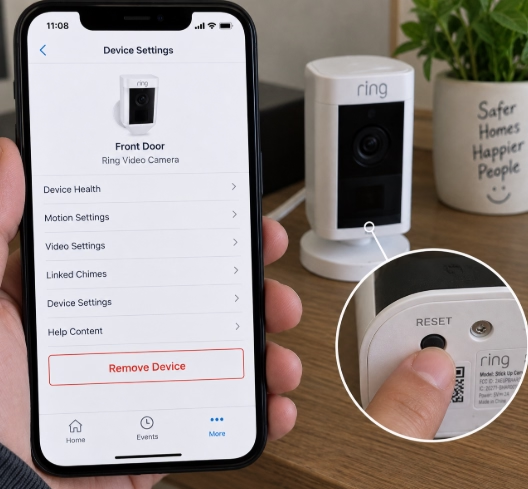
7. Reset the Ring Camera
If none of these fixes work, try resetting your camera and setting it up from scratch.
Keep in mind that a reset should be a last resort, as it wipes your existing device settings. Once it’s reset, simply re-add the camera in the Ring app and follow the setup prompts.
You may also need this: XMeye Problems and Fixes
Ring Camera Offline – Ring Camera Not Working
If your Ring camera shows as “Offline” in the app, it’s either dropped its Wi-Fi connection or can’t reach Ring’s servers right now. Weak Wi-Fi, router hiccups, an updated password, or power issues are usually to blame.
Before resetting the device, double-check your home internet and make sure the camera is actually getting power. If everything looks good on that end, follow the troubleshooting steps below to get your Ring camera back online.
How to Bring Your Ring Camera Back Online
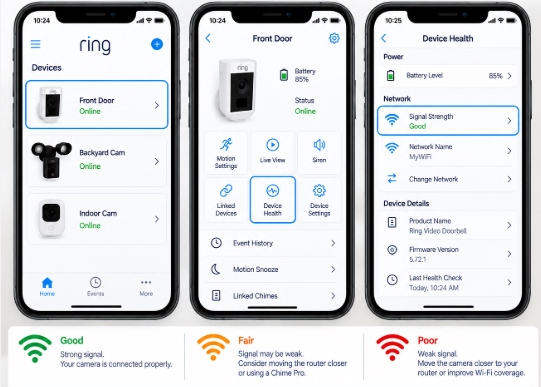
1. Check the Device Health Status
Open the Ring app, tap the menu icon (☰) > Devices, and select your camera. Then go to Device Health to check its network status.
If it’s offline, check if there’s an error code on the screen—it’ll help pinpoint whether the issue is with your Wi-Fi, your internet connection, or the camera itself.
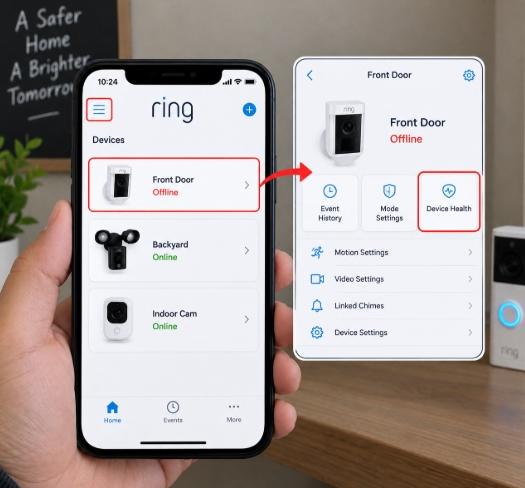
2. Reconnect the Camera to Wi-Fi
On the Device Health screen, look under Network and tap Reconnect to Wi-Fi or Change Wi-Fi Network (whichever option shows up in your app).
Follow the on-screen prompts to get back online. Keep an eye on the camera’s light pattern or listen for voice prompts along the way—they’ll let you know if the reconnection is going smoothly.
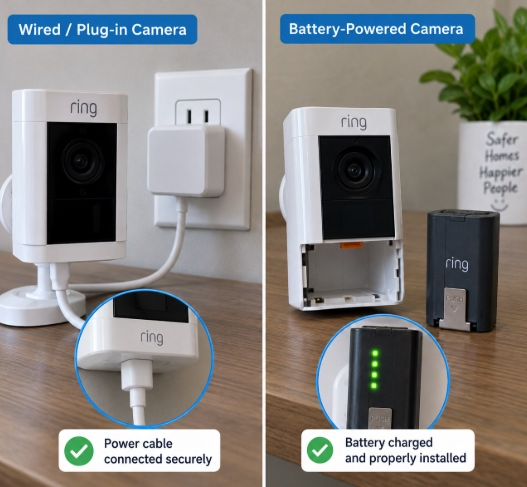
3. Check the Camera’s Power
A dead battery or a bad power connection can easily knock your camera offline.
If you have a battery-powered Ring model, make sure the battery is charged up and snapped firmly into place. If your camera is hardwired, double-check that the wiring is secure and connected to the right transformer or power source.
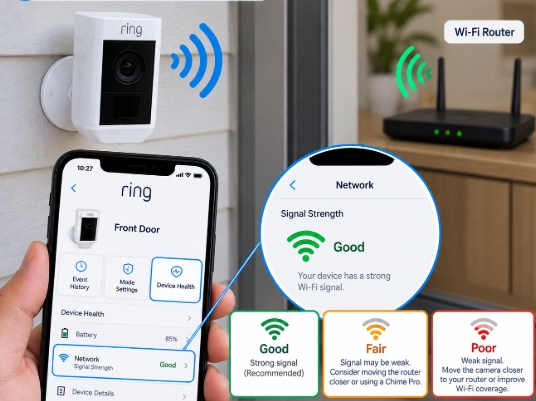
4. Check Wi-Fi Signal Strength at the Camera
If your Ring camera keeps dropping offline, a weak Wi-Fi signal at its mounting location is usually the culprit. Check your network status in Device Health, and if possible, try temporarily bringing the camera closer to your router.
If the connection stays solid when it’s closer, you’ll need to boost your Wi-Fi signal in that spot. Adding a Ring Chime Pro is an easy way to extend coverage to compatible Ring devices.
5. Try a 2.4 GHz Wi-Fi Network
If your router has dual-band Wi-Fi (2.4 GHz and 5 GHz), try connecting your Ring camera to the 2.4 GHz network.
You can also try connecting to a guest network to see if the issue is isolated to your main Wi-Fi network.
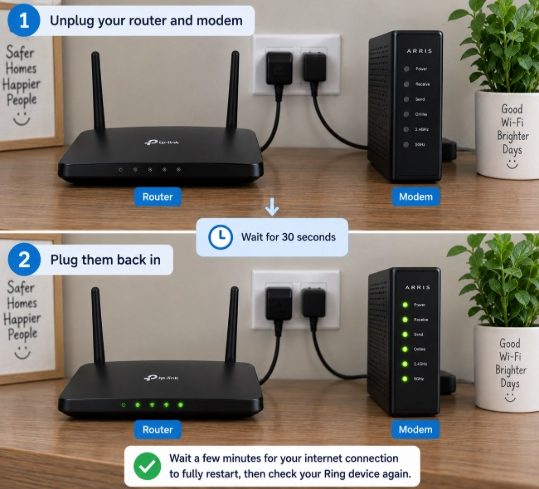
6. Restart Your Router and Modem
If your Ring camera keeps disconnecting, try rebooting your home network. Unplug your router and modem for about 30 seconds, plug them back in, and give your internet a minute or two to come back online.
Once it’s fully restored, open the Ring app and check the camera’s Device Health status again to see if it stayed connected.
7. Check Router Security Settings
If your Ring camera still keeps disconnecting, your router’s firewall or security settings might be blocking the connection.
Check your router’s configuration—or reach out to your internet provider or router manufacturer—for help tweaking those settings so your camera can communicate smoothly.
8. Factory Reset the Ring Camera
If your camera is still offline or completely unresponsive after trying those steps, a factory reset is your last resort.
Just keep in mind that resetting it means setting it up again from scratch in the Ring app. Also, make sure to look up the reset steps for your exact model—different Ring devices use different button combinations.
Arlo camera Not Working? Read this guide.
Ring Live View Not Working
If Ring Live View isn’t working, you’ll usually get stuck on a loading screen, see a black screen, or get an error message. This usually happens when your camera has weak Wi-Fi, drops offline, or is having trouble syncing with the Ring app.
Before tweaking any settings, check your device status in the app and make sure your internet connection is solid. If Live View still won’t load, the steps below will help you pinpoint the issue and get it fixed.
How to Fix Ring Live View Not Working
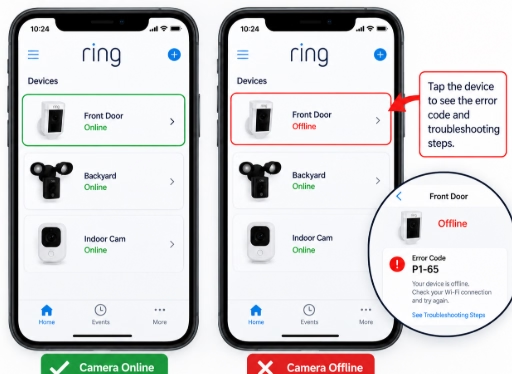
1. Check if the Ring Camera Is Online
Open the Ring app and check your camera from the main dashboard. If it shows as Offline, Live View won’t work.
If you see an offline indicator, tap it to view the error code and troubleshooting steps. You can also check Device Health to see the camera’s current network status.
2. Check Your Wi-Fi Connection
Make sure your phone has a solid internet connection. Try toggling between Wi-Fi and cellular data to see if the issue is isolated to your phone’s current network.
If your internet connection is spotty, Live View might struggle to load or keep dropping entirely.
3. Test the Camera on Another Network
If you can, try connecting your Ring camera to a different compatible network, like a guest Wi-Fi network or another 2.4 GHz option.
If Live View works fine on the alternate network, the issue is likely coming from your main router or network setup.
4. Restart the Ring App
Force close the Ring app and reopen it, then select your camera and give Live View another try.
If it’s still not working, restart your phone and make sure the Ring app is updated to the latest version.
5. Reset and Set Up the Camera Again
If Live View still won’t work after checking your network, power, and the app, a factory reset is your last resort.
Once you’ve reset the camera, set it up again in the Ring app and test Live View. Just be sure to follow the reset procedure for your specific Ring model, as the steps vary from device to device.
Ring Camera Not Detecting Motion
If your Ring camera isn’t detecting motion, start by making sure it’s online and Motion Detection is turned on in the app. Misconfigured Motion Zones, low sensitivity, active Motion Schedules, Privacy Zones, weak Wi-Fi, or bad camera placement can all cause it to miss activity.
Before tweaking a bunch of settings at once, test the camera by taking a walk through the area you want to monitor. Then use the steps below to pinpoint what’s stopping your Ring camera from picking up motion.
Ring Camera Not Detecting Motion – Troubleshooting Steps
1. Make Sure Your Ring Camera Is Online
First, check that your Ring camera is online in the app—an offline camera can’t detect or record motion. Open the Ring app and check your device status on the main dashboard. If it shows as Offline, get it reconnected to Wi-Fi before tweaking any motion settings.
Also, double-check that you’ve peeled off the protective plastic film from the front of the camera, as it can interfere with motion detection.
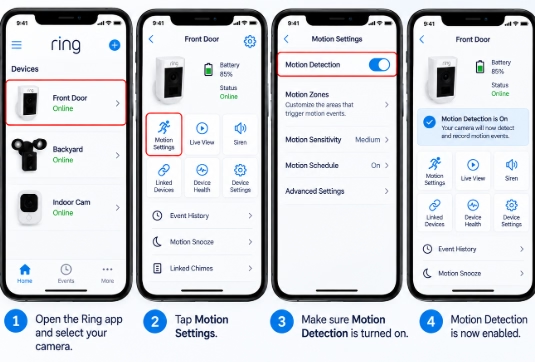
2. Turn On Motion Detection
Motion Detection has to be turned on for your Ring camera to pick up and record movement.
To check this setting:
- Open the Ring app.
- Tap the Menu icon (☰).
- Tap Devices and select your camera.
- Make sure Motion Detection is toggled on.
Once it’s enabled, walk through the area covered by the camera to test if it detects the movement.
3. Check Your Motion Zones
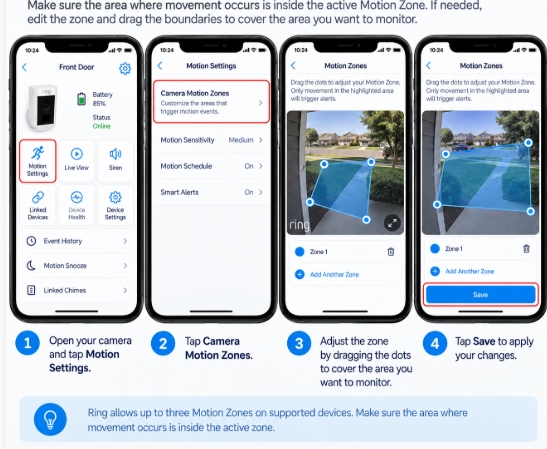
If your Motion Zones aren’t set up correctly, your Ring camera might miss activity in the exact spots you want to monitor.
In the Ring app, go to Devices > select your camera > Device Settings > Motion Settings > Camera Motion Zones, and make sure the area you’re trying to cover is inside the active zone. If it isn’t, edit the zone and drag its boundaries to cover the right spot, then tap Save.
Keep in mind that supported Ring devices let you set up to three custom Motion Zones.
4. Increase Motion Sensitivity
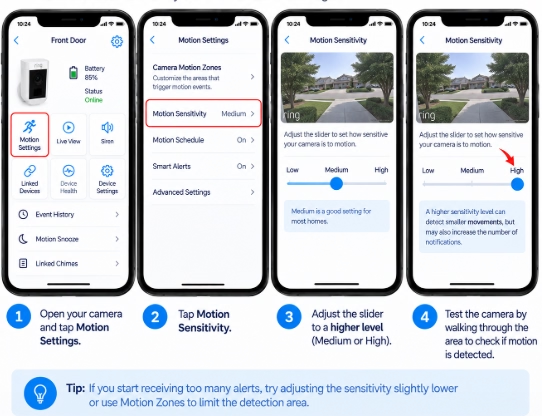
If Motion Sensitivity is set too low, your Ring camera may miss smaller or slower movements.
Open your camera’s Motion Settings and increase the Motion Sensitivity slider. Then test the camera by walking through the monitored area.
If the camera starts detecting motion after increasing the sensitivity, the previous setting was likely too restrictive for that location.
5. Check Motion Schedules and Modes
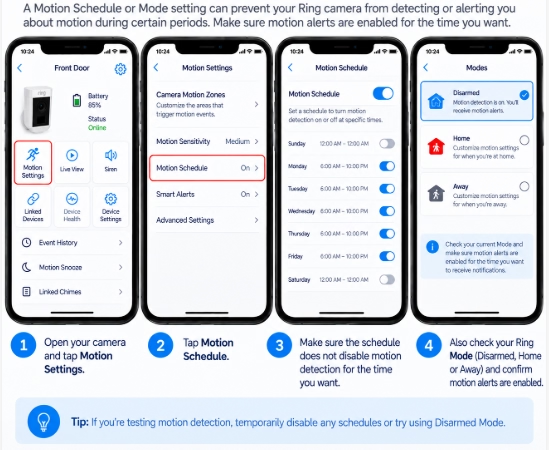
A Motion Schedule or Mode setting can stop your Ring camera from detecting motion or sending alerts during specific hours.
Check your camera’s Motion Settings to make sure you don’t have a schedule active that silences alerts while you’re trying to test it. If you use Ring Modes, try temporarily disabling those settings and give the camera another test walk.
6. Check Privacy Zones and Bird’s Eye Zones
Privacy Zones completely block out sections of your camera’s view, so make sure one isn’t covering the spot where you’re expecting to catch motion.
If your Ring camera supports Bird’s Eye Zones, check their configuration too. Just make sure the relevant detection zones are positioned to cover the exact area you want to monitor.
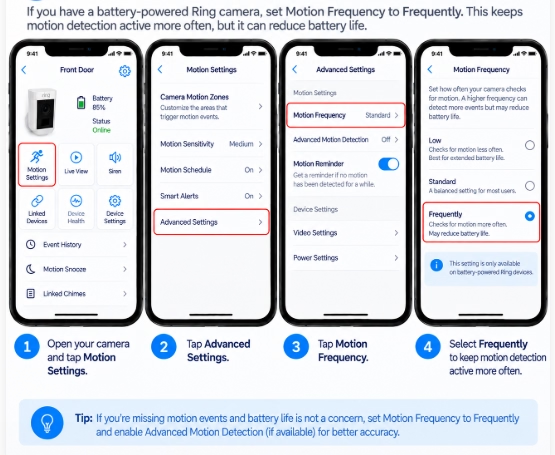
7. Adjust Motion Frequency on Battery-Powered Cameras
If you have a battery-powered Ring camera, check the Motion Frequency setting under Advanced Settings.
If your camera is missing motion events, try setting Motion Frequency to Frequently. This keeps motion detection active more consistently, though keep in mind it will drain your battery faster.
On supported battery-powered models, you can also turn on Advanced Motion Detection under Advanced Settings to help improve detection accuracy.
8. Check the Camera’s Position and Viewing Angle
Where you physically place your camera plays a huge role in how well it picks up movement. Make sure the area you want to monitor has a clear line of sight and isn’t blocked by plants, decorations, walls, or other obstructions.
For outdoor Ring cameras, Ring recommends mounting the device about 9 to 12 feet off the ground and angling it slightly downward. Position the camera so people walk across its field of view rather than straight toward or away from the lens—side-to-side motion is much easier for the camera to detect.
9. Update the Ring App and Your Phone
Make sure you’re running the latest version of the Ring app and that your phone or tablet’s operating system is fully up to date.
An outdated app can keep you from accessing—or properly using—the newest motion detection settings and features.
10. Test the Camera Again
Once you’ve made your changes, step outside the monitored area and walk through the Motion Zone at a normal pace.
Give it a few seconds, then check Event History in the Ring app. If the camera picked up and recorded your movement, you’re all set.
If it’s still missing motion after checking your settings, Wi-Fi signal, camera placement, and Motion Zones, the issue may require more advanced, device-specific troubleshooting.
Ring Camera Not Recording
If your Ring camera is not recording, you may notice that new events are missing from Event History, motion is detected, but no video is saved, or recorded videos show a “This video is unavailable” message. The issue can be caused by your Ring plan, motion settings, Wi-Fi connection, recording settings, or problems accessing recordings from the cloud.
Before resetting your camera, check that your Ring plan is active and that the device has a stable Wi-Fi connection. Then review the recording and motion settings in the Ring app. The troubleshooting steps below can help you identify why your Ring camera is not recording and get new events saved again.
How to Fix a Ring Camera That Is Not Recording
If your Ring camera isn’t saving new events, start by checking your Ring plan, Event History, motion settings, Wi-Fi connection, and video settings. The steps below cover the most common reasons your camera might stop recording.
1. Check Your Ring Plan
Ring cameras need an active Ring plan to record and save motion events to your Event History. If your subscription has expired, new events won’t be saved, and you’ll likely see a “This video is unavailable” message when trying to view clips.
Log in to your Ring account and confirm that the plan linked to your camera is active. Just keep in mind that subscribing now won’t recover videos from when the plan was inactive.
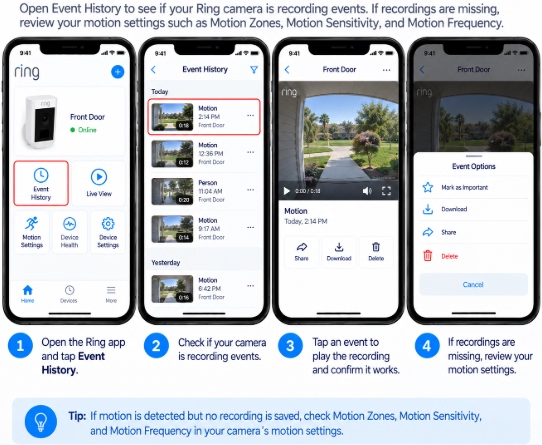
2. Check Event History for Missing Recordings
Open the Ring app and check Event History to see if the camera is actually capturing events.
If motion is detected but the recording you expect to see is missing, review your camera’s motion settings. Ring specifically recommends double-checking your Motion Zones, Motion Sensitivity, and Motion Frequency whenever recordings fail to show up in your Event History.
3. Check Motion Zones and Sensitivity
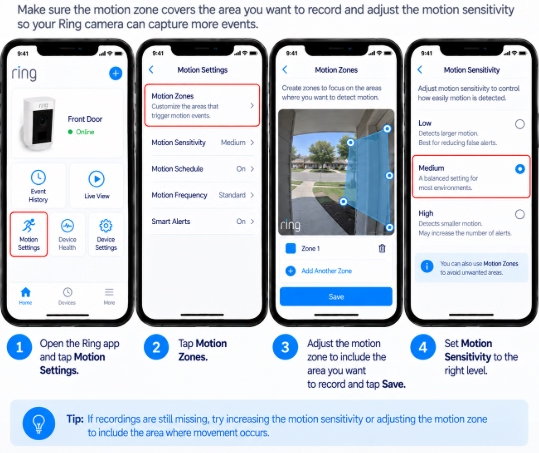
If your camera picks up some movement but keeps missing certain events, your Motion Zone might not cover the full area where activity happens.
Open your camera’s Motion Settings and review your active Motion Zones. Make sure the area you want to record falls inside the zone, and try bumping up Motion Sensitivity if the camera is still missing movement.
For battery-powered cameras, check Motion Frequency as well. Ring recommends setting this higher if motion events are getting skipped.
4. Turn Off VPN on Your Phone
Running a VPN on your phone or tablet can interfere with the Ring app pulling recordings from the cloud.
If you’re using a VPN, try turning it off temporarily, open Event History again, and try playing the video. Ring specifically notes that an active VPN can trigger the “This video is unavailable” error. You can find Ring app and VPN guidance here.
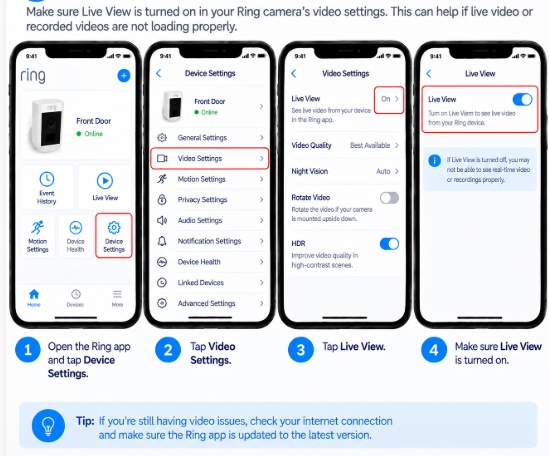
5. Check Video Settings
If your camera is online but video events still aren’t loading properly, check its video settings.
In the Ring app, go to Devices > select your camera > Device Settings > Video Settings, and make sure Live View is turned on. This is especially helpful if you’re running into issues with both Live View and recorded clips.
6. Check Video End-to-End Encryption
If you turned on Video End-to-End Encryption (E2EE), make sure you’re using the same phone or tablet you used to set it up. Ring specifically recommends checking this if your recorded videos or Live View aren’t working.
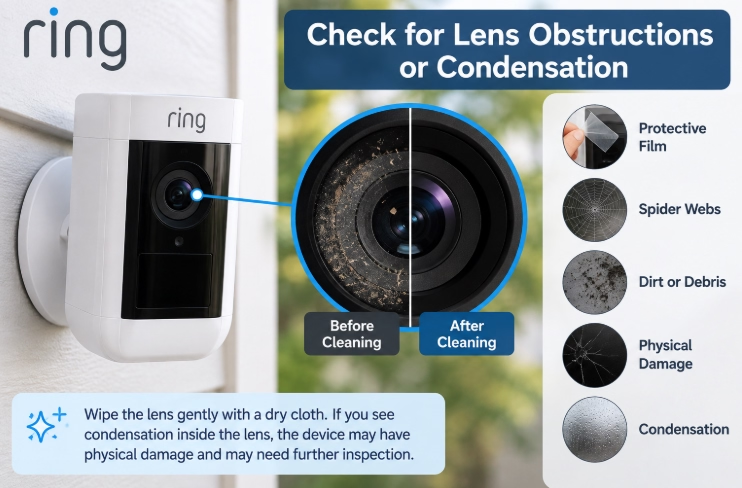
7. Check for Lens Obstructions or Condensation
If your video is recorded but looks blurry, distorted, or hard to see, check the camera itself before tweaking any settings in the app.
Take a close look at the lens for:
- Protective plastic film left on after installation
- Cobwebs or bug debris
- Dirt, dust, or smudges
- Cracks or physical damage
- Condensation trapped inside the lens
Gently wipe the lens clean with a dry cloth. If you see condensation inside the lens housing, Ring notes that the camera might have physical damage and could need further inspection.
8. Factory Reset the Ring Camera as a Last Resort
If your camera still won’t record after checking your Ring plan, motion settings, Wi-Fi connection, and app, try power cycling it or doing a factory reset based on your specific model.
Once it’s reset, walk back through the setup process in the app and test out a new motion event. Keep this as a last resort, though—resetting wipes your camera’s custom configuration, meaning you’ll have to set it up again from scratch.
Final Thoughts
Most Ring camera issues boil down to a few usual suspects: Wi-Fi connectivity, device settings, motion detection, subscription plans, or the Ring app itself. Before you wipe your camera with a factory reset, always check your device status, Wi-Fi connection, and key settings first.
If your camera is still acting up after trying these fixes, resist the urge to change multiple settings all at once. Test the camera after every tweak so you actually know what solved the issue. For model-specific quirks, check Ring’s official support site for guidance on your exact device.
With the right settings dialed in and a solid network connection, most common Ring camera issues can be sorted out without needing a replacement.