
Is your Arlo camera showing offline, refusing to connect to Wi-Fi, failing to load Live View, or missing motion events? It’s frustrating when a camera that was working fine yesterday suddenly stops doing its job.
This guide covers the most common Arlo camera issues—from Wi-Fi drops and Live View glitches to motion detection problems, missing recordings, notification delays, setup errors, and app bugs. Find the problem you’re dealing with below and follow the step-by-step fixes to get your Arlo camera back up and running.
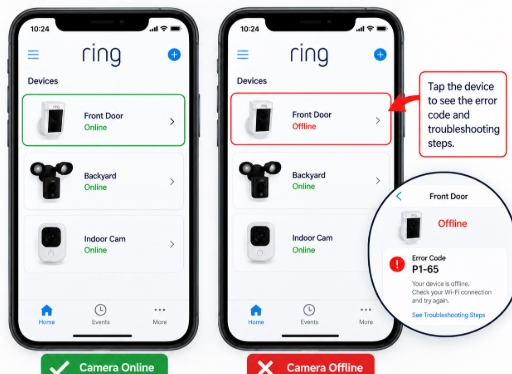
If you have a Ring camera, then you should read this troubleshooting guide
Arlo Camera Not Connecting to WiFi? Fix Step by Step
If your Arlo camera won’t connect to Wi-Fi, the issue usually comes down to your network connection, initial setup, or signal strength. The camera might fail to pair during setup, suddenly drop off after working fine, or show up as offline in the Arlo Secure app.
Before resetting the camera, check your Wi-Fi network and a few basic settings first. The steps below can help you pinpoint the cause and get your Arlo camera reconnected.
1. Check Your WiFi Connection
First, make sure your Wi-Fi network is actually working. Connect your phone to the same Wi-Fi network and try opening a webpage or streaming a video to confirm your internet connection is active.
If other devices are having connection issues too, reboot your router and wait until the Wi-Fi comes back online before troubleshooting your Arlo camera.
2. Check the Arlo Camera’s WiFi Requirements
Make sure your Arlo camera actually supports the Wi-Fi network you’re trying to use. Some models have specific Wi-Fi requirements, so an incompatible network setup will keep the camera from connecting.
If your router broadcasts both 2.4 GHz and 5 GHz bands, check which frequency your camera supports. If the required 2.4 GHz band isn’t available or broadcast separately, it might not show up at all during the setup process. You can check Arlo’s minimum installation requirements here.
3. Move the Arlo Camera Closer to the Router
A weak Wi-Fi signal can prevent your camera from completing the connection. Try moving the Arlo camera closer to your router temporarily and connecting it again.
If it connects without any issues near the router, your original installation spot likely suffers from poor Wi-Fi coverage or signal interference.
4. Restart the Arlo Camera and Router
Restarting both devices can clear up temporary connection glitches.
First, reboot your Wi-Fi router and give it a few minutes to come back online. Next, restart your Arlo camera and check its connection status in the Arlo Secure app.
If your camera still won’t connect, move on to updating your network settings below.
5. Open the Arlo Secure App
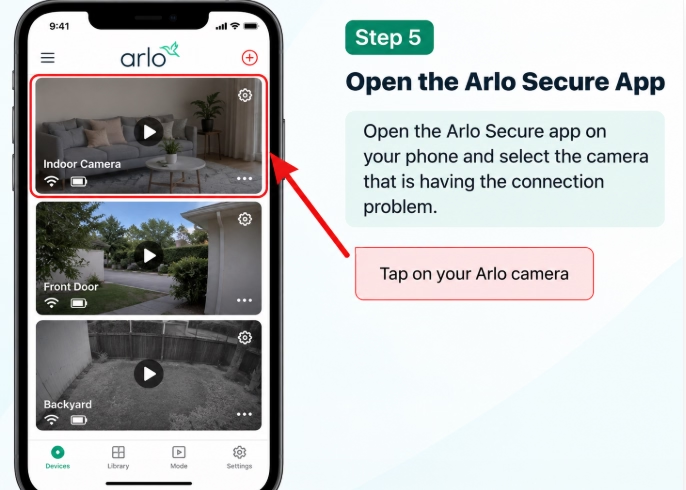
If your camera is still offline or you need to connect it to a new Wi-Fi network, open the Arlo Secure app on your phone.
Select the Arlo camera that’s having connection issues. If you have multiple cameras acting up, you’ll need to repeat the Wi-Fi setup process for each one individually.
6. Select Change Network
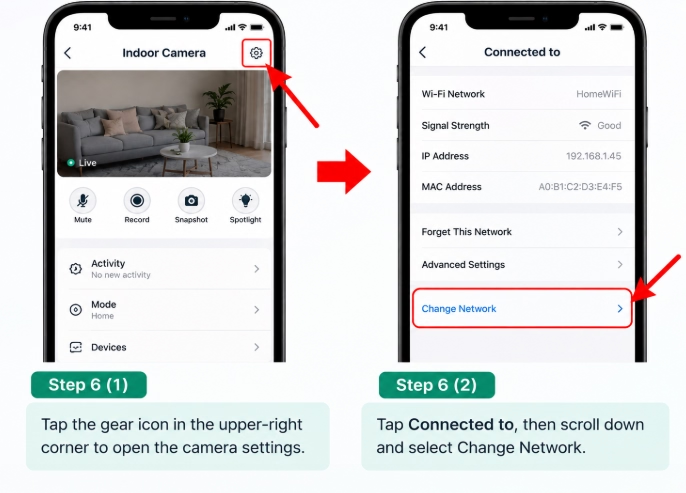
Once you select the camera, tap the gear icon in the top-right corner to open its settings.
Tap Connected to, then scroll down and select Change Network.
Use this option if you’re switching to a new Wi-Fi network or if you’ve recently updated your current network’s password.
7. Put the Camera Into Pairing Mode
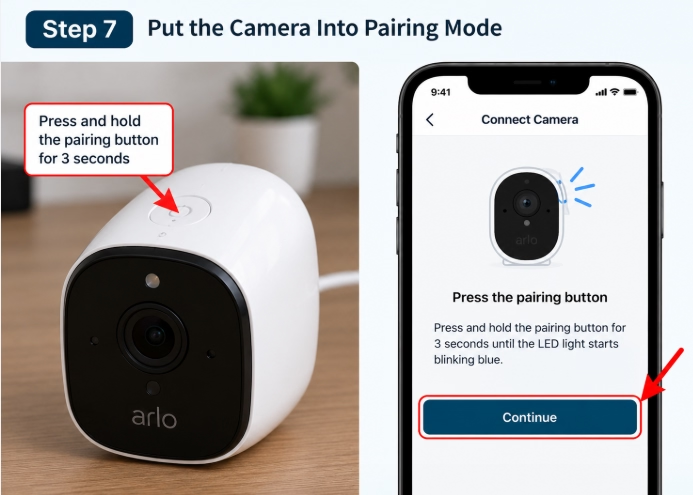
Find the pairing button on your Arlo camera—depending on your specific model, it’ll usually be on either the top or bottom of the device.
Press and hold the button for about 3 seconds until the camera’s LED starts flashing blue. Once you see the blue light blinking, head back into the Arlo Secure app and tap Continue.
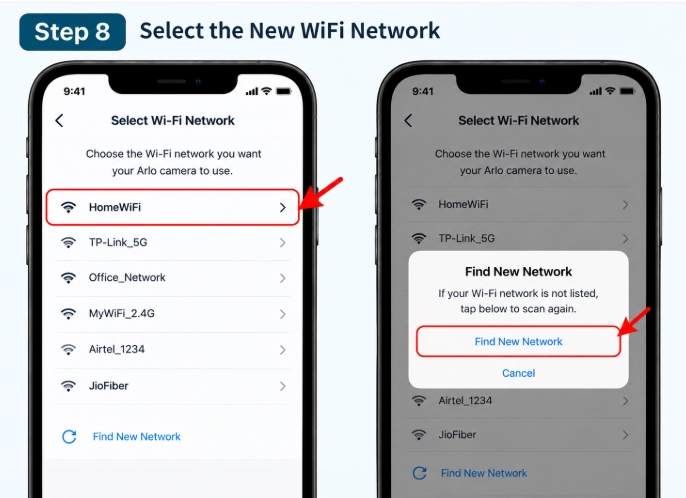
8. Select the New WiFi Network
The Arlo Secure app will scan for available Wi-Fi networks. Select the network you want to connect your camera to.
If you’re updating your Wi-Fi password, choose Find New Network and select your current network from the list.
If your network doesn’t show up, double-check that the required Wi-Fi band is active on your router and that your camera is close enough to pick up a strong signal.
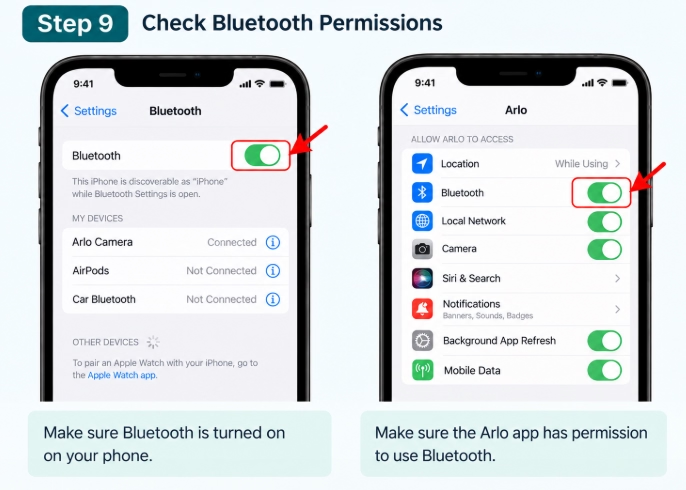
9. Check Bluetooth Permissions
During setup, your phone communicates with the camera through the Arlo app. If the app is having trouble detecting your camera, make sure Bluetooth is turned on on your phone.
You should also double-check that the Arlo Secure app has permission to use Bluetooth—without it, the setup process won’t be able to complete properly.
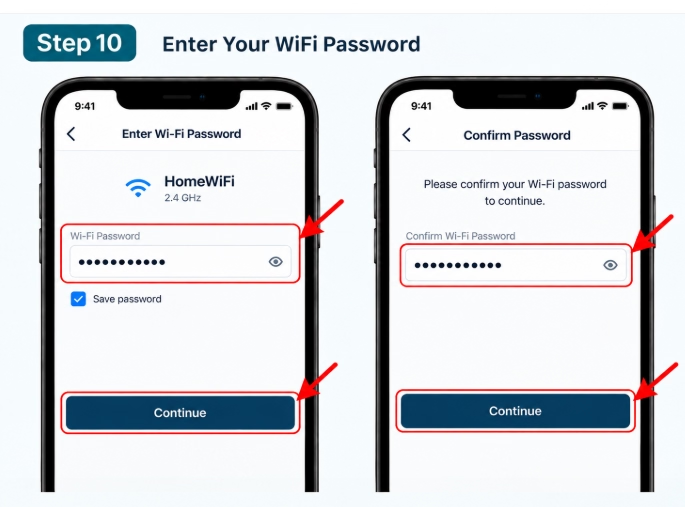
10. Enter Your WiFi Password
Once you select your Wi-Fi network, the app will prompt you for the password.
Enter your current Wi-Fi password and tap Continue. Double-check it carefully before moving on—especially if you’ve recently updated it—since even a simple typo will keep the camera from joining the network.
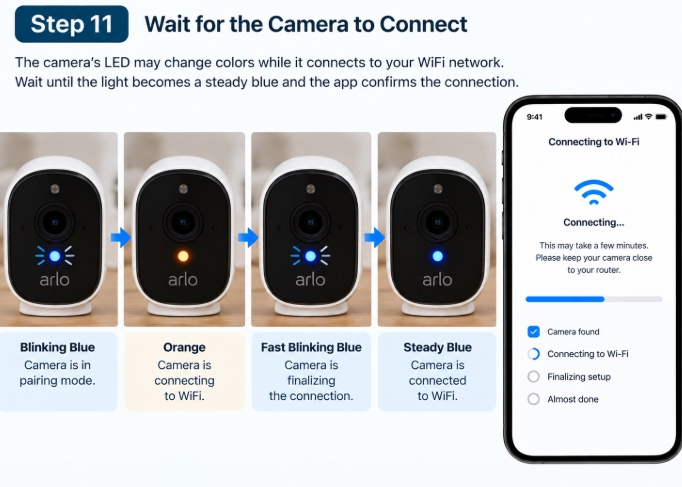
11. Wait for the Camera to Connect
Once you’ve entered the password, give the camera a moment to connect.
Depending on your model and where it is in the setup process, the LED light may cycle from blinking blue to amber, then fast blue, and finally solid blue. Make sure not to close the app or interrupt the setup while it’s connecting.
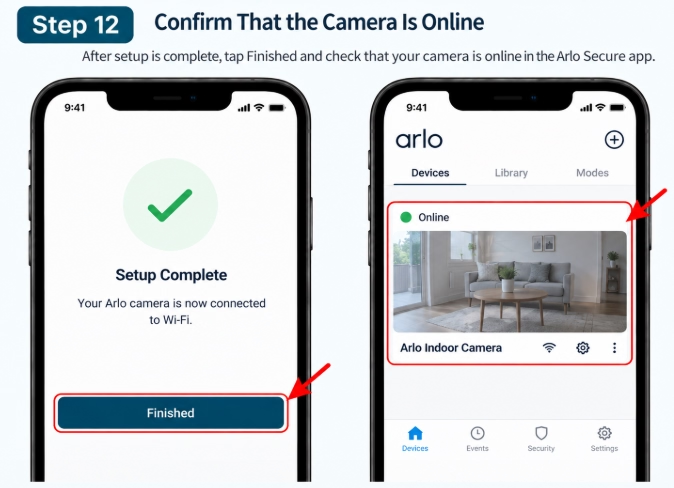
12. Confirm That the Camera Is Online
When setup is complete, tap Finished in the Arlo Secure app.
Go back to the main camera screen to check its status, then open Live View to make sure everything is streaming normally.
If the video feed loads without any issues, your Wi-Fi connection is fully restored.
13. Reset the Arlo Camera if It Still Won’t Connect
If your camera still won’t connect after checking the network, moving it closer to the router, and updating the Wi-Fi settings in the Arlo Secure app, you might need to perform a factory reset.
The exact reset steps vary depending on your Arlo camera model, so make sure to follow the instructions for your specific device. Once reset, re-add the camera in the Arlo Secure app and run through the Wi-Fi setup from scratch.
For XMeye Troubleshooting Guide
Arlo Camera Offline? How to Fix: Steps
If your Arlo camera shows up as offline in the Arlo Secure app, it has likely lost its Wi-Fi connection or is having trouble reaching Arlo’s servers. This often happens after rebooting your router, updating your Wi-Fi password, dealing with a weak signal, or running into a temporary connection glitch.
Before jumping straight to a factory reset, check your Wi-Fi connection and camera status first. The troubleshooting steps below will help you figure out why your camera went offline and get it back up and running.
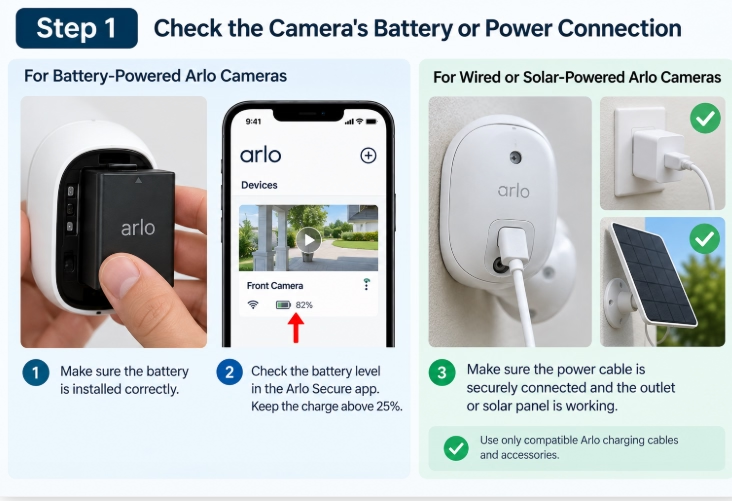
1. Check the Camera’s Battery or Power Connection
First, check that your Arlo camera is actually getting power. If it uses a removable battery, make sure it’s installed correctly and has enough charge. For battery-powered models, keeping the charge above 25% helps prevent random connection drops and streaming issues.
If your camera is plugged into a wall outlet or solar panel, make sure the cable is securely connected at both ends and that the power source is working. Whenever possible, stick with an official Arlo charging cable made for your model.
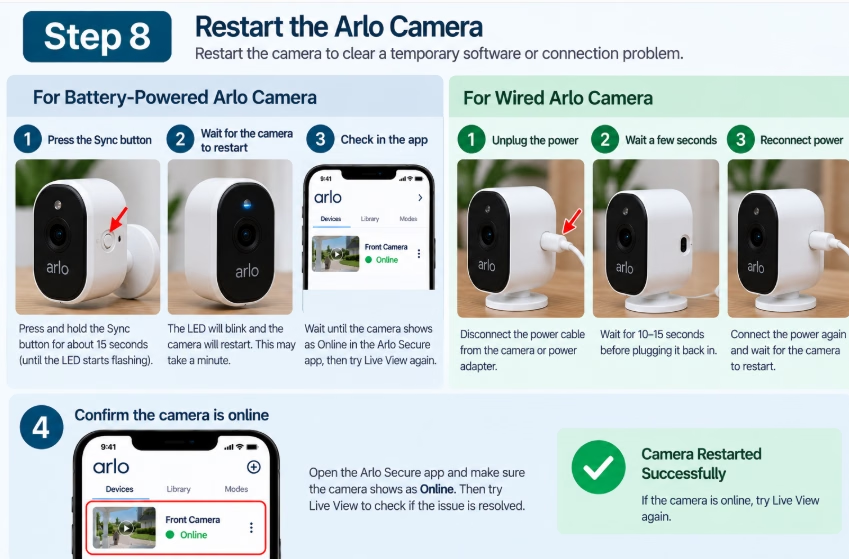
2. Restart the Arlo Camera
A temporary software glitch or connection issue can cause an otherwise working camera to show as offline. Try restarting the camera before changing any network settings.
If your camera has a removable battery, pop it out, wait about 10 seconds, and put it back in. For a wired model, unplug the power cable for 10 seconds, then plug it back in.
Give the camera a moment to reboot completely, then open the Arlo Secure app to check its status.
3. Check Whether Your Internet Is Working
Connect your phone or another device to the same Wi-Fi network your Arlo camera uses, then try loading a website or streaming a video.
If other devices can’t get online either, the issue is likely with your home network rather than the camera itself. Try rebooting your router by unplugging it for about 30 seconds, plugging it back in, and waiting for the internet connection to restore.
If your other devices are connecting normally, you can rule out a network outage and continue troubleshooting the camera.
4. Check the Arlo App for an Offline Camera
Open the Arlo Secure app and head to the Devices section to see if the affected camera is still showing as offline.
If you have multiple Arlo cameras, check whether it’s just the one camera or if several have lost their connection. If only a single camera is affected, focus your troubleshooting on its power, Wi-Fi signal, and individual settings rather than making changes to your entire home network.
5. Improve the Camera’s WiFi Signal
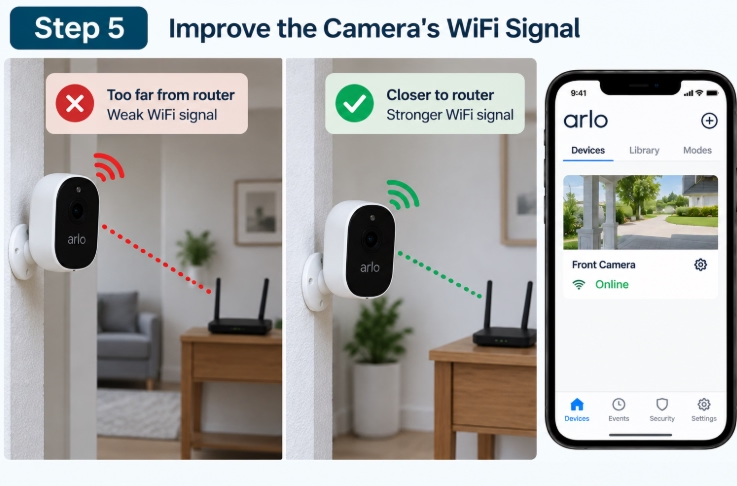
A camera can drop offline if it’s placed too far from your Wi-Fi router, SmartHub, or Base Station.
Try temporarily moving the camera closer to whichever device provides its main connection and check the Arlo Secure app again. If it comes back online, the camera’s original spot likely suffers from a weak signal or heavy interference.
Once you confirm it’s a signal issue, focus on finding a better location for the camera or extending your Wi-Fi coverage instead of constantly rebooting the device.
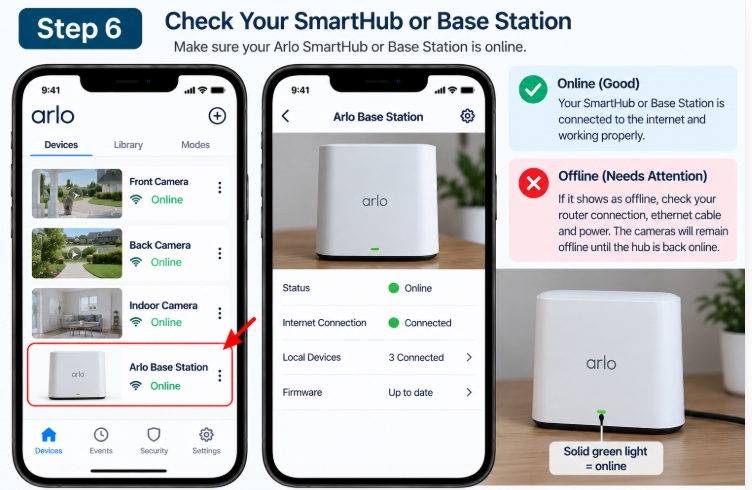
6. Check Your SmartHub or Base Station
If your Arlo camera connects through an Arlo SmartHub or Base Station, make sure the hub itself is online.
In the Arlo Secure app, go to Devices and select your SmartHub or Base Station, then look for any offline warnings or notifications.
If the hub is offline, you’ll need to resolve its connection issue first—your camera won’t be able to come back online until the SmartHub or Base Station is reconnected.
7. Reconnect the Camera After a WiFi Change
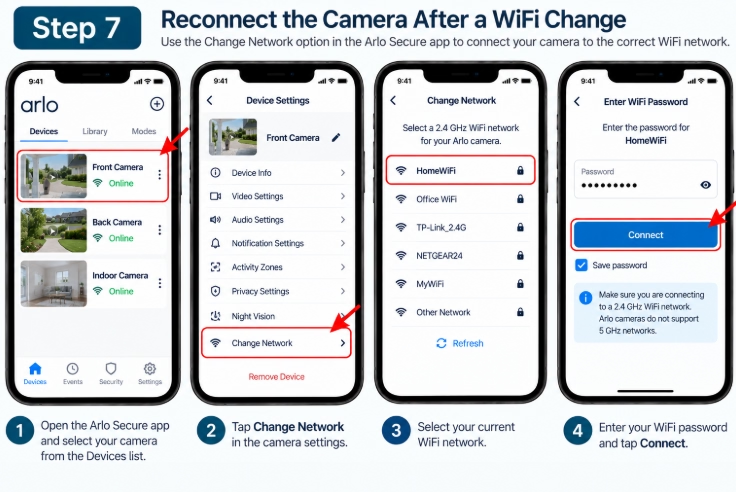
Think back to whether anything has changed with your network recently. If you replaced your router, updated your Wi-Fi name or password, or moved the camera, it might still be trying to connect using its old network settings.
If that’s the case, use Change Network in the Arlo Secure app to get it reconnected. You’ll just need to put the camera into pairing mode and enter your current Wi-Fi password during the setup process.
8. Remove Sources of WiFi Interference
Even if your Wi-Fi signal looks strong, interference from nearby electronics or wireless devices can still cause your Arlo camera to drop its connection.
Make sure to keep the camera at least 10 feet away from your Wi-Fi router, SmartHub, or Base Station, and at least 6.5 feet away from other Arlo devices.
If it’s installed near other electronics, try turning those devices off one by one to see if the camera stays online. If your local network is crowded, switching your router to a different wireless channel can also help clear up connection issues.
9. Check for Extreme Temperature
If you’re using an outdoor Arlo camera, take a look at its operating environment. Extreme heat or freezing cold can cause certain models to shut down temporarily to protect themselves.
If the Arlo Secure app displays a temperature warning, give the camera time to return to a safe operating temperature. Once it’s back within its supported range, check the app to see if the camera comes back online.
10. Check Whether Arlo Services Are Working
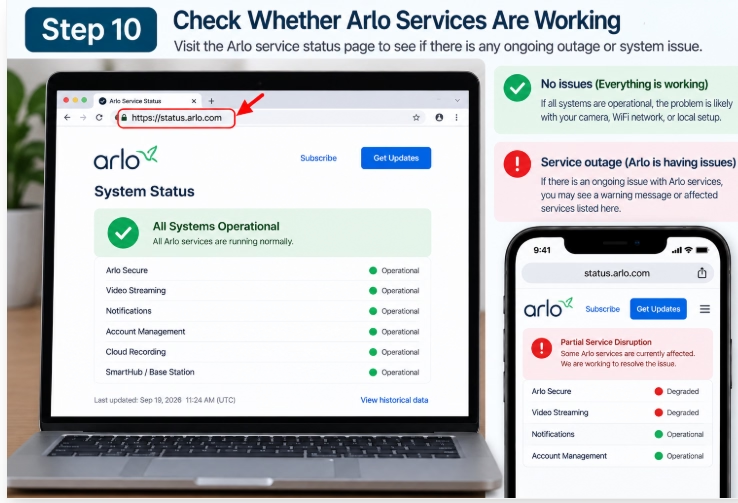
If your camera, router, and Wi-Fi connection all seem to be working normally, the issue might be an Arlo service outage.
Check the official Arlo status page to see if there’s an active service disruption or system issue. If Arlo’s servers are down, tweaking your camera settings or performing a factory reset won’t resolve the problem—you’ll just need to wait for their services to come back online.
11. Try the Arlo WiFi Troubleshooting Tool
If you’re using the updated Arlo Secure app, take advantage of the Arlo Wi-Fi Troubleshooting Tool if it’s available for your setup.
This tool helps identify network and installation issues, making it much easier to pinpoint the exact connection problem affecting your camera.
12. Factory Reset the Camera as a Last Resort
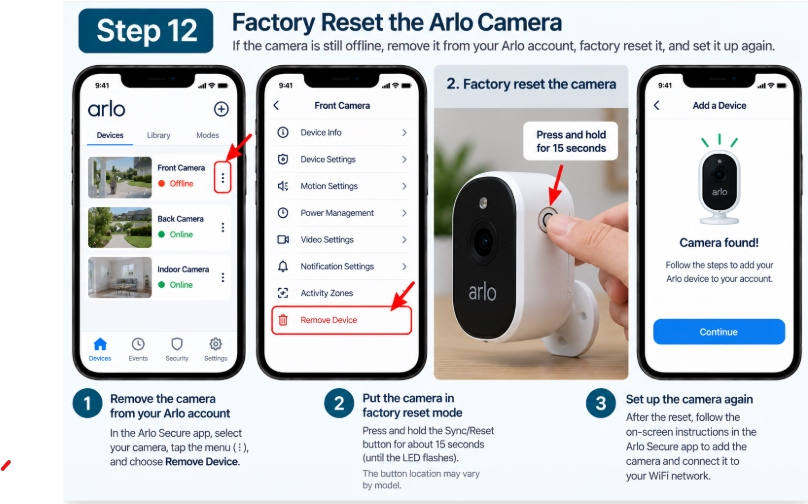
If your camera stays offline after checking its power, restarting it, fixing your network connection, boosting the Wi-Fi signal, and verifying that Arlo’s services are up, a factory reset may be necessary.
Remove the camera from the Arlo Secure app if prompted, then follow the factory reset steps for your specific Arlo model. Once reset, add the camera back to your Arlo account and run through the Wi-Fi setup from scratch.
Arlo Live View Not Working
If your Arlo Live View isn’t working, your camera might look online in the app, but the video just won’t load. This usually happens because of a weak Wi-Fi signal, slow upload speed, a glitchy app, camera settings, or just a temporary hiccup with Arlo’s servers.
Before you go resetting the whole thing, try the quick fixes below to figure out what’s blocking the feed and get your camera streaming smoothly again.
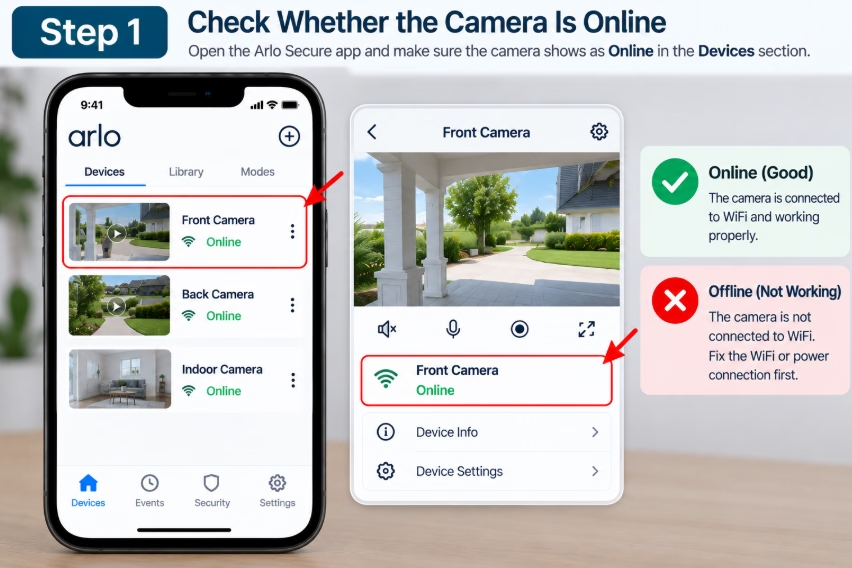
1. Check Whether the Camera Is Online
Open the Arlo Secure app and check your camera under the Devices tab. Make sure it clearly says Online before trying to open the live feed.
If the camera shows as offline, check its Wi-Fi connection or make sure it’s plugged in and getting power. Live View won’t work until the camera is properly reconnected to your network.
How to verify: Look at the status text underneath your camera’s name in the app—it should say “Online” instead of “Offline” or “Device is offline,” and the thumbnail should show a recent timestamp.
2. Try Live View Again
Tap the affected camera and try opening Live View again, then wait a few seconds to see if the video starts loading.
If the video remains stuck on a loading screen, close out of Live View and try opening it one more time. Temporary connection glitches can often disrupt the first streaming attempt.
How to verify: Check that the loading spinner disappears and is successfully replaced by the live video feed.
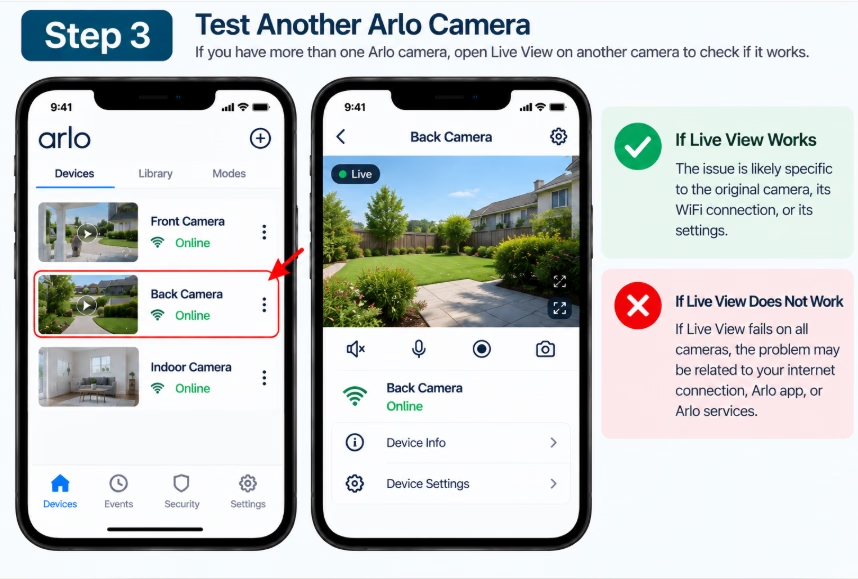
3. Test Another Arlo Camera
If you have more than one Arlo camera, try opening Live View on a different one to test it out.
If the other camera streams normally, the issue is likely isolated to the first camera, its specific Wi-Fi connection, or its settings. However, if all your cameras fail to load Live View, the problem usually points to your home internet connection, the Arlo app, or Arlo’s servers being down.
How to verify: Check if other devices in your home are connecting to the internet properly, or see if you can access the app’s feed from a second device or web browser.
4. Check Your Internet Connection
Connect your phone to the same Wi-Fi network and open a web page or play a short video to confirm your internet connection is actually working.
Live video streaming requires a stable connection. If your network is technically connected but running slowly or dropping packets, your Arlo camera’s Live View will frequently buffer, freeze, or fail to start altogether.
If you notice multiple devices in your home struggling with internet access, restart your router and try opening Live View again once the connection comes back up.
How to verify: Make sure web pages load instantly on your phone while connected to Wi-Fi, and check that your router’s status lights show a normal connection.
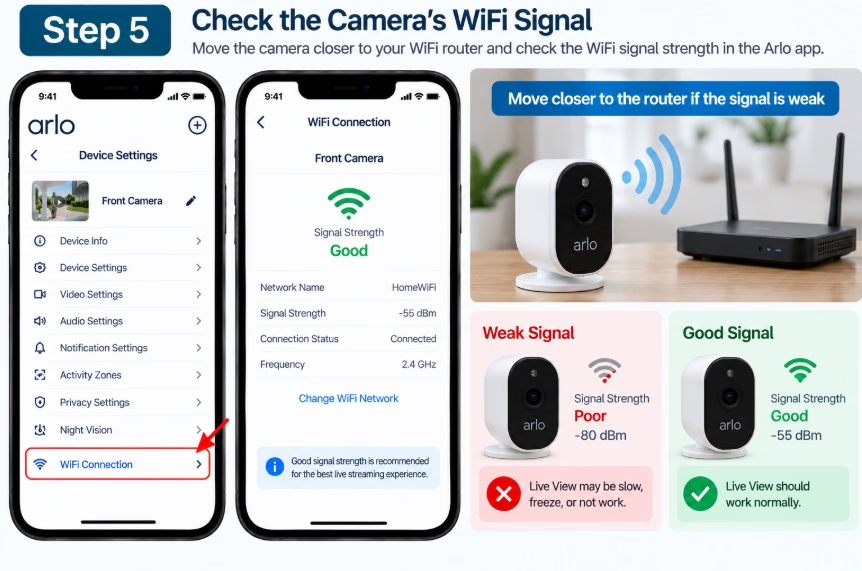
5. Check the Camera’s WiFi Signal
A weak Wi-Fi signal can make your camera look like it’s online in the app while still struggling to stream video.
Temporarily bring the camera closer to your Wi-Fi router, SmartHub, or Base Station, then open Live View again to test it out. If the video streams smoothly after moving it, your original location likely has poor Wi-Fi coverage, physical obstructions, or wireless interference.
How to verify: Check if the Live View loads instantly and plays without stuttering or freezing once the camera is placed near the router. For more detail, you should read the Arlo guide.
6. Check Your Phone’s Connection
If Live View works fine on another device but refuses to load on your phone, the issue is usually related to how your phone is connected to the network.
Try toggling your phone’s connection by switching between Wi-Fi and mobile data, then open Live View again. Additionally, ensure your phone isn’t running an active VPN or custom network configuration that might be blocking the video stream.
How to verify: Check if turning off Wi-Fi and using mobile data allows the live video feed to load successfully.
7. Restart the Arlo Secure App
Sometimes a temporary glitch in the app itself can keep Live View from loading, even when your camera is completely online.
Try completely force-closing the Arlo Secure app, wait a few seconds, and then reopen it. Log back in if it asks you to, and test Live View again. Also, head over to your app store to check if an update is waiting—installing the latest version can often clear out lingering bugs.
How to verify: Make sure the app opens fresh without hanging on the startup screen and that your camera list loads normally.
8. Reset and Set Up the Camera Again
If Live View still refuses to work after checking your camera, network, app, and Arlo’s server status, a factory reset is likely your final option.
Because a reset wipes out all existing configurations, you will need to set the camera up from scratch and reconnect it to your Wi-Fi network. Always treat this as a last resort.
How to verify: Check that the camera’s status LED flashes in the setup pattern (usually blinking blue or amber), indicating it has successfully returned to factory settings and is ready to be re-added.
Final Thoughts
Most Arlo camera problems are related to Wi-Fi connectivity, network settings, or the connection between the camera and the Arlo app. Before resetting your camera or changing multiple settings, start with the basic checks and work through the troubleshooting steps one at a time.
If your Arlo camera is still not working after trying these fixes, check its network status and make sure the camera has a stable connection to your home Wi-Fi. Testing the camera after each change can also help you identify what is actually causing the problem.
With a stable Wi-Fi connection and the correct settings, many common Arlo camera issues can be resolved without replacing the device.