
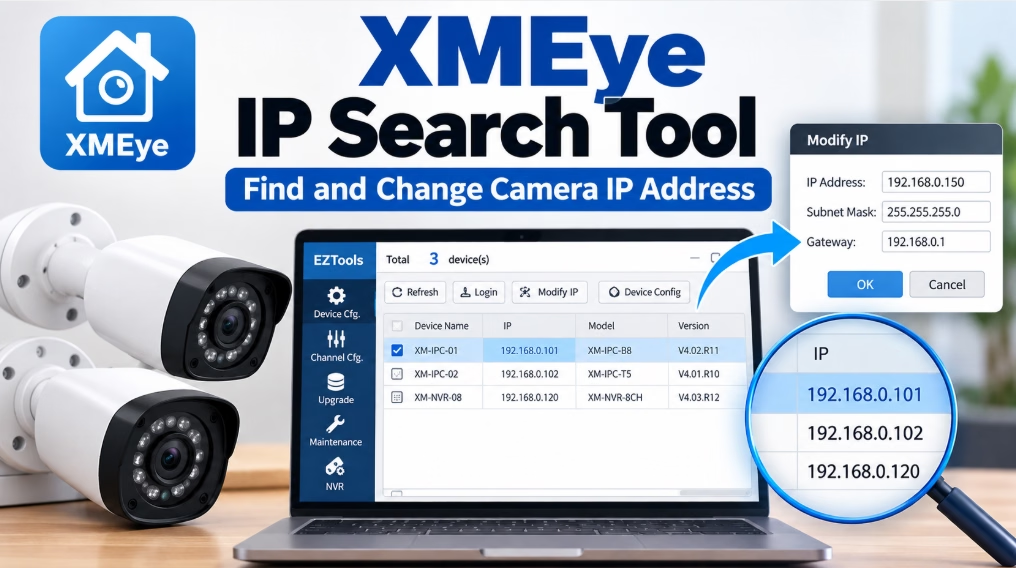
If your XMEye-compatible IP camera isn’t showing up on your computer or recorder, its IP address may be outside your local network’s range, or the device may not be communicating with the network at all. The first step is to find the camera and check its current network settings before changing anything.
The XMEye DeviceManage tool can help you discover compatible devices on a local network and, on supported models, modify their IP configuration. The exact options depend on the camera, recorder, and firmware.
This guide explains how to prepare your Windows PC, search for an XMEye-compatible camera, change its IP address, and troubleshoot detection problems without resetting the device unnecessarily.
What Is the XMEye IP Search Tool?
The XMEye DeviceManage utility is a device-management tool associated with compatible surveillance equipment. It can search for devices on a local network and provide access to network configuration options on supported models.
The tool is different from the regular XMEye mobile app and the XMEye VMS client. Those applications are primarily used for viewing and managing surveillance systems, while DeviceManage is intended for lower-level device discovery and configuration.
You can find DeviceManage from the link below or visit the manufacturer’s DeviceManager download page. Confirm that the utility is appropriate for your hardware before installing it. The manufacturer cautions that the tool is not intended for inexperienced users.
What You Need Before Searching for the Camera
Before opening DeviceManage, check the following:
- A Windows PC: Use a compatible Windows computer connected to your local network.
- A powered camera or recorder: Make sure the device has finished starting up.
- A network connection: Connect the camera or recorder to the appropriate router, network switch, or compatible PoE equipment.
- The correct utility: Use a DeviceManage version intended for your hardware.
- Network information: Know your PC’s IPv4 address, subnet mask, and default gateway.
- Permission to configure the device: Keep the administrator credentials available if the utility requests them.
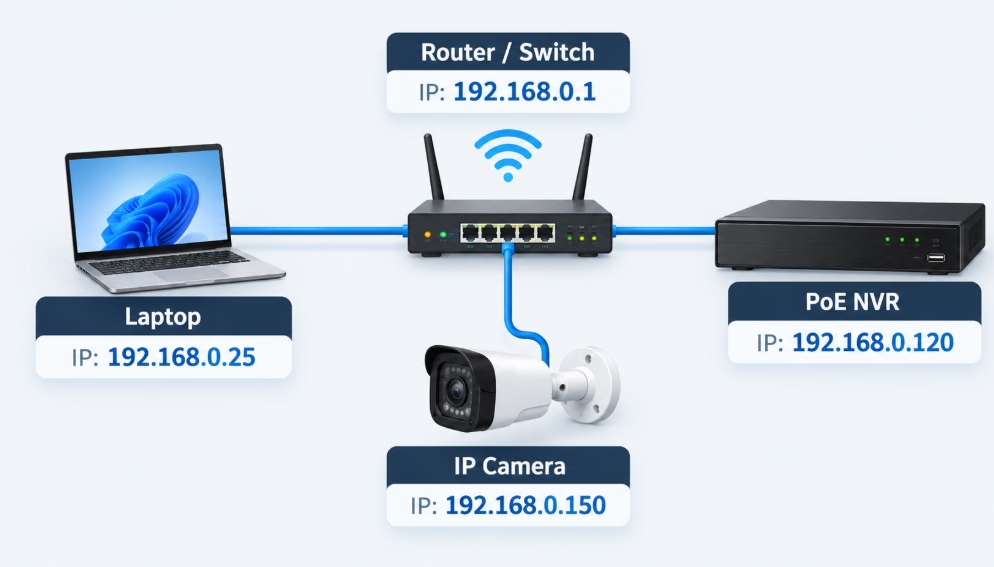
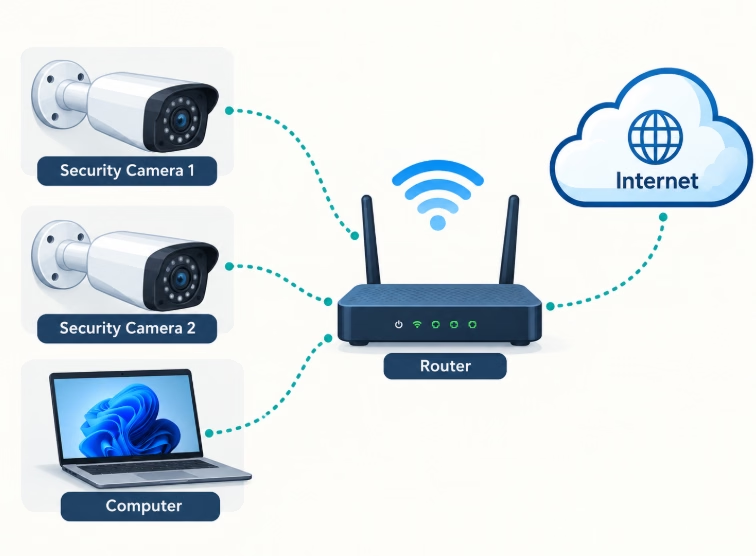
For an initial search, connect the PC and camera to the same local network. If the camera connects to a PoE NVR’s isolated camera ports, it may be on a different network from your PC. In that case, searching from the PC’s ordinary LAN connection may not find it.
How to Find an XMEye Camera’s IP Address
The following procedure uses the general DeviceManage workflow. Button labels and screen layouts can differ between versions, so follow the controls displayed in your installed utility.
Step 1: Connect the Camera to the Network
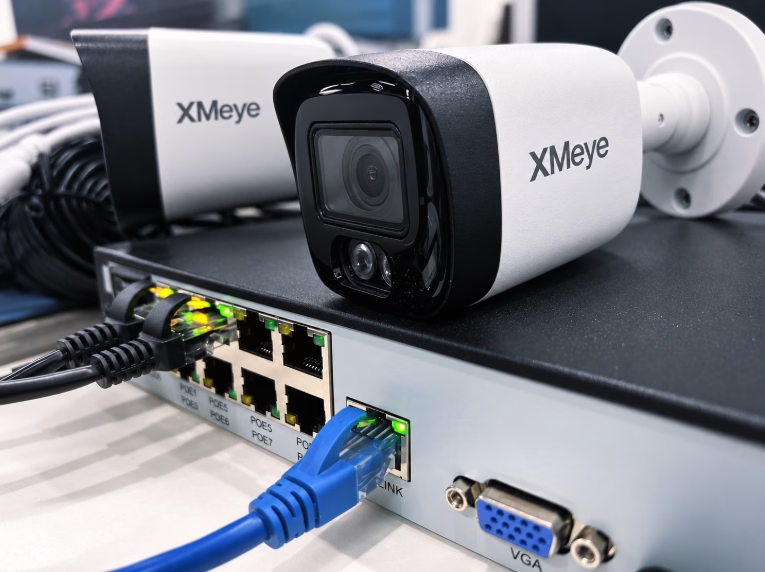
Connect the camera to a network switch or router using Ethernet. If the camera supports Power over Ethernet (PoE), use a compatible PoE switch or injector. Otherwise, connect its required power supply separately.
Allow the camera to finish starting up.
For a camera connected through an NVR, check whether it uses the recorder’s built-in PoE network or the same LAN as your computer. This distinction matters because the two networks may use different IP ranges.
Step 2: Check Your Computer’s Network Settings
You need to know which network your computer is using before assigning an IP address to the camera.
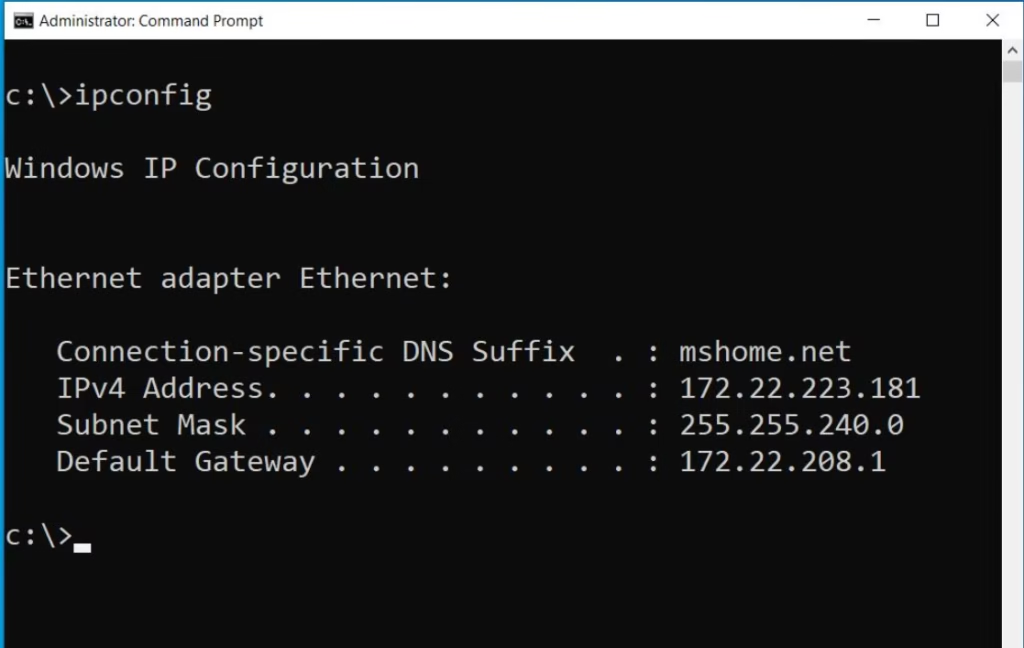
- Press
Windows + R. - Type
cmdand press Enter. - Run this command:
ipconfig - Find the active Ethernet adapter, or the Wi-Fi adapter if that is how your PC connects.
- Note the IPv4 address, subnet mask, and default gateway.
For example, a computer might have the following configuration:
| Setting | Example value |
|---|---|
| PC IPv4 address | 192.168.1.25 |
| Subnet mask | 255.255.255.0 |
| Default gateway | 192.168.1.1 |
These values are examples, not universal XMEye defaults. Your router may use a different address range.
The subnet mask determines which addresses belong to the local subnet. For a typical 255.255.255.0 subnet, the first three numbers usually identify the local network, but you should always use the actual mask reported by your computer.
Step 3: Open DeviceManage
Install or extract the compatible DeviceManage package according to its supplied instructions, then launch the utility.
If Windows displays a security warning, verify the software’s source and publisher before proceeding. Avoid disabling Windows Firewall or antivirus protection simply to make the utility work.
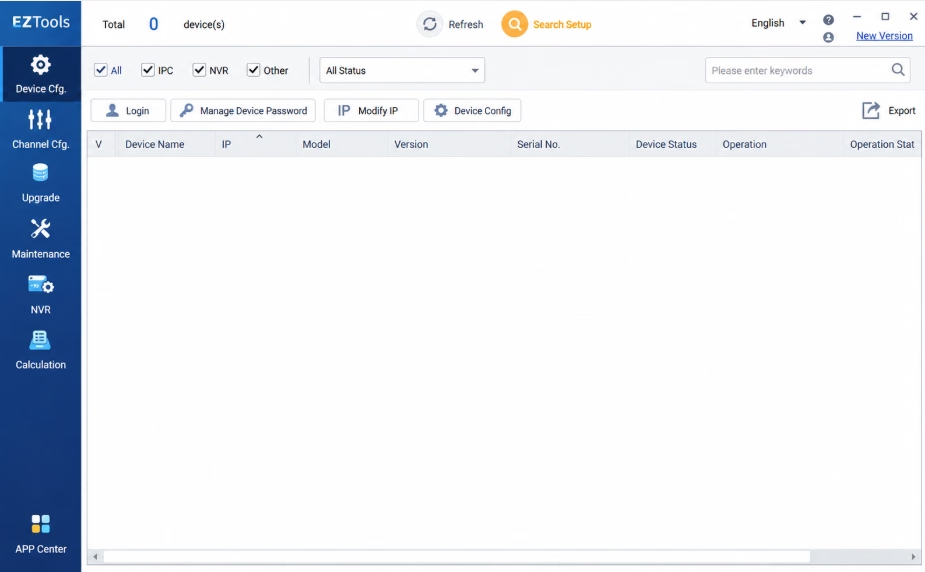
Depending on the version, the main screen may show a device list, network configuration fields, and a search control.
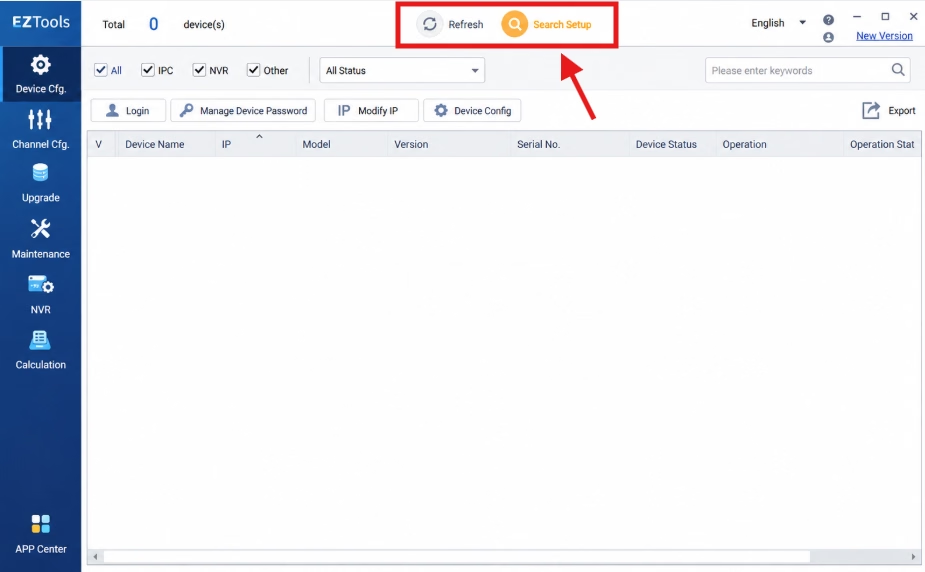
Step 4: Search for Connected Devices
Look for a button labelled IP Search, Search Device, or a similar option.
- Select the search control.
- Wait for the scan to complete.
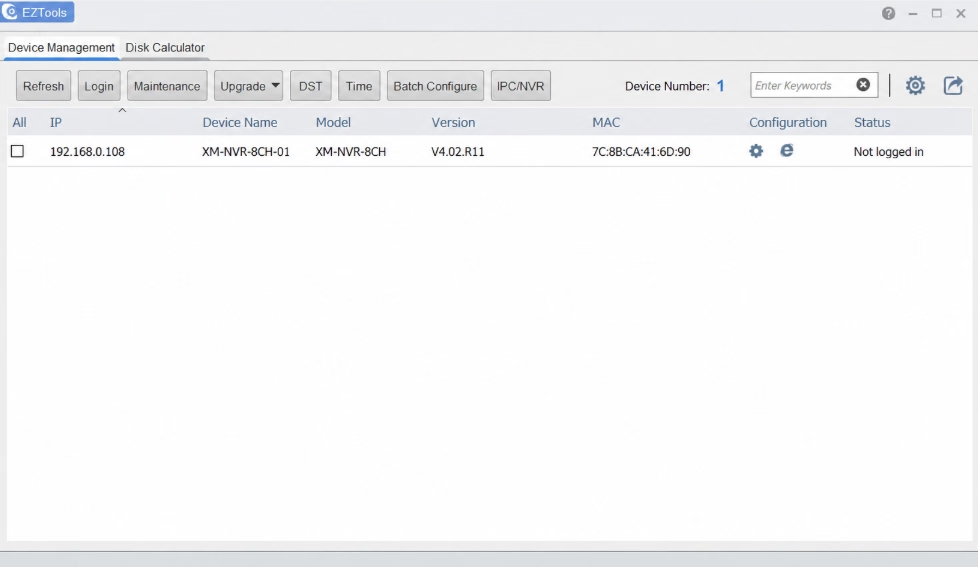
- Review any devices listed in the results.
- Identify your camera by comparing the available IP address, MAC address, device information, or other identifying details.
Do not assume that every listed device is the camera you want to configure. If several cameras or recorders are connected, verify the device identity before modifying its settings.
If your camera appears, record its current IP address and proceed to the configuration section below.
Step 5: Identify the Correct Device
Select the relevant camera in the results list. Some DeviceManage versions populate the network configuration fields when you select a device.
Review the displayed information before making changes. Depending on the utility and device, the available fields may include:
- IP address
- Subnet mask
- Gateway
- DHCP or automatic IP configuration
- Additional network parameters
Not every model exposes the same fields. If the camera does not appear in the list, do not enter an arbitrary IP address and assume that the device has been found.
How to Change an XMEye Camera’s IP Address
You can assign a suitable local IP address when the device supports manual network configuration. First decide whether you need a temporary address assignment through DHCP or a fixed address for a stable installation.
Step 6: Choose an Available IP Address
Use your router’s network configuration to determine a suitable address. For example, if your local network is 192.168.1.x, a compatible camera address might be 192.168.1.60, provided that it belongs to the correct subnet and is not already in use.
Before choosing an address:
- Keep it in the appropriate local subnet.
- Avoid the router’s own address.
- Check the DHCP pool and existing device assignments.
- Avoid duplicating an address already used by another camera, computer, printer, or network device.
An IP conflict can make a camera intermittently unreachable or prevent it from communicating properly.
For a permanent installation, a DHCP reservation on the router is often a practical option. It lets the router assign the camera a consistent address without manually configuring every network parameter on the camera.
Step 7: Enter the Network Settings
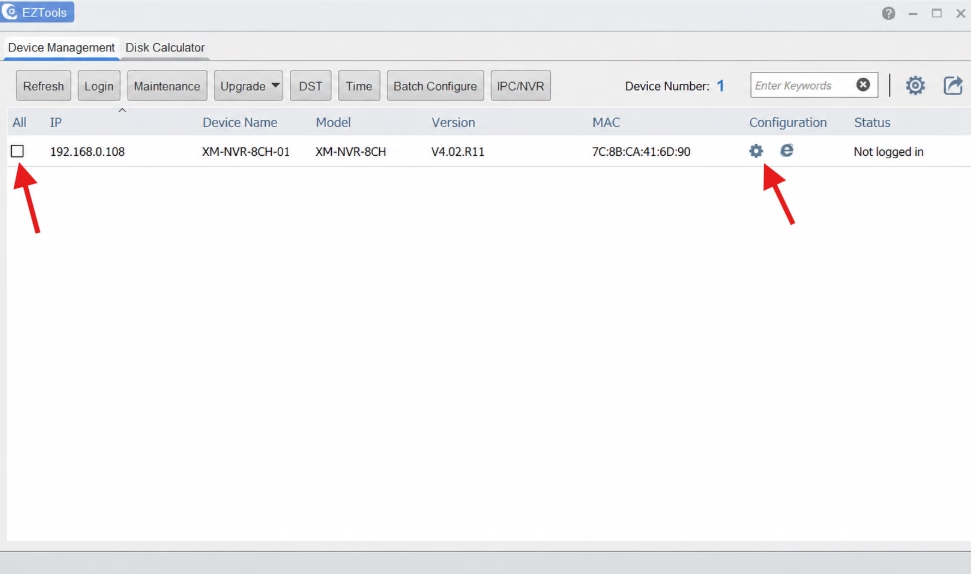
Select the camera and enter the intended settings in DeviceManage, if the utility exposes them.
For a typical IPv4 network, you may need to configure:
- IP address: The address assigned to the camera.
- Subnet mask: The mask used by the local network.
- Gateway: The router address used to reach other networks.
- DHCP: The automatic addressing option, if supported.
For example, a device on a 192.168.1.0/24 network could use 192.168.1.60 with a subnet mask of 255.255.255.0 and gateway 192.168.1.1. These values are suitable only if they match your actual network and the address is available.
Do not copy this example into your camera without checking your router configuration. An incorrect gateway or subnet mask can prevent remote communication even when the camera has a valid local IP address.
Step 8: Apply the Changes
Review the values carefully, then use the utility’s Modify, Apply, or equivalent control.
Wait for the utility to report a result. The camera may briefly disappear from the list when its IP address changes because the software is still looking for it at the previous address.
Run the search again and check whether the device appears under the new address.
If the change fails, record the error message and recheck the selected device, network range, and available credentials. Do not repeatedly submit different settings without understanding the failure.
Step 9: Verify the New IP Address
After the configuration change:
- Search for the camera again.
- Confirm that its displayed address matches the new setting.
- Check that the PC and camera can communicate on the local network.
- If supported, open the camera’s web interface or add it to the appropriate monitoring client.
- Confirm that live video works and that the device remains reachable.
A successful IP change does not automatically prove that video streaming, recording, or remote access is working. Those functions may depend on separate credentials, ports, device settings, or cloud connectivity.
Should You Use DHCP or a Static IP Address?
Both approaches can work, but the best choice depends on how the camera is installed and managed.
| Method | How it works | When to use it |
|---|---|---|
| DHCP | The router assigns the IP address automatically. | Initial setup or networks managed centrally by the router. |
| DHCP reservation | The router reserves an address for the camera, commonly using its MAC address. | Installations that need a consistent address with centralized management. |
| Static IP | The address is configured manually on the camera. | Installations where manual addressing is required and the network is properly planned. |
A manually assigned static address should be outside the router’s dynamically allocated pool, or otherwise excluded from dynamic allocation, unless the network administrator has designed the addressing plan to prevent conflicts.
If you enable DHCP, the address may change when the lease is renewed or the device reconnects. If you choose a static address, make sure the subnet mask and gateway are correct.
For many home and small-business networks, a DHCP reservation is a convenient way to maintain a predictable address.
XMEye IP Search Tool Not Finding the Camera? Try These Fixes
If DeviceManage returns an empty list, work through the checks below before considering a reset.
1. Check the Power and Ethernet Connection
Verify that the camera has power and that the Ethernet cable is connected to the intended port. If possible, check the link indicators on the camera, switch, or router.
For a PoE camera, confirm that the switch or injector supports the camera’s power requirements.
A network search cannot discover a device that is powered off or has no working network connection.
2. Confirm That Both Devices Are on the Correct Network
A PC connected to the main router may not discover a camera attached to an isolated PoE network behind an NVR.
Check the physical connections and the network layout. If the recorder has a separate camera subnet, use the recorder’s own camera-management or search function where appropriate.
Do not assume that connecting the camera and PC to the same building network means they are on the same IP subnet.
3. Check the IP Address Range
Compare your computer’s IPv4 address and subnet mask with the camera’s known settings, if available.
If the camera has a static address on a different subnet, it may not communicate normally with your PC. A discovery utility may still find some devices in certain configurations, but this behavior is not guaranteed.
Correct the addressing through a supported method rather than changing your computer’s network settings at random.
4. Check the Utility Version and Compatibility
DeviceManage is not guaranteed to support every product that uses the XMEye app or platform.
Check the camera or recorder’s documentation and obtain a compatible utility from the manufacturer or equipment supplier. The fact that a camera works with XMEye on a phone does not prove that every DeviceManage version can configure it.
5. Check Windows Network and Security Settings
Make sure the intended Ethernet or Wi-Fi adapter is enabled and connected to the correct network.
Windows security software or network policies may affect discovery traffic. Do not turn off your firewall permanently. If you suspect filtering, use an approved, temporary diagnostic test and restore the original protection settings afterward.
6. Check for an IP Address Conflict
If the camera’s address is already assigned to another device, communication may fail or behave inconsistently.
Review the router’s connected-device list and DHCP leases. Choose an address that fits the network plan and is not assigned to another device, or configure a reservation.
7. Use the Recorder’s Network Menu
If the camera is connected directly to an NVR’s PoE ports, the recorder may manage its IP configuration independently of the main LAN.
Open the recorder’s camera or network configuration menu and look for its device search or IP-channel settings. Use the procedure documented for that specific recorder.
8. Avoid Factory Reset as the First Fix
A factory reset can erase network settings, credentials, and other configuration. It may also require physical access or a model-specific procedure.
Before resetting, record the current configuration and try the connection, addressing, compatibility, and discovery checks above. Reset only when the manufacturer or equipment supplier recommends it, and you understand how to restore the system.
You may also read our full guide on XMEye problems and fixes
Is the Camera IP Address Different From the XMEye Remote-Access Address?
Yes. This distinction is important.
A camera’s local IP address is used for communication within its local network. XMEye’s cloud or P2P connection may allow a compatible recorder to be accessed remotely using its device identity and configured credentials.
Changing a local IP address does not, by itself, fix every remote-access problem. If local discovery and live viewing work but the phone app still reports the recorder as offline, check the recorder’s network status, internet connectivity, P2P status, and account or device configuration separately.
Avoid exposing camera services directly to the public internet merely to make remote viewing work. Prefer supported secure remote-access methods and keep device firmware and credentials appropriately managed.
Frequently Asked Questions
Is XMEye DeviceManage the same as XMEye VMS?
No. DeviceManage is a device discovery and configuration utility for compatible hardware. XMEye VMS is a monitoring client. Their functions overlap in some device-management workflows, but they are not interchangeable in every situation.
Can I find an XMEye camera without knowing its IP address?
Yes, if the camera and discovery utility support local-network discovery and the device is reachable on the relevant network. The utility may display its IP address and other identifying information. Discovery is not guaranteed across isolated subnets or incompatible network configurations.
What is the default IP address of an XMEye camera?
There is no single default address that can safely be assumed for every XMEye-compatible camera. Some equipment manuals document addresses such as ‘192.168.1.10‘ but actual settings depend on the hardware, firmware, and whether DHCP is enabled. Check the device-specific documentation before attempting to access or modify it.
Can I change the camera IP address using the XMEye mobile app?
The available network configuration controls depend on the camera or recorder. For the discovery and IP-modification workflow covered in this article, use a compatible configuration utility or the device’s own network settings. Do not assume that the mobile app exposes every DeviceManage function.
Why does my camera disappear after I change its IP address?
The utility may still be searching for the old address, or the new address may not match the network used by your computer. Search again and verify the IP address, subnet mask, gateway, and network connection.
Do I need a static IP address for remote viewing?
Not necessarily. Remote viewing may use a supported cloud or P2P service, depending on the device. A stable local IP address is useful for network administration and some local integrations, but it is not a universal requirement for every remote-viewing setup.
Final Thoughts
The most reliable way to configure an XMEye-compatible camera is to identify the device, understand the local network, and change only the settings that need correction. DeviceManage can help with discovery and IP configuration on supported hardware, but the available functions vary by model.
If the camera is not detected, check its power, network connection, subnet, recorder topology, and tool compatibility before attempting a reset. Once the address is correct, verify local communication and live video separately from remote access.
Useful Articles: