
Here, we will see how to install XMeye APK on Android, and once you’ve downloaded the APK, the next step is figuring out how to install it. This post covers everything you need to know to install successfully. As long as you downloaded the APK from a reliable source and follow the right steps, the installation process should be smooth and trouble-free.
We will also cover how to connect your CCTV cameras to the XMeye app after installation. Plus, this guide will show you exactly which settings and options to enable on your DVR or NVR to get your cameras or recorders connected to the app.
Requirements Before Installing XMEye APK
Before starting the installation process, make sure you have:
- Android smartphone or tablet
- Stable internet connection
- Downloaded XMEye APK file. (From a trusted source)
- At least 200 MB of free storage
- Permission to install apps from unknown sources
How to Install XMeye APK
Here are some steps for XMeye APK Installation
Step 1: Download the XMEye APK File
First, download the latest version of the APK file from a trusted download page.
After downloading, the APK file will usually appear inside the Downloads folder of your mobile phone.
Step 2: Enable Unknown Sources Permission
Since APK files are installed manually, Android may block the installation by default.
Follow these steps:
Settings → Security → Install Unknown AppsNow:
- Select your browser or file manager
- Enable:
Allow from this sourceThis permission allows Android to install apps outside the Play Store.
Step 3: Open the Downloaded APK File
Open the Download folder of your mobile. Here, you can see the APK file. Then tap on this to install.
InstallAndroid will now begin installing the application.
Step 4: Wait for Installation to Complete
The installation process takes a few seconds, depending on your mobile speed. Once completed, you will see:
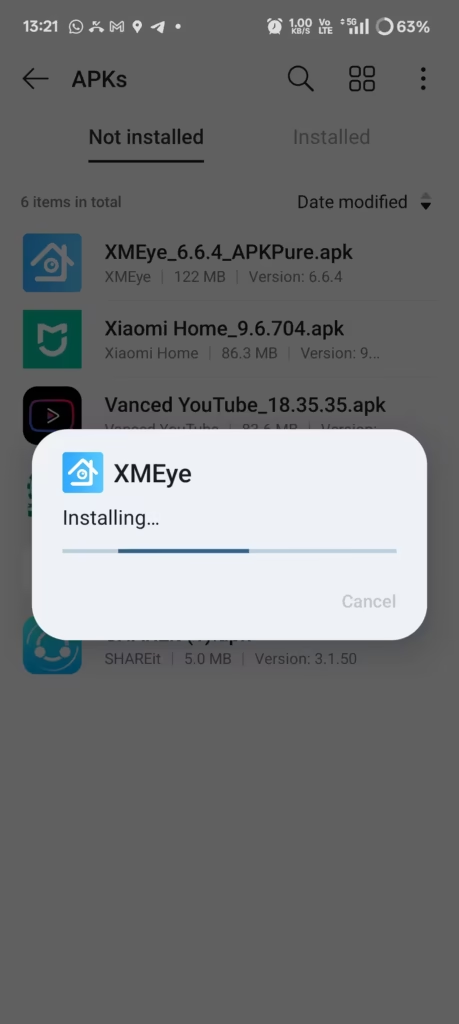
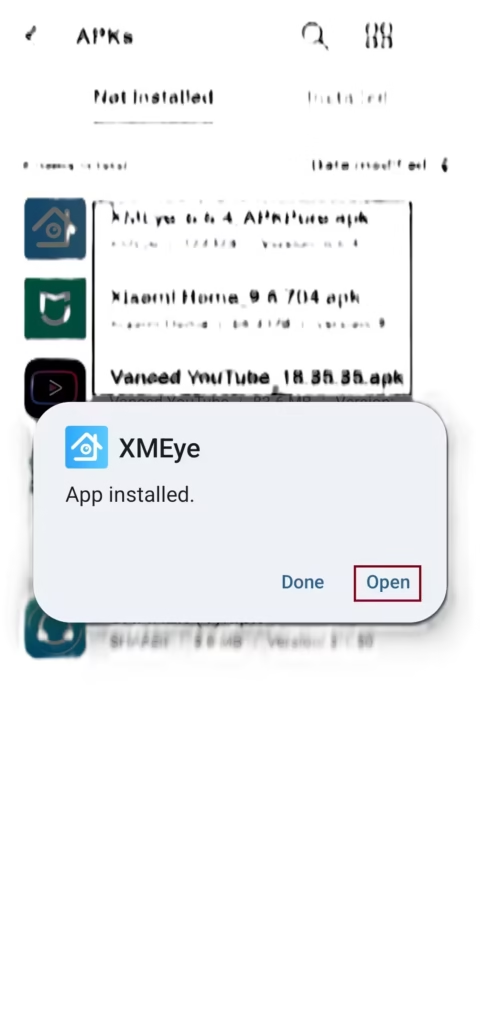
App InstalledTap:
- Open → to launch the app immediately
- Done → to close the installer.
Step 5: Open XMEye and Set Up Your CCTV Device
Follow some steps after Install XMeye app.
Register the User in the App
As soon as you click the Register button, a screen will pop up asking for your email address. Enter your email, and the app will send an OTP (One-Time Password) to your inbox. Just enter that OTP on the screen when prompted.

Create Username & Password
Once you confirm the OTP, the app will ask you to create a username and password. Make sure to choose a unique username and a strong, secure password.
Log in to the App
After creating your username and password, use those same credentials to log in.
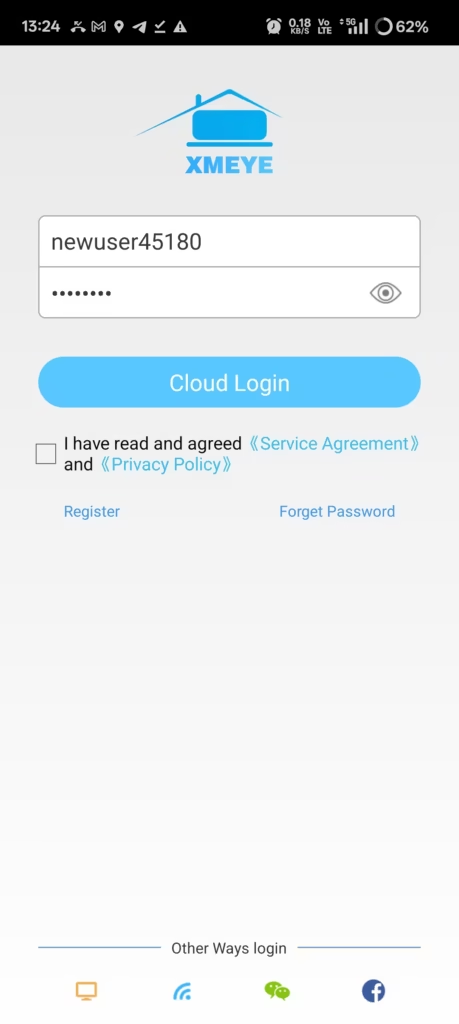
Once you log in, the XMeye app dashboard will open. You’ll see the option to add a device in the top-right corner.
Add Device in the App
Once you click this, enter a name for your DVR/NVR (you can choose any name you like) and its serial number. As soon as you enter the serial number, it will bring up the live feed from your cameras.
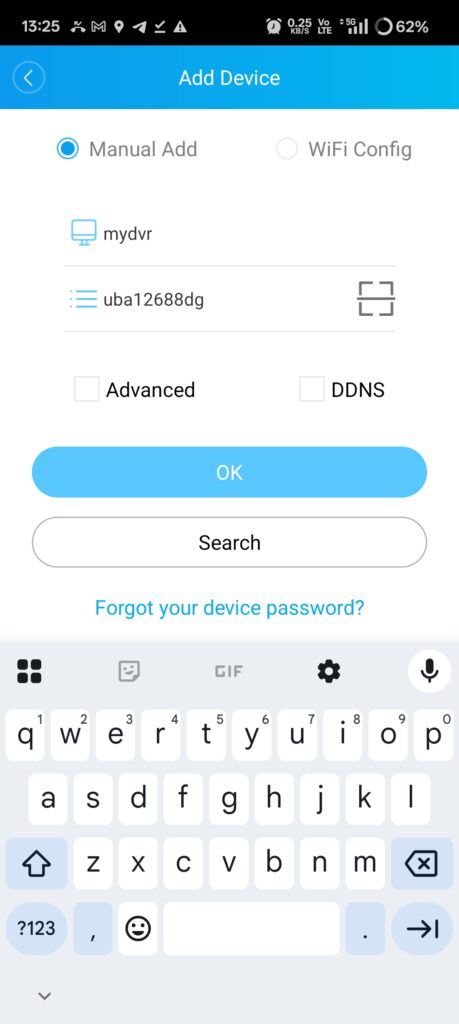
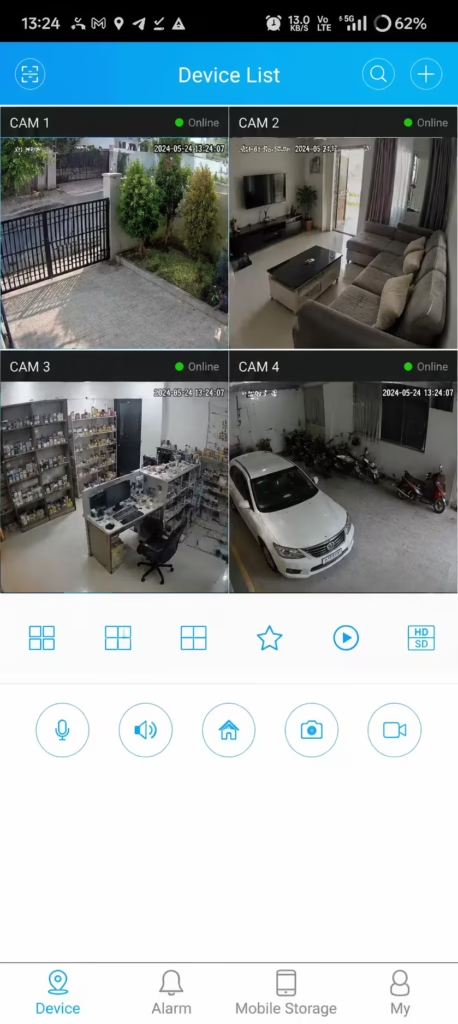
You can now remotely access your security cameras directly from your Android phone.
How to connect XMEye on a mobile phone
To connect XMEye to your phone, you’ll first need to tweak a few settings on your DVR/NVR. Log in to your DVR/NVR and set it to DHCP. You’ll find this setting under Configuration > Network > General. You can also manage XMeye DVR via XMeye for PC software.
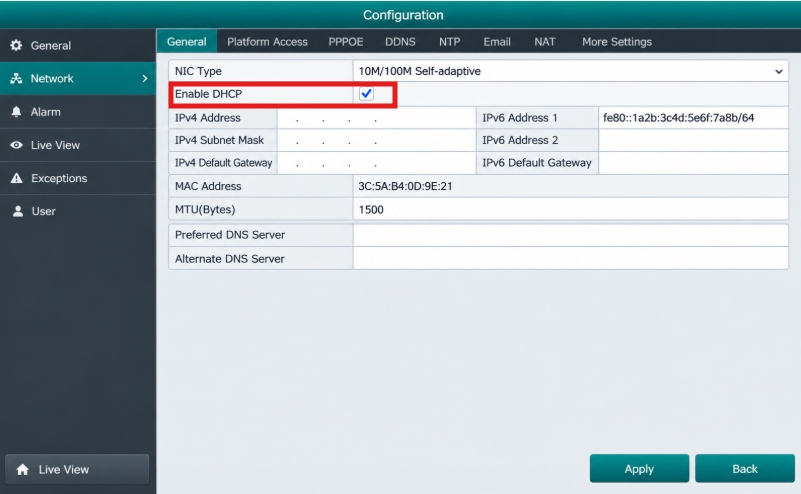
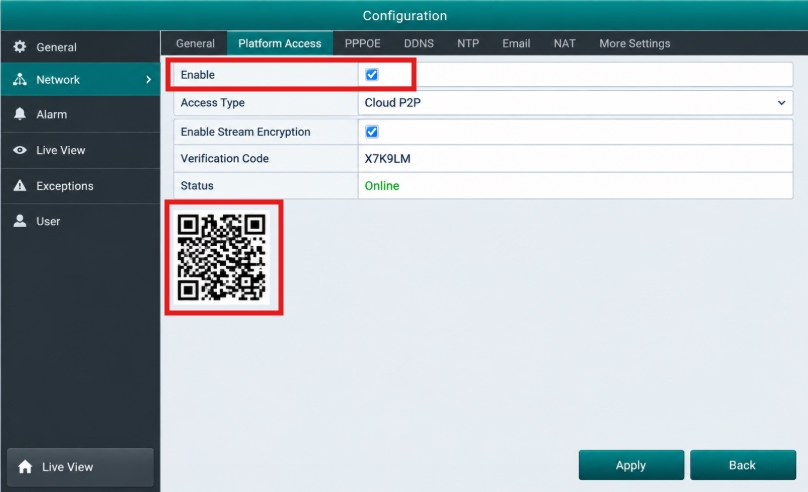
Save these settings. Next, you’ll need to adjust one more setting to get your XMeye DVR/NVR working on your phone. Go to ‘Platform Access’ right inside Network settings and turn on the ‘Enable NAT’ option. Then, open your XMEye app and scan the QR code shown on screen. That’s it—your DVR/NVR is now connected to your phone!
Common XMEye APK Installation Problems and Fixes
1. App Not Installed Error
If Android shows “App Not Installed”, try these fixes:
- Delete old XMEye version: If you already have an older version of XMEye installed on your phone, uninstall it first. After deleting it, restart your phone and try installing it again—it should work perfectly.
- Restart your phone: Sometimes, a simple restart is all it takes to fix the issue. Just restart your mobile device and try again.
- Clear storage space: If your phone’s storage is full, free up some space by deleting old data and then try again.
- APK not downloaded properly: Sometimes, the file might not have downloaded completely before you tried using it. If that happens, delete the old APK, download it again, and make sure the download is 100% complete before you start the installation.
Is XMEye APK Safe?
XMEye is widely used for CCTV monitoring, but users should always download APK files from trusted websites.
For better security:
- Avoid modified APK files
- Scan downloads before installation
- Keep the app updated